Start with a few folders
Fewer folders are easier to keep up. In Documents, make one folder for each part of your life, for example:
- Work
- Finance (receipts, invoices, taxes, statements)
- Home (the house, the car, health)
- Personal
Inside each, make a folder per year when it fills up, such as Finance ▸ 2026. Most people look for files by when they happened, so a year folder is the quickest way back.
To make a folder, open the folder it goes in and choose File ▸ New Folder, or press Shift-Command-N, then type its name and press Return. To put files you’ve selected straight into a new folder, Control-click one of them and choose New Folder with Selection.
Name files so they sort themselves
Start a file’s name with the date written year first, such as 2026-10 Electric bill.pdf. Finder then lists them in order by name, oldest first, whatever you saved them as. To rename a file, select it and press Return.
To rename many at once, select them, Control-click, and choose Rename…. Finder can replace text, add text, or give every file a name and a number.
Use tags for files that belong in two places
A file lives in one folder but can have many tags. Select a file, Control-click it and choose a tag color, or choose Tags… to type a name such as Taxes 2026. Every tag is in Finder’s sidebar; click one to see everything with it, wherever it’s kept.
Gather files without moving them
A Smart Folder is a saved search: choose File ▸ New Smart Folder in Finder, set rules such as Kind is PDF and Last opened date is within last 30 days, then click Save. It always shows every file that matches, and moving nothing means nothing gets lost. See Smart Folders in our guide to finding files.
Sort a messy folder in one click
Open the folder and choose View ▸ Use Groups, then View ▸ Group By and pick Kind, Date Added or Date Last Opened. The folder is grouped on screen without moving a file, which makes it quick to see what to file and what to delete.
Organize your Desktop
The Desktop is where files land when you’re busy, and where they stay. Three tools in Finder tidy it without a single folder.
Use Stacks. Click the Desktop, then choose View ▸ Use Stacks (Control-Command-0). Files gather into piles by kind: images, documents, screenshots, PDFs. Choose View ▸ Group Stacks By to pile them by Date Last Opened, Date Added, Date Modified, Date Created or Tags instead. Click a stack to open it and again to close it. New files join the right stack by themselves, and nothing moves on disk: turn Stacks off and every file is where it was.
Clean Up and Sort By. If you’d rather see icons, choose View ▸ Clean Up By and pick Name, Kind or a date to line them up in a grid once. To keep them in order as files arrive, choose View ▸ Show View Options (Command-J) and set Sort By. The same window sets icon size, grid spacing and whether to show each item’s size and kind under its name.
Move what you’re done with. Select files with Command-click, or drag a box around them, then Control-click and choose New Folder with Selection to put them in a folder in one step. Move finished work into Documents.
Stop screenshots piling up. Screenshots land on the Desktop by default. Press Shift-Command-5, click Options, and under Save to choose another folder, such as a Screenshots folder in Pictures. See where screenshots go.
Keep Downloads from filling up
Open Downloads (Option-Command-L), choose View ▸ as List, and sort by Date Added. File what you’re keeping, and delete disk images and installers once the app is in Applications. See how to delete downloads. Five minutes a week on Downloads and the Desktop keeps both tidy.
Use Finder’s sidebar for the folders you use
Drag any folder into Finder’s sidebar under Favorites to reach it in one click, and from every app’s Open and Save windows. Remove ones you don’t use by dragging them out; the folder itself stays. Choose Finder ▸ Settings ▸ Sidebar to show or hide Recents, AirDrop, Applications, your home folder and the rest.
Should I keep files on my Desktop?
A few, for what you’re working on now. A Desktop with hundreds of files makes things harder to find, and with Desktop & Documents Folders on in iCloud Drive, every file there is also synced to iCloud and to your other Macs. A Desktop kept to a handful of current files, with everything else filed in Documents, is quick to work from.
Should I use iCloud Drive for my Desktop and Documents?
It keeps the same files on every Mac you use and backs them up to iCloud, which helps if you work on two Macs or want your files safe if one is lost. It needs iCloud storage for everything in those folders, and with Optimize Mac Storage on, older files may live only in iCloud until you open them. Turn it on in System Settings ▸ [your name] ▸ iCloud ▸ Drive.
Let your Mac do the filing
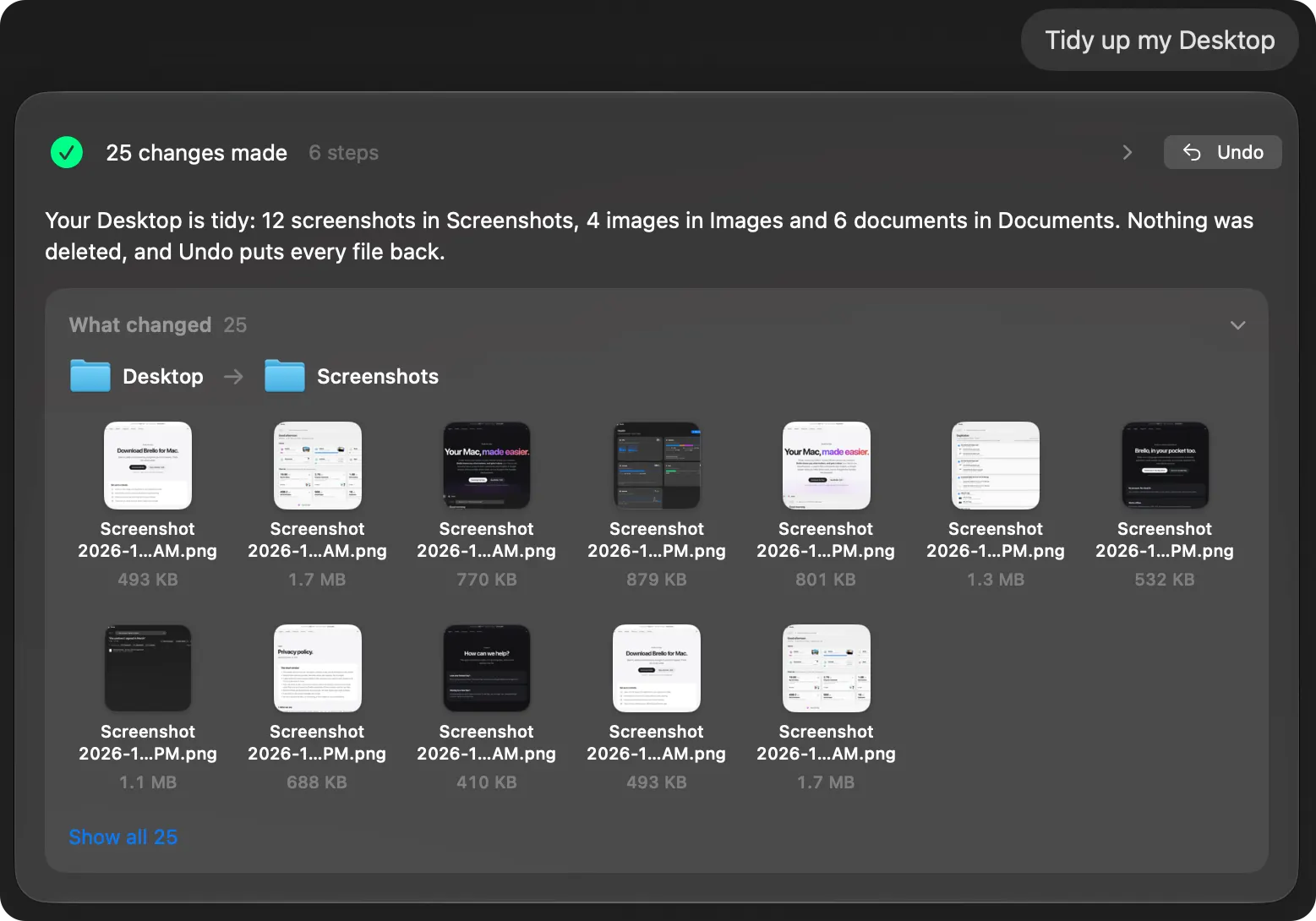
Brello, an AI agent for the Mac, does the filing from a sentence you type, and shows every move before and after, with Undo:
- “Tidy up my Desktop” sorts it into folders.
- “Put all my 2025 invoices in one folder, zip it and draft an email to my accountant with it attached” finds them across your Desktop, Documents and Downloads, and leaves the 2026 invoice alone.
- “When a PDF lands in Downloads, file it into Finance by month” becomes a routine that watches the folder.
- Two tidy rules, off until you turn them on, sort new screenshots into monthly folders as they land and ask about old installers in Downloads each morning.
Brello PI thinks with Apple’s on-device model, so your files stay on your Mac. Its Home also shows every file on your Mac by kind and finds one by what you remember, such as “the contract I signed in March”. Filing by asking needs a Mac with Apple silicon, macOS 27 and Apple Intelligence; the tidy rules and Home work on any Mac with macOS 14 or later.
How should I organize files on a Mac?
Use a few folders by area of life, folders by year inside them, tags for anything that belongs in two places, and Smart Folders to gather files without moving them. Name files starting with the date, year first, so they sort themselves.
Is there an app that organizes files on a Mac automatically?
Yes. Hazel files by rules you build, and Brello files from a sentence you type, with Undo. macOS’s own Folder Actions, made in Automator, can run a workflow on files added to a folder. See Hazel alternatives.
Checked on macOS 27.0.1, November 2, 2026. Menu names can change with a macOS update.
Sources: Organize files in folders on Mac (Apple Support); Use tags to organize files on Mac (Apple Support); Organize files on your desktop on Mac (Apple Support).
In Brello’s help: Ask the agent, Clean up, and tidy rules, Search in plain English, and save a search.