Find your screenshots
Look on your Desktop. Each is a PNG named “Screenshot” with the date and time it was taken, such as Screenshot 2026-11-02 at 10.41.12 AM.png; the date is written the way your Mac’s region writes it. If they’re not there, press Shift-Command-5 and click Options: the place ticked under Save to is where they go.
Two quick ways to see every one:
- Press Command-Space and type screenshot; Spotlight lists them by name.
- In Finder, press Command-F, choose Name contains and type
Screenshot. Click Save to keep it as a Smart Folder, and choose View ▸ as List sorted by Date Created for the newest first.
Change where screenshots are saved
- Press Shift-Command-5 to open the Screenshot toolbar.
- Click Options.
- Under Save to, choose Desktop, Documents, Clipboard, Mail, Messages or Preview, or choose Other Location… and pick a folder, such as a new Screenshots folder in Pictures.
- Press Escape to close the toolbar.
From then on, every screenshot goes there, including ones taken with Shift-Command-3 and Shift-Command-4, and screen recordings too. The setting stays until you change it. These steps are the same on every macOS since macOS 10.14 Mojave.
Change it in Terminal
If you’d rather type it, this sets the folder (make the folder first), then restarts the part of macOS that takes screenshots:
defaults write com.apple.screencapture location ~/Pictures/Screenshots
killall SystemUIServer
To go back to the Desktop, run the same with ~/Desktop.
Every screenshot shortcut
| Keys | What it takes |
|---|---|
| Shift-Command-3 | The whole screen; with several displays, one file each |
| Shift-Command-4 | An area you drag. Hold Shift to fix one side, Option to grow from the center, Space to move the area |
| Shift-Command-4, then Space | One window, with its shadow. Hold Option as you click to leave the shadow out |
| Shift-Command-5 | The toolbar: screen, window or area, screen recording, and Options |
Add Control to any of them, such as Control-Shift-Command-4, to copy the screenshot to the clipboard instead of saving a file, then paste it with Command-V. To change the keys themselves, open System Settings ▸ Keyboard ▸ Keyboard Shortcuts ▸ Screenshots.
The toolbar’s other options
Options in the Screenshot toolbar also has:
- Timer: None, 5 Seconds or 10 Seconds, to open a menu before the shot.
- Show Floating Thumbnail: the preview in the corner after each shot.
- Remember Last Selection: reuse the last area you dragged.
- Show Mouse Pointer: include the pointer in the shot or recording.
Turn off the thumbnail in the corner
After each screenshot, a thumbnail appears at the bottom right for a few seconds. Click it to mark up, crop or share the shot; drag it straight into a document, an email or a folder. To save straight away instead, press Shift-Command-5, click Options and untick Show Floating Thumbnail.
Where do screen recordings go?
To the same place as screenshots, chosen under Save to. They’re named “Screen Recording” with the date and time, saved as .mov files. Start one from the toolbar (Shift-Command-5) with Record Entire Screen or Record Selected Portion, and stop it with the button in the menu bar or Control-Command-Escape.
Why aren’t my screenshots on the Desktop?
- The floating thumbnail: with it on, a screenshot is saved only once the thumbnail slides away, or when you click it and choose Done. If you dragged the thumbnail somewhere, the screenshot went there.
- Saved to the clipboard: if you held Control while taking it, it went to the clipboard, not to a file. Paste it with Command-V.
- Another place was chosen: open the toolbar (Shift-Command-5), click Options, and see what’s ticked under Save to.
- iCloud Desktop: with Desktop & Documents Folders on in iCloud Drive, the Desktop lives in iCloud Drive and syncs to your other devices. With Optimize Mac Storage on too, older screenshots may be kept only in iCloud until you open them.
- Stacks: with View ▸ Use Stacks on, the Desktop gathers screenshots into a Screenshots stack. Click it to open it.
- A cleaner or a rule moved them: an app or a Folder Action may sort screenshots into another folder as they land.
Can I save screenshots straight to Photos?
Not directly: Save to offers folders, the clipboard and a few apps, not Photos. Choose Preview to open each one for editing, or save to a folder and import it into Photos with File ▸ Import. Screenshots on your iPhone go to Photos, and with iCloud Photos on they appear in Photos on your Mac too.
Can I change the screenshot format?
Screenshots are saved as PNG. For smaller files, run defaults write com.apple.screencapture type jpg in Terminal, then killall SystemUIServer. Set it back with png the same way. HEIC, PDF and TIFF work too.
Can I change the screenshot file name?
In Terminal, defaults write com.apple.screencapture name "Shot" changes the word at the start of the name, then killall SystemUIServer. The date and time stay, so files still sort in order.
Keep screenshots from piling up
Screenshots are the fastest-growing pile on most Desktops. Three habits help: save them to a folder of their own, as above; delete each one once you’ve pasted or sent it, from the thumbnail’s menu; and clear out screenshots older than a month or so once in a while. See how to organize files on a Mac.
Doing this with Brello
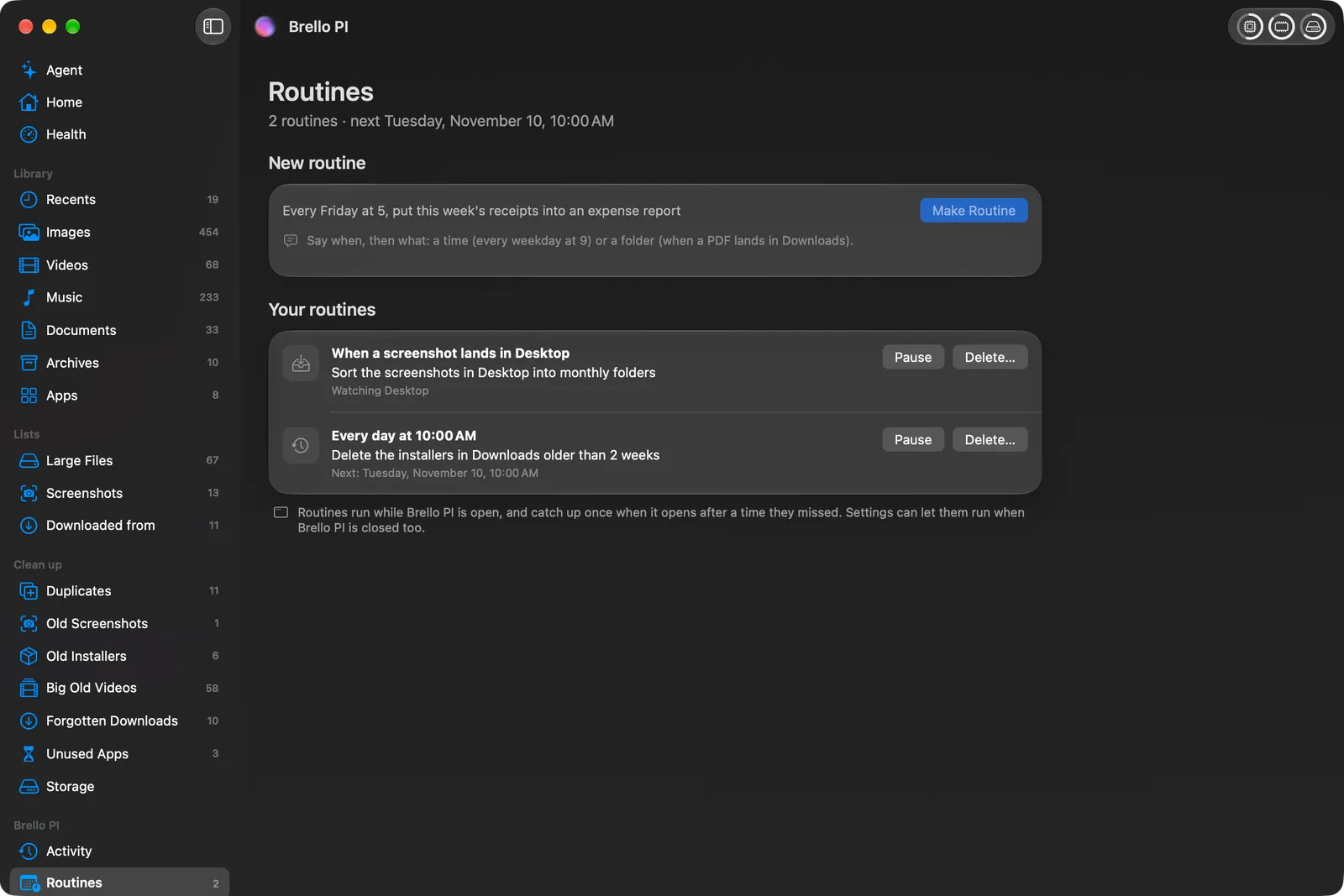
Brello PI is a Mac app we make. Its tidy rules, off until you turn them on in Settings, sort new screenshots into monthly folders as they land, so the Desktop never fills up. Clean up lists old screenshots, older than 30 days, by name and size. The tidy rules and Clean up work on any Mac with macOS 14 or later.
With Brello PI’s agent, you can also ask for screenshots to be saved somewhere else, and Brello PI changes it, reads it back and offers Undo. That needs a Mac with Apple silicon, macOS 27 and Apple Intelligence.
Checked on macOS 27.0.1, November 2, 2026. Menu names can change with a macOS update.
Sources: Take a screenshot on Mac (Apple Support); Take screenshots or screen recordings on Mac (Apple Support).
In Brello’s help: Clean up, and tidy rules.