Brello for Mac › The popup and Quick Search
One click. One question. Done.
Click Brello PI in the menu bar, or press Option-Space in any app. Ask for what you need, or find a file as you type.
$30 at launch, then $50 · 30-day money-back guarantee, no reason needed
Files as you type.
Type part of a name and files appear. Return opens one, ⌘↩ shows it in Brello PI, and ⌥↩ in Finder.
Your last ten downloads.
Press ⌘Y for the last ten files to land in Downloads, ready to drag into any app.
Ask, and it’s done there.
Every kind of reply shows in the popup: a list of files with Remove All, a setting changed, an answer. When a reply needs more room, Open in Brello PI carries the conversation into the window.
Point it at the right thing.
Type @ for an open app or a folder, + to add files, and choose Web or Computer to keep a request to that reach.
How it works
The popup is one panel that drops from Brello PI’s icon in the menu bar, over whatever app you’re in, with the keyboard already in its field. Press ⌥Space, or the shortcut you chose, or click the icon. Press Esc or click elsewhere and it folds away; pin it from its header to keep it open while you work.
Type part of a file’s name and files appear as you type, each with its thumbnail, where it’s kept and its size. Return opens one, ⌘Return shows it in Brello PI, ⌥Return shows it in Finder. Press ⌘Y for Recents, the last ten files to land in Downloads, ready to drag into an email or a chat.
With the agent, type a request instead and press Return. The reply shows in the panel: a list of files, what changed with Undo, a setting as macOS now reports it, or one short question. Every kind of reply shows there, or offers Open in Brello PI when it needs more room, which carries the conversation into the window.
From any app
| You do | What happens |
|---|---|
| ⌥Space, then “invoice march” | The invoice, as you type; Return opens it |
| ⌥Space, ⌘Y | Your last ten downloads, newest first |
| ⌥Space, “move the screenshots on my Desktop into a folder” | Done in the panel, with Undo (with the agent) |
| Select text, then Services ▸ Ask Brello | The popup opens with that text attached to your request |
| Type @ and an app or folder | Your request kept to that app or folder |
| Choose Web or Computer | Your request kept to that reach |
| Remove All on a list of files | Exactly those files to the Trash; ⌘Z puts them back |
What it never does
It never removes a file the panel didn’t list, and only from your Desktop, Documents and Downloads. It reads nothing from the app you’re in unless you choose Ask Brello from the Services menu. Quick Search runs on your Mac: nothing you type to find a file leaves it.
Where it works
The popup finds files on any Mac with macOS 14 or later. Asking Brello PI in it needs the agent: a Mac with Apple silicon, macOS 27 and Apple Intelligence. Choose your own shortcut in Settings.
Questions
Does the popup work without the agent?
Yes. On any Mac, it finds files as you type and lists your recent downloads. Typing a request needs the agent.
Can I drag a file out of it?
Yes. Drag a file from Quick Search or Recents into any app, such as an email you’re writing.
How do I get back to an earlier conversation?
Choose History in the popup’s header. Open in Brello PI carries the conversation you’re in into the window.
Can I change Option-Space?
Yes. Pick your own shortcut in Brello PI’s Settings, under Ask from anywhere.
Does it stay open?
It folds away when you press Esc or click elsewhere, unless you pin it.
Guides
Read more
Newsroom ›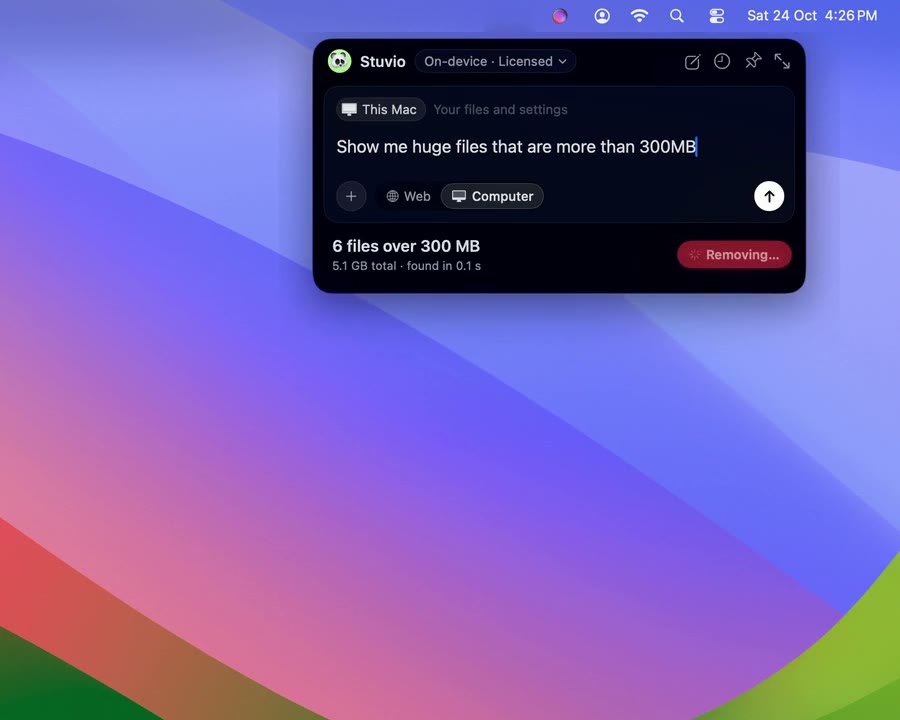
Private intelligence for your Mac.
One-time purchase · $30 at launch, then $50 · 30-day money-back guarantee, no reason needed