Rename one file
Click the file once, press Return, type the new name and press Return again. Or Control-click it and choose Rename. Finder selects the name without the extension, so you don’t change .pdf or .jpg by accident.
Rename many files at once in Finder
- Select the files: Command-click each one, or click the first and Shift-click the last. Command-A selects everything in the folder.
- Control-click one of them and choose Rename… (it says how many, such as Rename 12 Items…).
- Choose one of three ways from the menu at the top left:
- Replace Text: type what to find and what to replace it with. “IMG_” replaced with “Paris ” turns IMG_2041.jpg into Paris 2041.jpg. Leave the replacement empty to remove the text.
- Add Text: type words and choose after name or before name, such as “ (draft)” after every name.
- Format: give every file the same new name with something that tells them apart. Name and Index adds 1, 2, 3; Name and Counter adds 00001, 00002; Name and Date adds the date and time. Type the Custom Format (the name), choose after name or before name, and set Start numbers at.
- Check the Example at the bottom of the window, then click Rename, and look over the new names in the window.
Undo it: press Command-Z right away, or choose Edit ▸ Undo Rename. All the files go back to their old names in one step. Undo on a Mac, including Finder.
Rename files by their own date
Finder’s Name and Date uses the date and time you rename, the same for every file, not each file’s own date. To name photos or screenshots by when each was taken or made, use one of these:
Automator (built into macOS):
- Open Automator and choose Quick Action.
- Set Workflow receives current to files or folders in Finder.
- Drag Rename Finder Items in from the actions list; choose Don’t Add when Automator offers to add a copy step, or keep it if you want copies.
- In the action, choose Add Date or Time, and choose Created, Modified or Last Opened as the date, a format such as Year Month Day, and a separator.
- Save it with a name like “Name by date.” Now select files in Finder, Control-click and choose Quick Actions ▸ Name by date.
Terminal, for a folder of files, naming each by its modification date, such as 2026-10-01 12.30.00.png:
- Open Terminal, type
cd(with a space), drag the folder onto the window and press Return. - Run:
for f in *.png; do mv -n "$f" "$(stat -f %Sm -t '%Y-%m-%d %H.%M.%S' "$f").png"; done
Change *.png to the kind of file you’re renaming, and %Sm to %SB to use the date each file was created. mv -n never overwrites: if two files have the same date and time, the second keeps its old name. Terminal has no Undo, so try it on a copy of the folder first.
Other ways
- Shortcuts: a shortcut with Rename File can name files from their details, such as the date taken of a photo, and run from Finder’s Quick Actions.
- Apps: apps such as A Better Finder Rename and NameChanger rename with rules and previews, for jobs Finder can’t do.
Good names, so files are easy to find later
- Start with the date as year-month-day (2026-10-01): names sort in date order.
- Say what it is in a word or two after the date: “2026-10-01 Invoice Acme.pdf”.
- Avoid slashes and colons, which macOS doesn’t allow or shows differently in Terminal.
- Keep the extension (.pdf, .jpg): it tells your Mac which app opens the file.
Questions
Can I undo a batch rename on a Mac? Yes, with Command-Z in Finder right after. Undo covers renames done in Finder, not ones done in Terminal.
Why can’t I rename some files? You don’t have permission (Get Info ▸ Sharing & Permissions), the file is locked (Get Info ▸ Locked), or an app has it open. Close the app and try again.
How do I rename all files in a folder with numbers? Select all with Command-A, choose Rename…, then Format ▸ Name and Index, type the name, and set Start numbers at to 1.
Does renaming change the file’s contents or date? No. The contents and the creation date stay the same.
Doing this with Brello
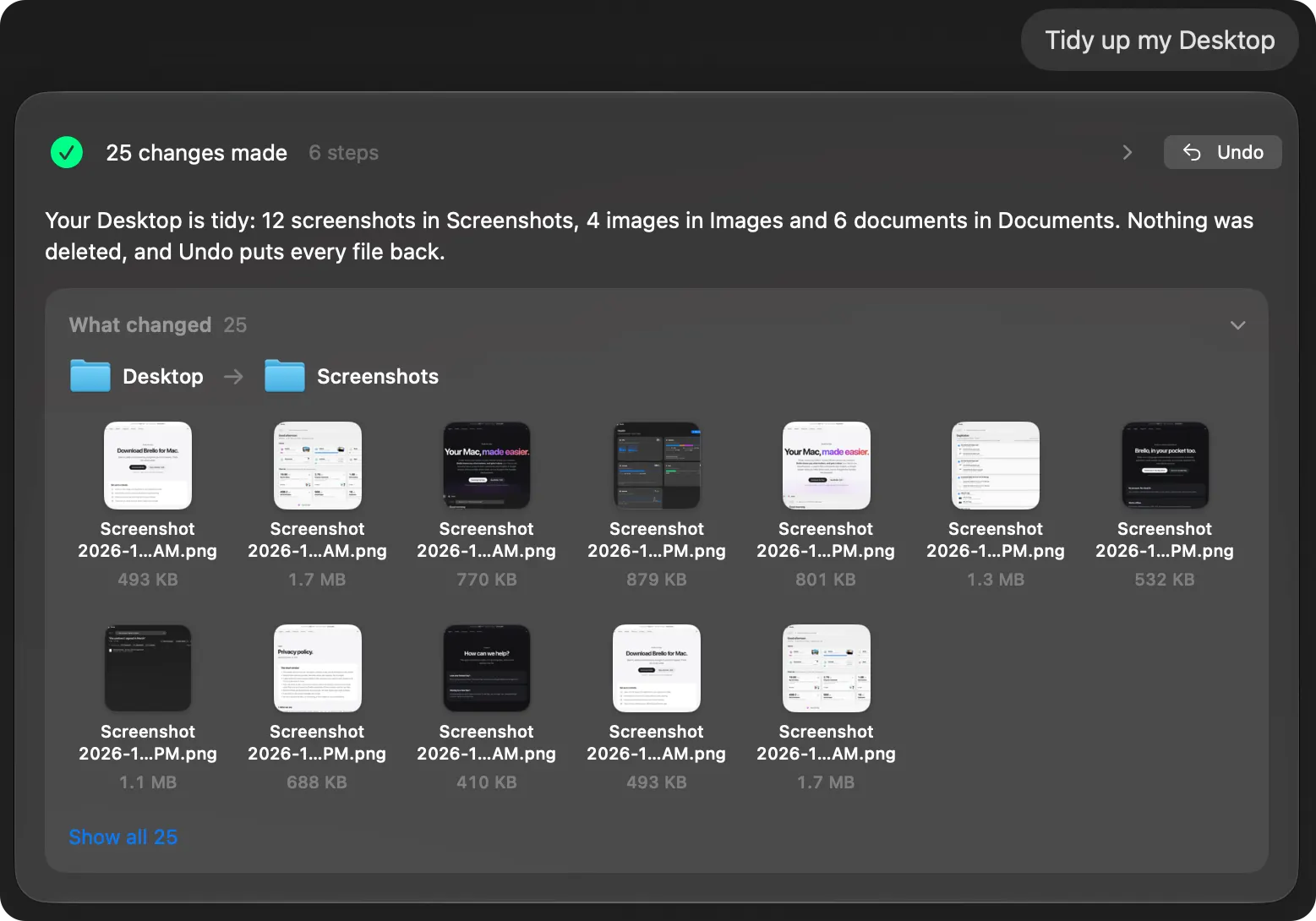
Ask in a sentence: “Rename my screenshots by date” and Brello PI finds them, lists each new name from each file’s own date in one question, renames them on your yes, and Undo puts every name back. It can file things too: “Tidy up my Desktop” sorts files into folders and shows every move before and after.
Checked on macOS 27.0.1, November 2, 2026. Menu names can change with a macOS update.
Sources: Rename files, folders and disks on Mac (Apple Support); Mac keyboard shortcuts (Apple Support).
In Brello’s help: Delete files, and put them back, Ask the agent.