Delete downloads in Finder
- In Finder, choose Go ▸ Downloads, or press Option-Command-L.
- Choose View ▸ as List, then click the Date Added column to sort oldest first. If you don’t see it, Control-click a column heading and turn on Date Added.
- Select the files you’re done with. Hold Command to pick several, or Shift for a run of them.
- Press Command-Delete to move them to the Trash.
- Control-click the Trash in the Dock and choose Empty Trash to free the space.
To clear the whole folder, click in it, press Command-A, then Command-Delete. Look first: it’s easy to delete something you still need.
Downloads isn’t in the sidebar? Choose Finder ▸ Settings ▸ Sidebar and tick Downloads. It also sits at the right of the Dock, beside the Trash; click it and choose Open in Finder.
Delete the biggest downloads first
A few large files usually take most of the room: a video, a disk image, a virtual machine. In the list view above, choose View ▸ Show View Options and tick Calculate all sizes, then click the Size column to put the biggest at the top. Select a file and press Space to see what it is with Quick Look before you delete it.
Delete downloads from Storage settings
- Open System Settings ▸ General ▸ Storage.
- Click ⓘ next to Documents.
- Click Downloads to see every file in it, largest first, with when you last opened it.
- Select files and click Delete. These are deleted at once, not moved to the Trash.
Clear the download list in your browser
Deleting the files doesn’t remove them from your browser’s list of downloads, and clearing the list doesn’t delete the files. To clear the list:
- Safari: click the downloads button in the toolbar and click Clear, or choose Safari ▸ Settings ▸ General ▸ Remove download list items to have Safari clear it after a day, on quit, or when a download finishes.
- Chrome: open Window ▸ Downloads (Option-Command-L in Chrome) and choose Clear all from the menu.
- Firefox: open Tools ▸ Downloads and click Clear Downloads.
Delete a download for good, without the Trash
Select it and press Option-Command-Delete, then confirm. The file is deleted at once and can’t be put back, so use it only when you’re sure. For most files, the Trash and its Put Back are the safer way.
What’s safe to delete from Downloads?
- Disk images (.dmg) and installers (.pkg) once the app is in Applications. They’re only the delivery box.
- ZIP files you’ve already opened. The unzipped folder is next to it.
- Duplicates with “(1)” or “(2)” in the name, after you’ve checked they match.
- Files you’ve filed elsewhere, such as a statement you saved to Documents.
Keep anything you haven’t looked at yet, and anything you can’t download again.
Keep Downloads from filling up again
- Sort once a week by Date Added and file or delete what’s new.
- Change where your browser saves, if you’d like downloads kept apart: in Safari, choose Safari ▸ Settings ▸ General ▸ File download location.
- Let an app ask you. Brello PI’s tidy rule for old installers, off until you turn it on, asks each morning at 10:00 about disk images and installer packages older than two weeks.
Find what’s forgotten
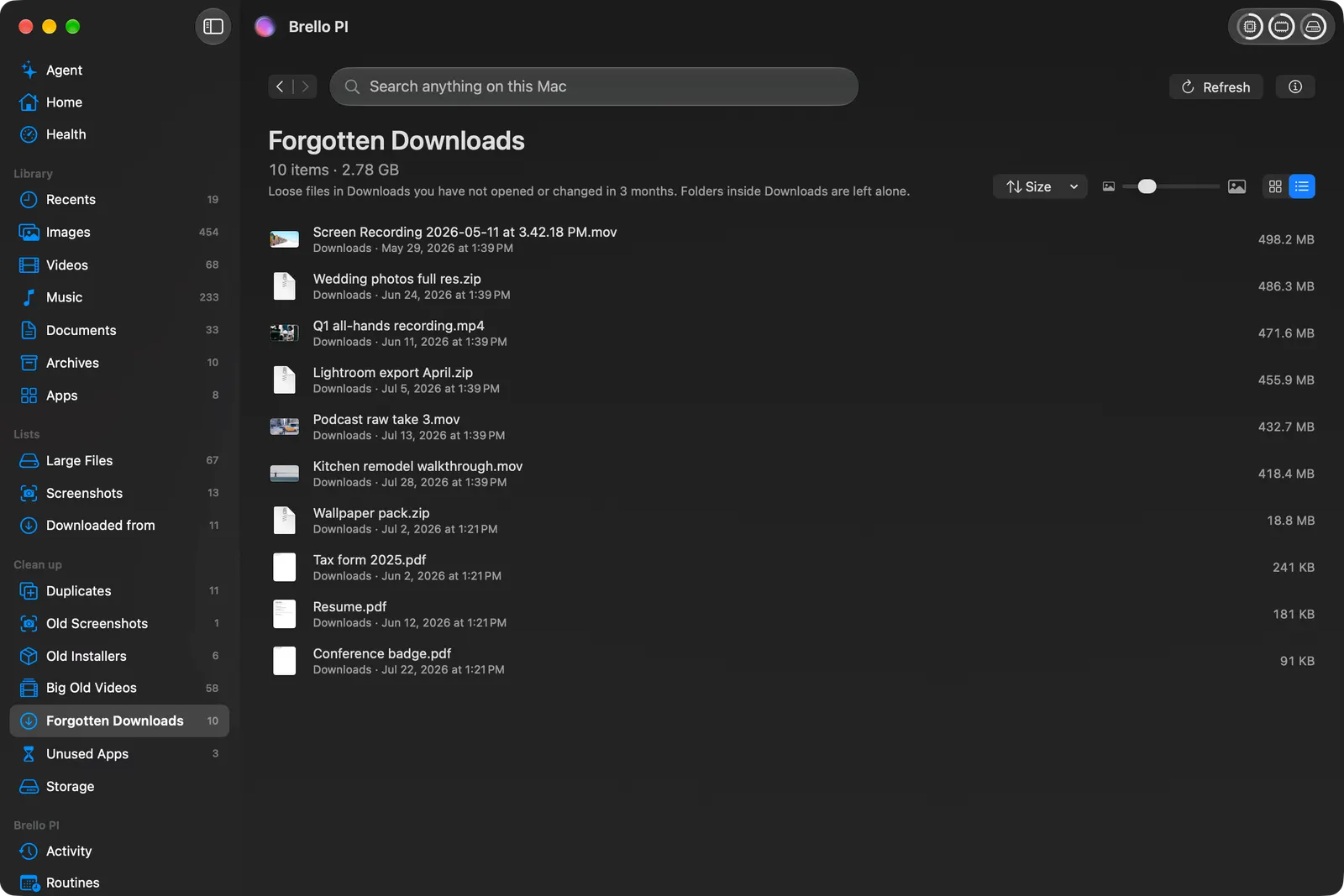
Brello’s Clean up lists Forgotten Downloads: files in Downloads you haven’t opened or changed in three months, largest first, by name and size. Next to it, Old Installers lists disk images and installer packages older than two weeks. Nothing is deleted until you say yes to a list that names every file; then the files go to the Trash, as Finder moves them there, and Undo puts them back. Clean up works on any Mac with macOS 14 or later.
Does deleting downloads free up space right away?
Only once you empty the Trash. Until then, the files are in the Trash and still use space. See how to empty the Trash.
Is it safe to delete everything in Downloads?
It’s safe for your Mac: nothing in Downloads is part of macOS or an app. It’s not always safe for you: a contract, a tax form or a photo someone sent may exist only there. Sort by date, look at what you’re deleting, and move anything you want to keep into Documents first.
Should I delete the .dmg after installing an app?
Yes. Once the app is in Applications, the disk image has done its job. Eject it first if it’s still open (it shows in Finder’s sidebar under Locations), then delete it. If you might reinstall the app later, you can download it again from its maker.
Why can’t I delete a file in Downloads?
It may still be open in an app, or still downloading: a file ending in .download (Safari) or .crdownload (Chrome) is unfinished. Quit the app or cancel the download, then try again. A disk image that’s still mounted can’t be deleted until you eject it.
Can I recover a download I deleted?
Yes, while it’s in the Trash: open the Trash, select it and choose File ▸ Put Back. After the Trash is emptied, restore it from Time Machine, or download it again. See how to undo on a Mac.
Checked on macOS 27.0.1, November 2, 2026. Menu names can change with a macOS update.
Sources: Delete files and folders on Mac (Apple Support).
In Brello’s help: Clean up, and tidy rules, The popup.