Find a file with Spotlight
- Press Command-Space.
- Type a word that’s in the file’s name or inside it. Results appear as you type, with the best match at the top.
- Press Return to open the top result, or use the arrow keys to choose another.
Three keys make Spotlight faster: press Space on a result to preview it with Quick Look, hold Command to see where the file is, and press Tab for the result’s quick actions. Up Arrow in an empty search brings back your last one.
Spotlight reads more than names. It finds a PDF, a Pages or Word document, a text file or an email by the words inside it, so a phrase you remember from the file often beats a guess at its name.
Narrow a Spotlight search
Spotlight understands a few words that narrow what it finds. They work in Finder’s search field too.
| Type | To find |
|---|---|
kind:pdf invoice |
PDFs with “invoice” in their name or text |
kind:image beach |
Pictures with “beach” in their name |
kind:folder taxes |
Folders, not files |
date:yesterday |
Files changed yesterday; also date:today |
"quarterly report" |
Those words together, in that order |
invoice NOT draft |
“invoice” without “draft” |
Kinds Spotlight understands include pdf, image, movie, music, document, presentation, folder, app and email. Typing a few distinctive words usually finds a file faster than its whole name.
Search with Finder, rule by rule
Spotlight is quick; Finder’s search lets you build exactly the search you mean.
- Open a Finder window and press Command-F.
- Beside Search, choose This Mac, or the folder you’re in to search only there.
- Set the first rule from the menus, for example Kind is PDF.
- Click + to add another, such as Last opened date is within last 7 days. A file must match every rule.
- To find files by size or another attribute not in the menu, choose Other… and tick it, such as File Size.
Hold Option while you click + to add a group of rules with Any, All or None, for searches such as “PDFs or Word documents”, or “in Downloads but not an image”.
Rules worth knowing:
| Rule | Finds |
|---|---|
| Kind is PDF, Image, Movie, Document… | One kind of file |
| Last opened date is within last N days | What you used recently |
| Created date or Last modified date | When a file was made or changed |
| Name contains | Part of the name |
| Contents contains | Words inside the file |
| File Size is greater than | Big files (choose it from Other…) |
| Tags contains | Files you tagged |
Save a search as a Smart Folder
A Smart Folder is a saved search that stays up to date. It holds no files: each time you open it, it shows what matches its rules now.
- In Finder, choose File ▸ New Smart Folder, or start with Command-F as above.
- Set your rules.
- Click Save, give it a name, and keep Add to Sidebar ticked.
Smart Folders worth keeping:
| Smart Folder | Rules |
|---|---|
| Recent PDFs | Kind is PDF; Last opened date is within last 30 days |
| Big files | File Size is greater than 1 GB |
| This week’s downloads | Search Downloads; Date added is within last 7 days |
| Screenshots | Name contains “Screenshot” |
| Untouched for a year | Last opened date is before a date a year ago |
| Taxes | Tags contains Taxes |
To change a Smart Folder, open it and choose File ▸ Show Search Criteria, change the rules, and click Save. To delete it, drag it out of the sidebar, or delete it from the Saved Searches folder in your Library. Deleting a Smart Folder deletes only the search, never the files. Deleting a file from inside a Smart Folder deletes the file itself.
Each Smart Folder is a small file ending in .savedSearch. Copy one to another Mac to use the same search there.
Find a file by when you used it
- Recents, in Finder’s sidebar, lists what you opened or saved lately, newest first.
- File ▸ Open Recent in the app you made it in lists its recent documents.
- In any Finder window in list view, sort by Date Last Opened, Date Modified or Date Added. Choose View ▸ Show View Options to add the column if it isn’t there.
Find a recent download
Open Downloads (Option-Command-L in Finder), choose View ▸ as List, and sort by Date Added. The newest is at the top. Browsers also keep a list: Window ▸ Downloads or the downloads button in Safari, and the downloads page in Chrome and Firefox.
Find a file by where it came from
Downloads remember the site they came from. Select a file and choose File ▸ Get Info (Command-I); Where from, under More Info, shows the address. It works one file at a time.
A file you saved but can’t find
- Open the app you made it in and choose File ▸ Open Recent.
- Click Recents in Finder’s sidebar.
- Check iCloud Drive: some apps save there by default, and Desktop & Documents Folders in iCloud moves those two folders there too.
- If it was an attachment, look in Downloads, or in the email itself.
- If you think it was deleted, open the Trash and use File ▸ Put Back. See how to undo on a Mac.
Why can’t Spotlight find the words in my screenshot?
Spotlight keeps no text from screenshots: in our measurements on macOS 27, none of the 67 metadata attributes it stored for a screenshot held the words in it. To find a picture by its words, open it in Preview and use Live Text to select them, or use an app that reads them.
When Spotlight isn’t finding things
Most problems are one of three things: Spotlight is still indexing after an update, the folder is on its Search Privacy list in System Settings ▸ Spotlight, or its index needs rebuilding. What to do when Spotlight isn’t working goes through each fix in order.
Spotlight won’t open with Command-Space
Check the shortcut in System Settings ▸ Keyboard ▸ Keyboard Shortcuts ▸ Spotlight, where Show Spotlight search should be on. Another app, such as a launcher or an input-source switcher, may have taken the same keys.
Folders Spotlight never searches
- Locations on the Search Privacy list, in System Settings ▸ Spotlight.
- Hidden and system folders, by design, including most of your Library.
- External drives not formatted for the Mac, and some network drives, which aren’t indexed at all.
- iCloud Drive files you haven’t downloaded, which are found by name only.
- Files from apps with no Spotlight importer, which are found by name, not by their contents.
Search inside one folder
Open the folder in Finder, press Command-F, and choose the folder’s name beside Search instead of This Mac. Results then come only from that folder and the folders inside it. To make it the default, choose Finder ▸ Settings ▸ Advanced and set When performing a search to Search the Current Folder.
Does Spotlight search the contents of files?
Yes, for the kinds it can read: PDFs, text, Pages, Numbers, Keynote, Word, Excel, PowerPoint, email and more, through importers that come with macOS and with apps. It doesn’t read the words in pictures or screenshots into its index.
Is there a way to search my Mac by plain description?
Spotlight and Finder need you to translate what you remember into words and rules: a kind, a date range, a word from inside. That’s the gap Brello’s Home fills, below.
Doing this with Brello
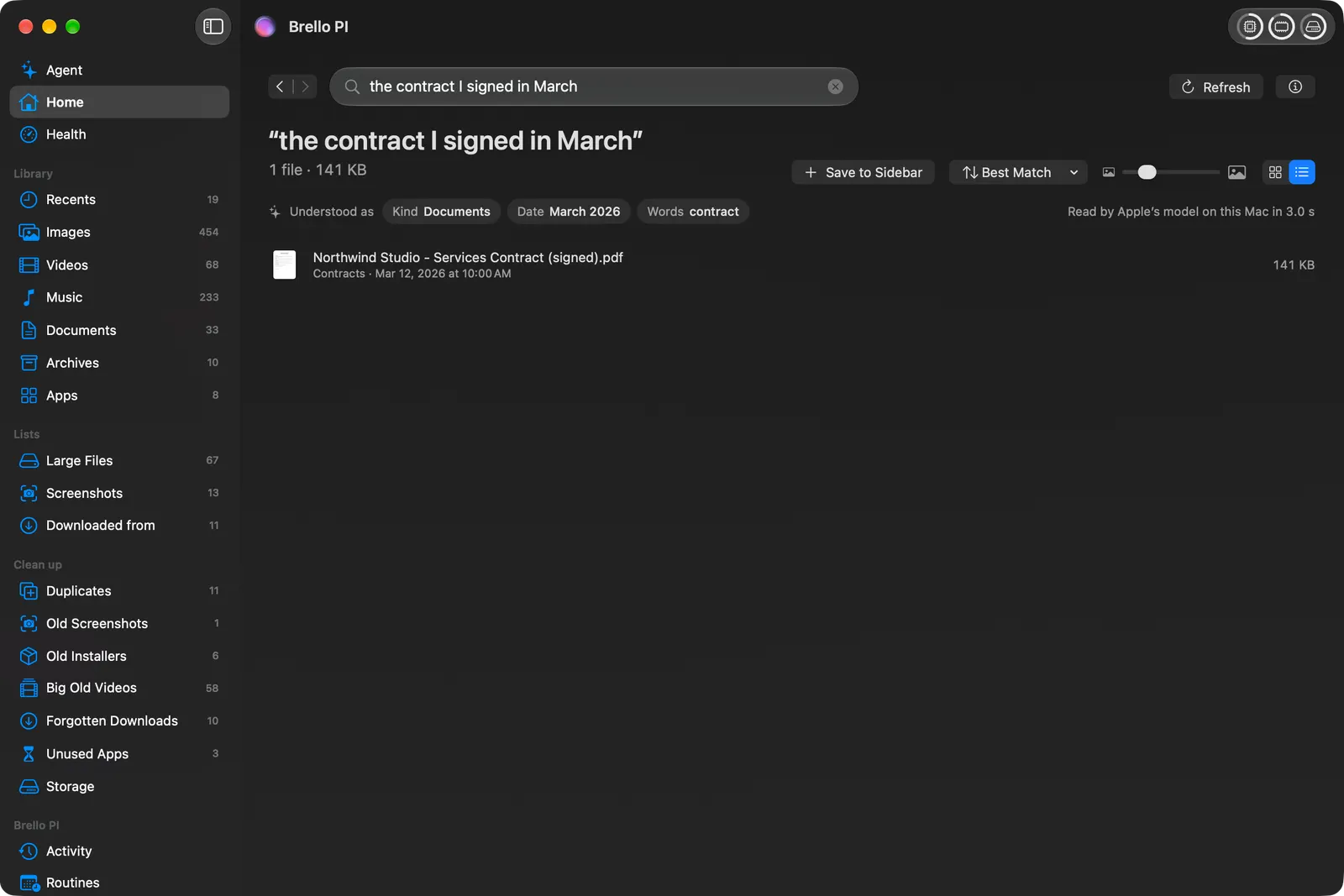
Brello PI is a Mac app we make. In Home, type what you remember the way you’d say it, such as “the contract I signed in March” or “PDFs from last week over 5 MB”. Brello PI reads it as a kind, a date and words inside the file, shows how it read them, then the files. Save any search to the sidebar with Command-S and it searches again each time you open it, like a Smart Folder you wrote in a sentence. Downloaded From groups every download by the site it came from (Shift-Command-J), and from any app, Option-Space opens Brello PI’s popup, which finds files as you type: Return opens one, Command-Return shows it in Brello PI and Option-Return in Finder.
Home and Quick Search work on any Mac with macOS 14 or later.
Checked on macOS 27.0.1, November 2, 2026. Menu names can change with a macOS update.
Sources: Find what you need with Spotlight on Mac (Apple Support); Organize files with folders on Mac (Apple Support); mdutil(1) and mdfind(1), the manual pages.
In Brello’s help: Search in plain English, and save a search, The popup.