Zip one file or folder
- In Finder, Control-click the file or folder (or click with two fingers on a trackpad).
- Choose Compress “name”.
A file called name.zip appears in the same folder. The original stays where it was.
Zip several files into one
- Select the files: hold Command and click each one, or drag across them.
- Control-click one of them and choose Compress.
macOS makes Archive.zip with all of them inside. Rename it by selecting it and pressing Return. To keep things tidy, put the files in a folder first and zip the folder: Control-click the selected files and choose New Folder with Selection.
Open a ZIP
Double-click the .zip. macOS unpacks it into a folder next to it. You can delete the .zip afterwards if you don’t need to send it again.
Zip with a password
Finder’s Compress has no password option. Terminal’s zip does: -e asks for a password and encrypts the archive.
-
Open Terminal and type
cd(with a space), drag the folder that holds your files onto the window, and press Return. -
Run, with your own names:
zip -er Invoices.zip Invoices -
Type a password, press Return, and type it again. Nothing appears as you type.
Whoever opens the ZIP needs the password; on a Mac, double-clicking asks for it. This encryption is the original ZIP kind, which is fine to keep a file from casual eyes but weak against a determined attacker. For something sensitive, use an encrypted disk image instead: in Disk Utility, choose File ▸ New Image ▸ Image from Folder, pick the folder, and choose 256-bit AES encryption.
Zip from Terminal
To zip a folder from Terminal, for example Invoices on your Desktop:
cd ~/Desktop && zip -r Invoices.zip Invoices-r includes everything inside the folder. To leave out the hidden .DS_Store files Finder makes, which show up as clutter on Windows, add -x "*.DS_Store". To unzip in Terminal, run unzip Invoices.zip.
ditto -c -k --keepParent Invoices Invoices.zip makes the same ZIP Finder makes, keeping Mac details such as extended attributes, which zip drops.
Compress files without ZIP
- Images: open a picture in Preview and choose File ▸ Export, then pick JPEG or HEIF and lower the quality slider. To shrink many at once, open them together, select them all in Preview’s sidebar, and choose File ▸ Export Selected Images….
- PDFs: in Preview, choose File ▸ Export, then Quartz Filter ▸ Reduce File Size. It can make pictures inside the PDF blurry, so check the result.
- Videos: open the video in QuickTime Player and choose File ▸ Export As, then a smaller size such as 1080p.
These shrink the files themselves, which zipping can’t do for photos, videos and PDFs.
Open other archives
Double-clicking opens .zip, .gz, .tar, .tgz and .cpgz archives with macOS’s Archive Utility, which you never need to open yourself. For .rar and .7z, use a free archive app from the App Store, such as The Unarchiver, or Keka.
Why does my ZIP have a __MACOSX folder?
When a Mac ZIP is opened on Windows or Linux, it can show a __MACOSX folder and files starting with ._. They hold Mac details, such as labels and tags, that other systems don’t use. They’re harmless; the person opening it can delete them. To avoid them, zip in Terminal with zip -r -X, which leaves them out.
Why is the Compress option missing?
You may have Control-clicked the Desktop rather than a file, or selected a disk rather than a folder. Select the files first, then Control-click one of them. If it’s still missing, look under Quick Actions in the menu, or use File ▸ Compress in Finder’s menu bar.
How big can a ZIP be on a Mac?
On your own disk, a ZIP can be as large as the files you put in it. The limit that matters is where you send it, such as an email service’s attachment limit.
Email a ZIP
In Mail, click the paperclip, or drag the .zip into a new message. Many mail services limit attachments to about 20 to 25 MB; for anything bigger, share a link from iCloud Drive or another cloud folder instead.
Zip, attach and draft in one sentence
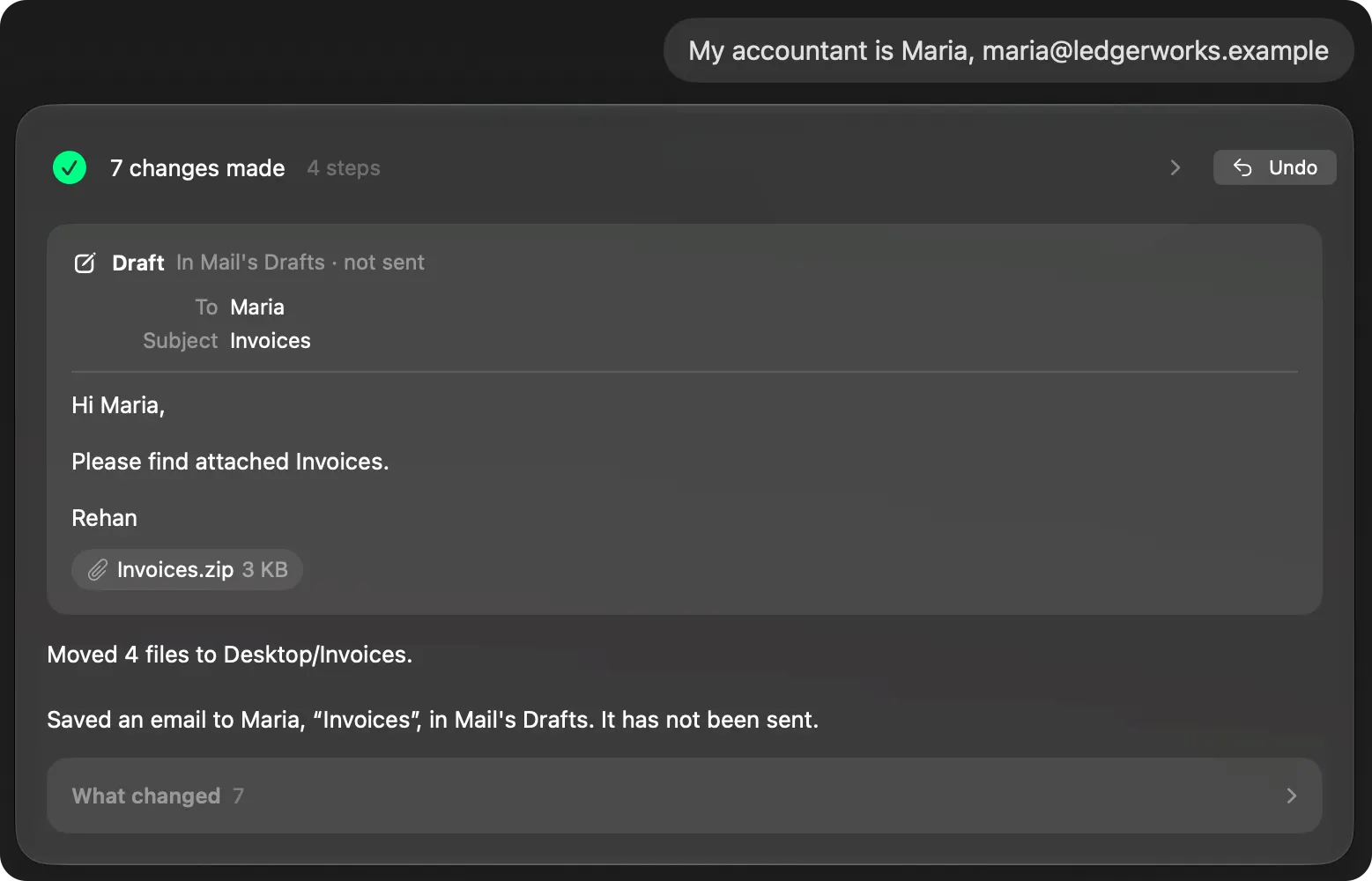
In Brello PI, type: “Put all my 2025 invoices in one folder, zip it and draft an email to my accountant with it attached.” Brello PI:
- finds the 2025 invoices across your Desktop, Documents and Downloads, and leaves the 2026 invoice and a 2025 quote alone;
- asks you for the accountant’s address and to confirm the plan;
- makes the folder and Invoices.zip, and puts a draft with it attached in Mail’s Drafts, for you to send.
Undo puts the invoices back where they were and takes the folder, the ZIP and the draft away. Handing off work needs a Mac with Apple silicon, macOS 27 and Apple Intelligence.
Does zipping make files smaller?
Documents, text and spreadsheets usually shrink a lot. Photos, videos and PDFs barely shrink, because they’re compressed already. Zipping is still the easiest way to send many files as one. To make photos, videos or PDFs smaller, compress them themselves, as above.
Can I zip a folder on a Mac and open it on Windows?
Yes. Finder makes standard ZIP files, which Windows opens with a double-click, as Linux and phones do too.
Checked on macOS 27.0.1, November 2, 2026. Menu names can change with a macOS update.
Sources: Zip and unzip files and folders on Mac (Apple Support).
In Brello’s help: Ask the agent.