Show hidden files with a shortcut
- Open a Finder window, or click the Desktop.
- Press Shift-Command-Period (⇧⌘.).
- Press it again to hide them.
Hidden files and folders appear dimmed, such as .DS_Store, .gitignore, .zshrc and the Library folder in your home folder. The setting applies to every Finder window and stays until you press the keys again. It works in every macOS since 10.12 Sierra, including macOS 14 to 27.
The same keys work in any app’s Open and Save windows, which is handy when you need to attach a hidden file to an email or open a configuration file in a text editor.
Show hidden files for good, in Terminal
If you’d rather set it once:
-
Open Terminal: press Command-Space, type Terminal and press Return.
-
Paste these two lines, then press Return:
defaults write com.apple.finder AppleShowAllFiles -bool true
killall Finder
Finder restarts and shows hidden files. To hide them again, run the same lines with false in place of true. This is the same setting the shortcut changes, so either way of turning it off works.
See hidden files in Terminal
ls -a lists every file in a folder, including those starting with a dot. ls -la ~ shows your home folder’s hidden files with their sizes and dates. Terminal doesn’t need the Finder setting.
Open the Library folder
Your Library is hidden by default, because apps keep their settings and data there. Three ways in:
- In Finder, choose Go, hold Option, and choose Library.
- Press Shift-Command-G (Go ▸ Go to Folder), type
~/Libraryand press Return. - To keep it visible, open your home folder, choose View ▸ Show View Options (Command-J) and tick Show Library Folder.
Why files are hidden
macOS hides two kinds of file. Files whose names start with a dot, such as .DS_Store (which remembers each folder’s view settings) or .ssh (your SSH keys), are hidden by convention, as on every Unix system. Others carry a hidden flag, such as the Library folder and the folders at the top of your disk that macOS needs. Both are hidden to keep you from changing something an app or macOS depends on, not because they’re secret.
Hide a file or folder yourself
Finder won’t let you rename a file to start with a dot: it says those names are reserved for the system. Set the hidden flag in Terminal instead, which keeps the name:
chflags hidden ~/Desktop/FolderUse chflags nohidden to show it again. Hiding is not protection: anyone who shows hidden files can see it. To keep a file private, put it in an encrypted disk image made with Disk Utility, or in a locked note.
Show file extensions
- In Finder, choose Finder ▸ Settings (Command-Comma).
- Click Advanced.
- Turn on Show all filename extensions.
Every file then shows its ending, such as .pdf, .png or .zip, which makes it much harder to be fooled by a file named invoice.pdf that’s really an app. To show the extension of one file only, select it, press Command-I, and untick Hide extension under Name & Extension. In the same Advanced settings, Show warning before changing extension stops Finder asking each time you rename one.
Show the path bar and the status bar
- View ▸ Show Path Bar (Option-Command-P) puts the folder path at the bottom of each window. Double-click any folder in it to go there, and Control-click to copy the path.
- View ▸ Show Status Bar (Command-Slash) shows how many items a folder has and how much space is left on the disk.
- With a file selected, hold Option and open the File menu to choose Copy “file” as Pathname, or press Option-Command-C.
Do all four in one sentence
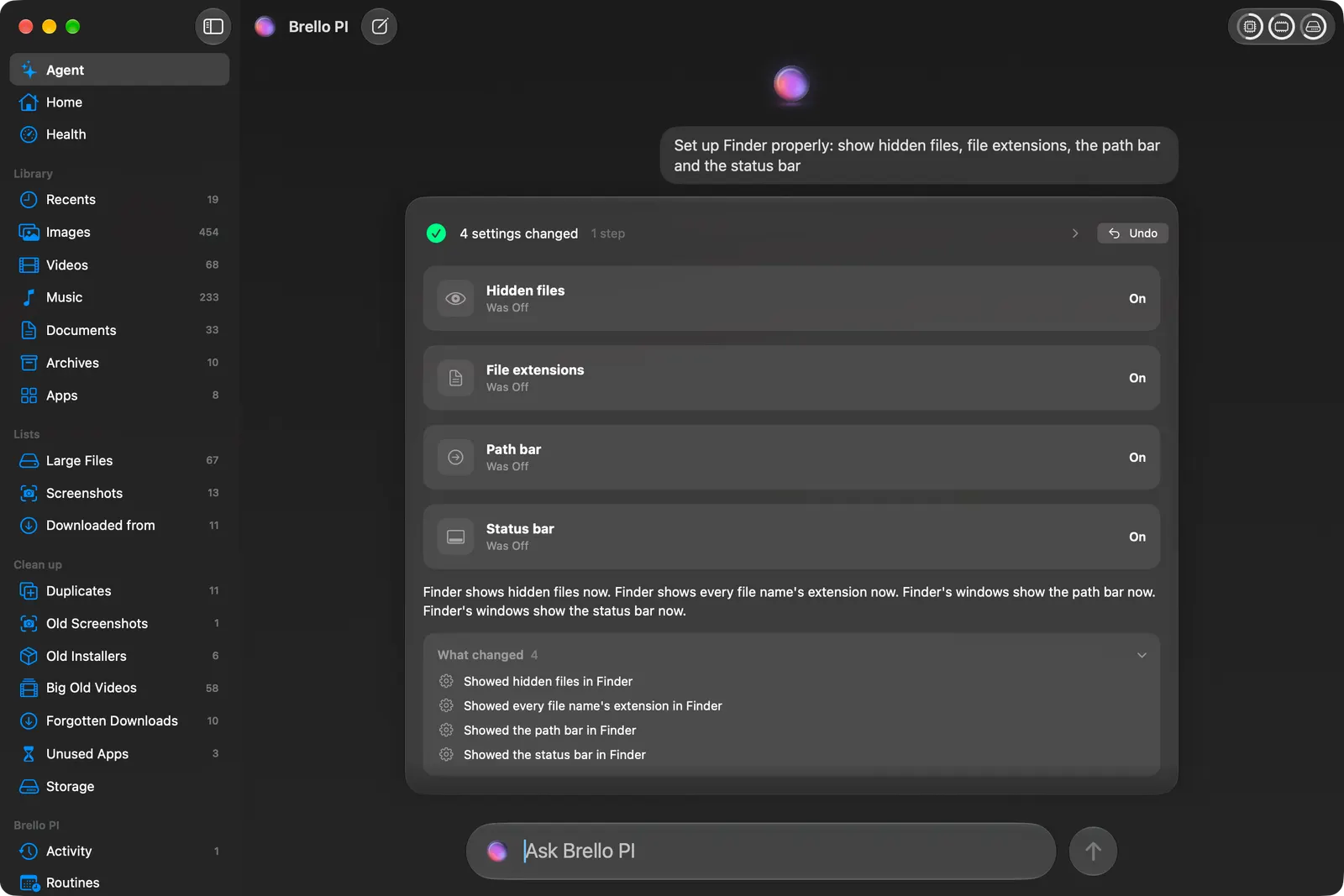
In Brello PI, type: “Set up Finder properly: show hidden files, file extensions, the path bar and the status bar.” Brello PI makes all four changes, asks macOS what each one now is, says only what macOS reports, and offers one Undo that puts all four back as they were. Settings by asking needs a Mac with Apple silicon, macOS 27 and Apple Intelligence.
Is it safe to show hidden files?
Yes, showing them changes nothing. Be careful deleting them: hidden files are usually settings and data that apps and macOS need. Hide them again once you’ve found what you were looking for.
Can I delete .DS_Store files?
Yes, and Finder makes them again: each one only remembers a folder’s view settings, such as icon positions and sort order. They do no harm. If you share a folder with people on Windows or put it in a code repository, you can leave them out instead of deleting them.
Why can’t I see the Library folder?
It’s hidden by default. Show hidden files with Shift-Command-Period, or in Finder choose Go, hold Option, and choose Library.
Why doesn’t Shift-Command-Period work?
Click a Finder window or the Desktop first, so Finder is the app in front; the shortcut does nothing in other apps except their Open and Save windows. Check the key: it’s the period, next to the comma. If another app has taken the shortcut, use the Terminal lines above instead.
Hidden files show on my Desktop now. How do I hide them?
Press Shift-Command-Period again, or run the Terminal lines with false. The files were always there; only whether Finder shows them changed.
Checked on macOS 27.0.1, November 2, 2026. Menu names can change with a macOS update.
Sources: Show or hide filename extensions on Mac (Apple Support).
In Brello’s help: Change settings by asking.