Find any setting
- Open System Settings from the Apple menu.
- Click the search field at the top of the sidebar and type what you want, such as “screen saver” or “trackpad”.
- Choose a result. The setting it found is highlighted.
The search finds settings by what they do, not only by a pane’s name: “screenshot”, “trackpad speed” and “hot corners” all work.
The shortcuts that skip System Settings
| Setting | Quickest way |
|---|---|
| Volume, brightness, Wi-Fi, Bluetooth, Focus | Control Center in the menu bar |
| Show or hide the Dock | ⌥⌘D |
| Screenshots and where they’re saved | ⇧⌘5, then Options |
| Lock the screen | ⌃⌘Q |
| Force quit an app | ⌥⌘Esc |
Where the common settings are
| Setting | In System Settings |
|---|---|
| Light, Dark or Auto | Appearance |
| The Dock’s size and hiding | Desktop & Dock |
| When the display turns off | Lock Screen |
| What opens at login, and apps running in the background | General ▸ Login Items & Extensions |
| Storage and its recommendations | General ▸ Storage |
| Battery health and Low Power Mode | Battery |
| Spotlight’s results and privacy list | Spotlight |
Settings no app may change for you
macOS keeps some settings for you alone. No app, Brello included, can change brightness, Bluetooth, Night Shift, a Focus, the accent color, Auto appearance, the firewall, FileVault, passwords, or which apps may use your files, camera and microphone. Change them in System Settings yourself.
Changes that need a restart or a password
Most settings take effect at once. A few ask for your password because they change the whole Mac, such as users, FileVault, sharing and some privacy settings. A few, such as some startup and security settings, take effect after a restart, and System Settings says so.
Undo a setting
System Settings has no undo. Before changing something you’re unsure of, note how it was, or take a screenshot of the pane. To reset a pane completely, there’s rarely a button: set each option back by hand.
System Settings or System Preferences?
They’re the same app. macOS 13 Ventura renamed System Preferences to System Settings and rearranged it as a sidebar, like the iPhone’s Settings. Guides written for macOS 12 or earlier say System Preferences and name panes that have since moved: Desktop & Screen Saver became Wallpaper and Screen Saver, Security & Privacy became Privacy & Security, and Energy Saver became Energy or Battery. Search for the setting’s name in System Settings and it finds the new place.
Why is a setting dimmed?
- It needs an administrator. Some settings, such as other users, sharing or FileVault, ask for an administrator’s name and password before they change.
- Your Mac is managed. A Mac from work or school can have settings fixed by your organization, and Privacy & Security ▸ Profiles (or General ▸ Device Management) lists what’s installed.
- Another setting comes first. Some options appear only once a related one is on, such as Dark Mode’s schedule needing Auto.
- Your Mac doesn’t support it. Features such as Apple Intelligence need Apple silicon.
Can I reset all settings?
Not in one step without erasing the Mac. Most panes have their own defaults: click a pane’s Restore Defaults or Reset button where there is one. Erase All Content and Settings, in General ▸ Transfer or Reset, resets everything, but it erases your files too, so it’s for passing a Mac on, not for fixing a setting.
Doing this with Brello
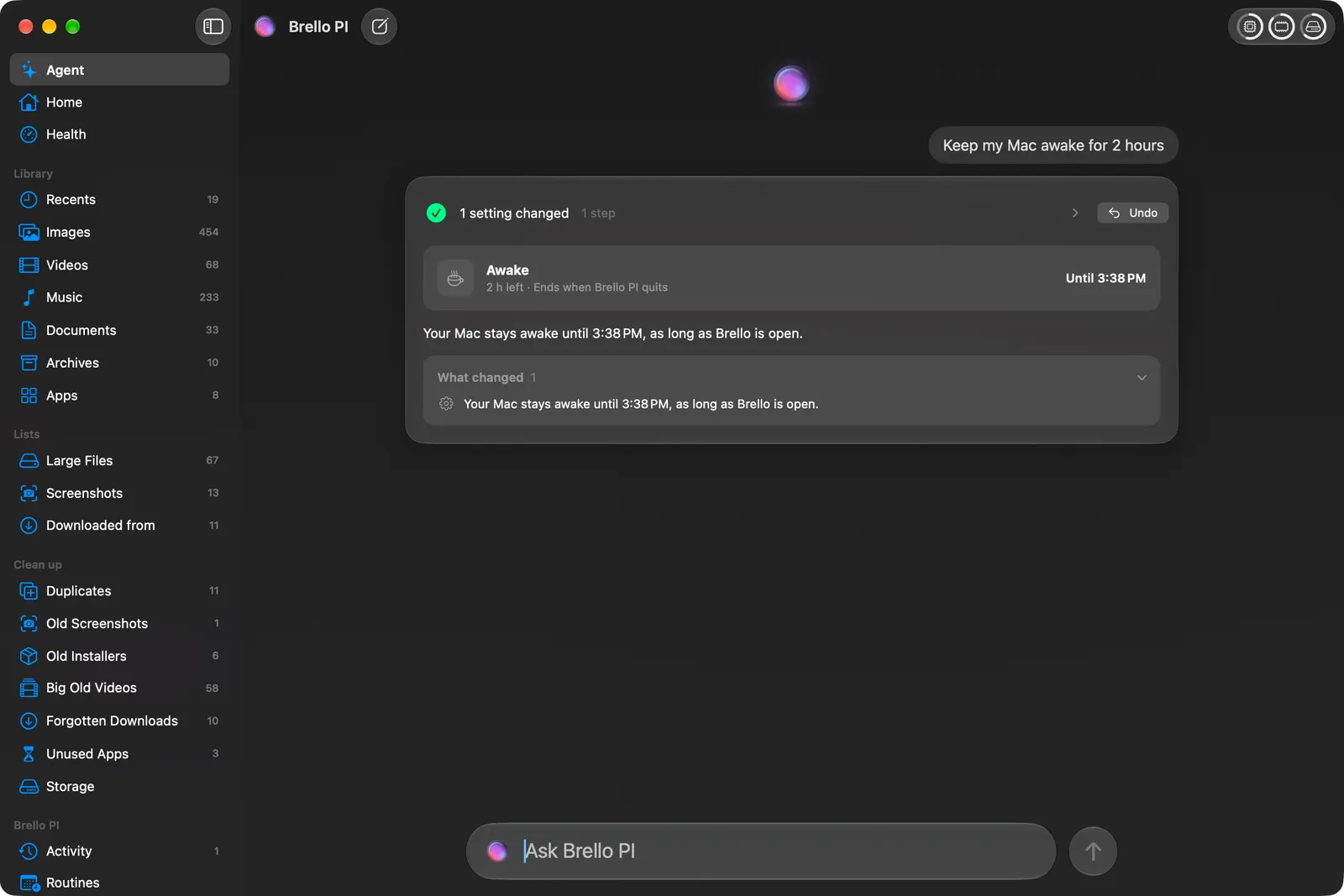
Brello PI is a Mac app we make. With its agent, ask for a setting in plain words and Brello PI changes it itself, reads it back from macOS, and says what macOS now reports, with Undo to put back the value it was before. Ask “keep my Mac awake for 2 hours”, or questions such as “is dark mode on?”. Ask how to do something and Brello PI offers to do it, with a button. Sleep, restart and emptying the Trash always ask first. For the settings no app may change, Brello PI opens the exact pane and says so in one sentence.
Asking needs a Mac with Apple silicon, macOS 27 and Apple Intelligence.
Checked on macOS 27.0.1, November 2, 2026. Menu names can change with a macOS update.
In Brello’s help: Change settings by asking.