What the message means
The window that appears is titled Force Quit Applications, and it says: “Your system has run out of application memory.” Under it: “To avoid problems with your computer, quit any applications you are not using.” macOS may have paused some apps to keep going; they show in the list with a button to Resume them.
Every app you open takes memory. When memory runs short, macOS compresses what apps aren’t using and moves the rest to swap, files on your startup disk. The message appears when even that runs out: there’s no room left to compress or swap. Two things cause almost every case:
- The startup disk is nearly full, so there’s no room for swap. This is the most common cause, and the system’s own window hints at it: “Closing windows and removing files from your startup disk will also help.”
- One app is using far more memory than it should: a browser with hundreds of tabs, a video or photo app on a huge project, a virtual machine, or an app with a memory leak that grows until something gives.
It isn’t a virus and it doesn’t damage the Mac. It’s macOS asking you to make room before apps start failing.
Fix it now, in this order
- Force quit the biggest app. In the window that appeared, the list can show how much memory each app is using. Select the one using the most, often far more than the rest, and click Force Quit. Unsaved work in that app is lost, so save in it first if it still answers. If the window has closed, press Option-Command-Esc to open it again.
- Resume paused apps. If an app shows as paused, select it and click Resume once there’s room.
- Free space on your startup disk. Aim for at least 10 to 15% free. Empty the Trash, delete large downloads and old installers, and open System Settings ▸ General ▸ Storage to see what’s largest. How to free up space on your Mac.
- Restart. Apple menu ▸ Restart clears swap and the system’s temporary files, and every app starts fresh.
Find the cause in Activity Monitor
If the message comes back, find out which app is responsible:
- Open Activity Monitor (Applications ▸ Utilities) and click Memory at the top.
- Click the Memory column to sort by it, largest first.
- Look at the Memory Pressure graph at the bottom: green means fine, yellow means macOS is working hard to fit everything, and red means memory has run out.
- Check Swap Used beside it. Many gigabytes of swap with yellow or red pressure means the Mac regularly needs more memory than it has.
An app that keeps growing over hours, even when you aren’t using it, has a leak: update it, or quit and reopen it now and then. Memory pressure, swap and every column explained.
Common causes, and what to do about each
| Cause | How you’ll know | What to do |
|---|---|---|
| Startup disk nearly full | Storage settings show little free; the message appears along with general slowness | Free 10 to 15% of the disk; check System Data |
| A browser with many tabs | Safari, Chrome or a “Helper” process leads the Memory column | Close tabs you don’t need; turn on Memory Saver in Chrome’s Performance settings |
| A leaking app | One app’s memory keeps climbing over hours | Update it; quit and reopen it; tell its maker |
| Heavy work for the Mac’s memory | Video, photo, music or virtual machines on an 8 GB Mac | Work on one big project at a time; close other apps first |
| Login items you forgot | Many apps in the menu bar you never use | Turn them off in System Settings ▸ General ▸ Login Items & Extensions |
| A bad extension or old app after an update | The message started after a macOS update | Update apps; start up in safe mode to see whether it goes away |
How much memory does a Mac need?
For browsing, mail and documents, 8 GB works, with care. For many browser tabs with other apps open, photo editing or light video, 16 GB is comfortable. For video, music production, large codebases or virtual machines, more. Memory on a Mac with Apple silicon can’t be added later, so if the message appears often with ordinary use and a disk that isn’t full, your work has outgrown the Mac’s memory. To see yours, choose Apple menu ▸ About This Mac.
Questions
Is “out of application memory” a virus? No. It’s a message from macOS itself. Pop-ups in a browser that claim your Mac is infected are a different thing: close the tab.
Will restarting fix it? For now, yes: a restart clears memory and swap. If the disk stays full or an app keeps leaking, it comes back.
Should I use a memory cleaner app? No need. macOS frees memory by itself, and quitting the app that’s using too much does what a “cleaner” does, without one more app running.
Why does it say Resume? macOS paused that app to keep the Mac running. Once you’ve freed memory, Resume lets it carry on where it stopped.
Can I increase memory on my Mac? Not on a Mac with Apple silicon. On some older Intel Macs, such as the 27-inch iMac, you can add memory.
Doing this with Brello
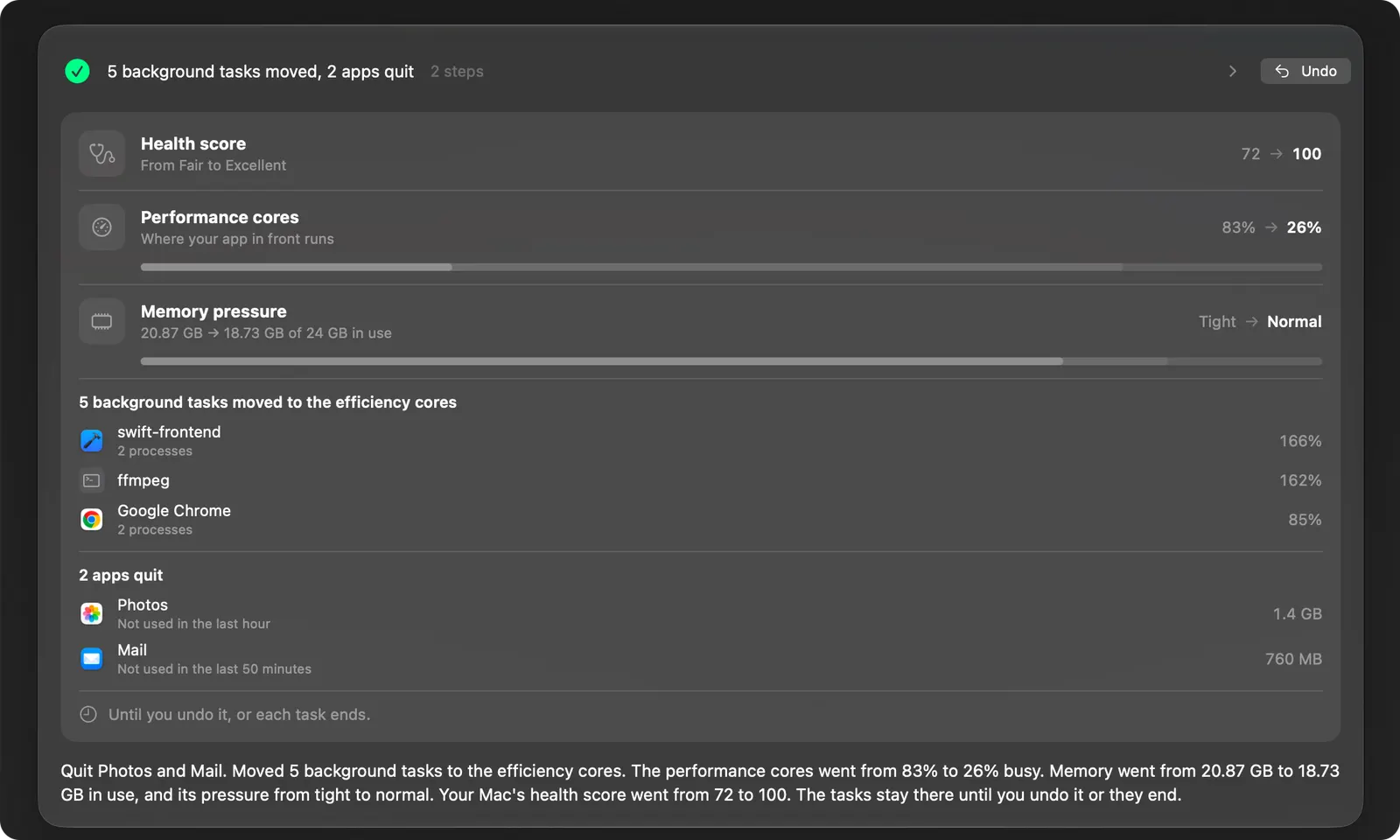
Brello’s Health shows memory pressure in plain words with the apps using the most, so you see trouble before macOS has to stop you. When memory is tight, Balance the load moves your own heavy background work onto the efficiency cores and asks before quitting apps you haven’t used for a while, naming each one and the memory it holds; Undo puts everything back. You can also ask: “Close all my apps” quits them after one question. Balance the load.
Checked on macOS 27.0.1, November 2, 2026. Menu names can change with a macOS update.
Sources: View memory usage in Activity Monitor on Mac (Apple Support); Force an app to quit on Mac (Apple Support); Free up storage space on Mac (Apple Support).
In Brello’s help: Balance the load, Mac Health.