A 10-minute health check
Work down this list once a month, or whenever your Mac feels off. Each step says where to look and what healthy looks like; the sections below explain each one.
- Processor: Activity Monitor ▸ CPU. Nothing high for minutes while you’re not working.
- Memory: Activity Monitor ▸ Memory. The Memory Pressure graph green.
- Storage: System Settings ▸ General ▸ Storage. At least 10% of the disk free.
- Heat: quiet at rest, and the fans loud only under heavy work.
- Battery, on a laptop: System Settings ▸ Battery ▸ Battery Health. Normal.
- Sleep: Activity Monitor ▸ Energy ▸ Preventing Sleep. Nothing marked Yes that you didn’t start.
- Updates: System Settings ▸ General ▸ Software Update. Up to date.
- Background items: System Settings ▸ General ▸ Login Items & Extensions. Nothing you don’t recognize.
- Backups: System Settings ▸ General ▸ Time Machine. A recent Latest backup date.
- The disk itself: Disk Utility ▸ First Aid, if anything above looked wrong.
The five readings that matter
| Reading | Where to see it | What healthy looks like |
|---|---|---|
| Processor | Activity Monitor ▸ CPU | Busy in bursts, mostly idle when you’re not working |
| Memory | Activity Monitor ▸ Memory, the Memory Pressure graph | Green pressure, whatever “Memory Used” says |
| Storage | System Settings ▸ General ▸ Storage | Room to spare for updates and virtual memory |
| Heat | How the Mac feels and sounds; the fans | Quiet at rest; loud only under heavy work |
| Battery (laptops) | System Settings ▸ Battery ▸ Battery Health | Condition normal, capacity high for its age |
Check the processor
- Open Activity Monitor (in Applications ▸ Utilities, or press ⌘Space and type its name).
- Click CPU, then click the % CPU column to sort the busiest to the top.
- The graph at the bottom shows how hard the processor is working overall. One app near the top for a long time, while you’re not using it, is worth a look.
Check memory
In Activity Monitor, click Memory and look at the Memory Pressure graph at the bottom. Green means apps have the memory they need, even if Memory Used is close to the total: macOS uses spare memory on purpose. Yellow or red for a long time means it’s worth quitting an app.
Check storage
Open System Settings ▸ General ▸ Storage. If the bar is nearly full, free up space before installing an update.
Check the battery on a MacBook
Open System Settings ▸ Battery and click the ⓘ next to Battery Health to see its maximum capacity and condition. For the cycle count, hold Option, choose Apple menu ▸ System Information, then click Power.
Check what keeps it awake
In Activity Monitor, click Energy and look at the Preventing Sleep column. Any app marked Yes is keeping your Mac awake.
Check updates, background items and backups
- Updates: System Settings ▸ General ▸ Software Update shows whether macOS is current. Turn on Automatic updates so security fixes install themselves. Update apps in the App Store, and other apps from their own Check for Updates item.
- Background items: System Settings ▸ General ▸ Login Items & Extensions lists apps that open at login and items allowed to run in the background. Remove what you don’t use: each one uses memory and battery whether or not you need it.
- Backups: System Settings ▸ General ▸ Time Machine shows when the last backup finished. A Mac without a recent backup is one failure away from losing everything on it, however healthy it looks today.
Check the disk and the hardware
If apps crash, files won’t open or the Mac freezes, check the disk: open Disk Utility (in Applications ▸ Utilities), select your startup disk, and click First Aid. It checks the disk’s structure and repairs what it can.
For the hardware, run Apple Diagnostics. On a Mac with Apple silicon, shut down, press and hold the power button until the startup options appear, then press Command-D. On an Intel Mac, restart and hold D. It tests memory, the logic board and other parts, and gives reference codes Apple Support can read.
Check security
macOS protects itself with Gatekeeper, notarization and XProtect, which Apple updates on its own. Two settings are worth checking by hand: FileVault, in System Settings ▸ Privacy & Security, which encrypts the disk (you’re offered it when you first set up a Mac), and the Firewall, in System Settings ▸ Network. Review Privacy & Security now and then for apps with access they no longer need, such as Full Disk Access or Screen Recording.
How often should I check my Mac’s health?
Once a month is plenty for most people, plus whenever the Mac feels slow, runs hot or loses battery fast. A Mac that stays up to date, has room on its disk and a recent backup needs little else.
Do I need an app to check my Mac’s health?
No: everything above is built into macOS. Apps that gather the readings in one place save you opening four windows, and some keep a history, which helps you spot a slow change, such as a battery losing capacity or a disk filling month by month.
Doing this with Brello
Brello is a Mac app we make, and its Health page puts these readings in one place, live every second, in plain words: how hard the processor and memory are working, memory pressure (“Apps have the memory they need”), how full the disk is, how warm the chip runs, and what’s keeping your Mac awake and for how long. Using the most ranks apps by processor, memory, energy or disk, and Health keeps a history over the hour, day, week and month, on your Mac.
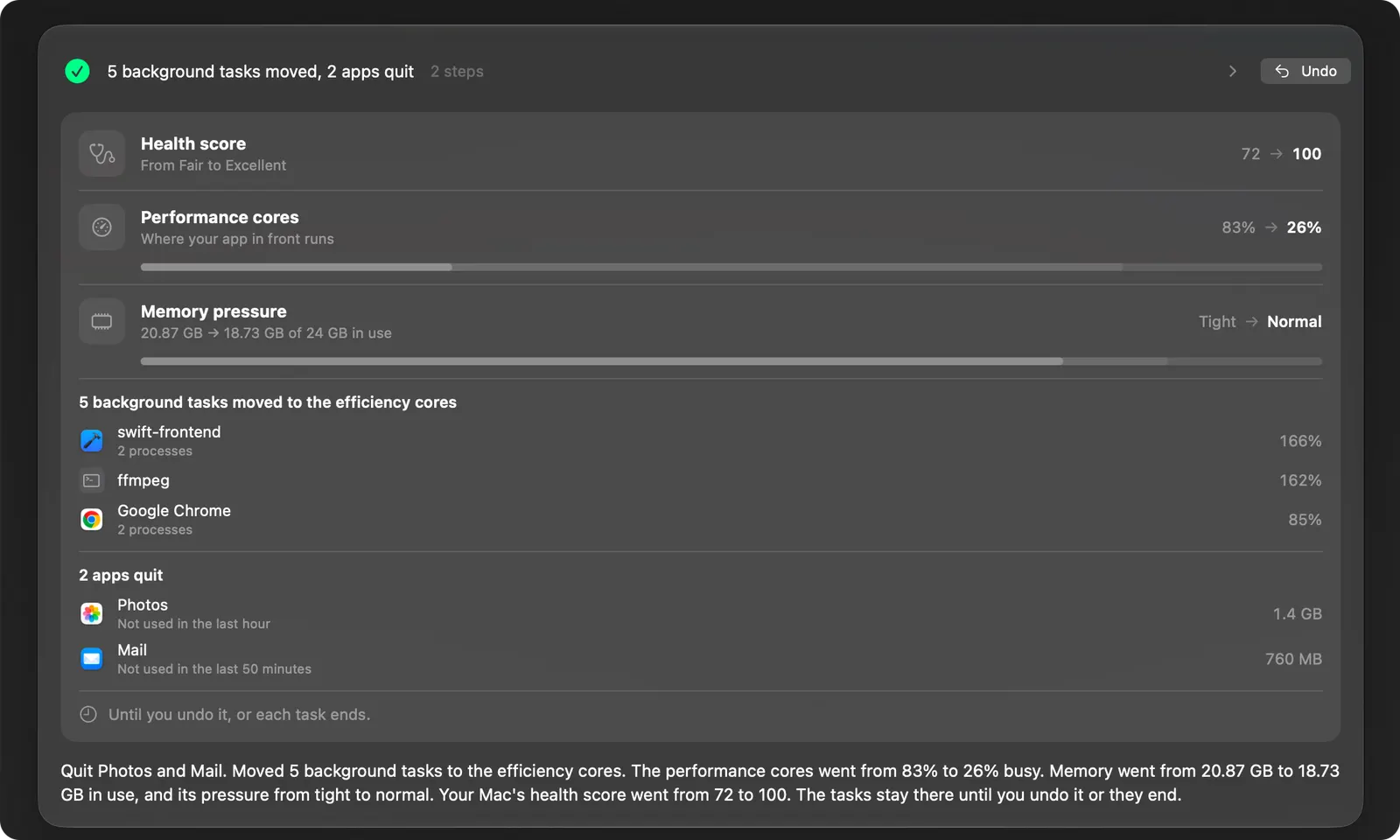
Above it, one Health score from 0 to 100, worked out by code from the same readings, says in a word how the Mac is doing.
Balance the load moves your own heavy background work to the efficiency cores in one click, asks before quitting apps you haven’t used when memory is tight, and shows before and after, with Undo. With Brello PI’s agent, ask “what’s using my Mac?” for a plain answer. Health works on any Mac with macOS 14 or later; the plain answer needs the agent.
Checked on macOS 27.0.1, November 2, 2026. Menu names can change with a macOS update.
In Brello’s help: Mac Health.