Where to see it
Open System Settings ▸ General ▸ Storage and wait for the bar at the top to finish measuring. It splits the space in use into categories such as Applications, Documents, Photos and System Data.
Apple describes System Data as “a general category that measures the storage space used by all Apple and third-party files that don’t belong to any more specific category.” In practice the pane adds up the categories it can name, and everything else in use lands in System Data.
What’s inside System Data
- Caches that macOS and your apps keep to work faster. Apps make them again when they need them.
- Logs and temporary files, including files left by interrupted downloads.
- Local Time Machine snapshots, if Time Machine is set up.
- Virtual memory files, which macOS uses when apps need more memory than the Mac has.
- Files apps keep for themselves: app support files, plug-ins, fonts and the like.
- Updates waiting to be installed, for macOS and some apps.
Why it looks so large
Two things make the number bigger than it feels. First, the pane counts space actually taken on disk, and anything it can’t place goes into this one category. Second, some of that space is purgeable: macOS can free it on its own the moment another app needs room. Apple says your Mac counts the space local snapshots use as available storage, and deletes them as space is needed.
So a large System Data figure on its own is not a problem. It matters only when your disk is actually close to full.
How to clear System Data safely
- Empty the Trash. Files in the Trash still take up space. In Finder, choose Finder ▸ Empty Trash. This can’t be undone, so look first.
- Check for local Time Machine snapshots. In Terminal, run
tmutil listlocalsnapshots /. Apple keeps hourly snapshots for 24 hours and deletes them when space is needed, so you can usually leave them. If you need the space now,tmutil deletelocalsnapshots /deletes the snapshots on that disk. - Clear caches of apps you know. Developer tools keep the largest ones: Xcode’s build data, package managers’ downloads and the like. Use each tool’s own cleanup command where it has one, for example
brew cleanupfor Homebrew. - Start up in safe mode once. Apple says safe mode “clears certain system caches, which are automatically created again as needed.” On a Mac with Apple silicon, shut down, then press and hold the power button until you see the startup options, select your disk, hold Shift and click Continue in Safe Mode. On an Intel Mac, restart and hold Shift. Restart normally afterward.
- Restart your Mac. A restart deletes temporary files and the virtual memory (swap) macOS wrote to the disk while it ran. On a Mac that has been on for weeks, that alone can return several gigabytes.
- Install pending updates. A macOS update that has downloaded but not installed waits in System Data. Install it in System Settings ▸ General ▸ Software Update, and the space comes back after.
- Let macOS do the rest. Turn on Empty Trash Automatically and Optimize Storage in the Storage pane’s recommendations if they suit you.
Find what’s in your System Data
The Storage pane doesn’t open System Data, but you can see which folders hold the most. In Terminal, this lists the 15 largest folders in your Library, without changing anything:
du -sh ~/Library/* 2>/dev/null | sort -h | tail -15Then look inside the biggest with the same command, such as du -sh ~/Library/Containers/* 2>/dev/null | sort -h | tail -15. What you’ll usually find, and what to do:
| Large folder | What it is | What to do |
|---|---|---|
~/Library/Containers/com.docker.docker |
Docker’s virtual disk | Clean up in Docker itself, or lower its disk limit in Docker’s settings |
~/Library/Developer |
Xcode’s build data, simulators and device support | Delete in Xcode’s settings or with xcrun simctl delete unavailable |
~/Library/Application Support/MobileSync |
iPhone and iPad backups | Delete old ones in Finder: select the device, then Manage Backups |
~/Library/Caches |
Apps’ caches | Clear for apps you know; see clear the cache |
~/Library/Mail |
Mail’s messages and attachments | Delete large old mail in Mail, never in Finder |
~/Library/Messages |
Messages’ history and attachments | Set Keep messages to a year in Messages’ settings |
Folders outside your Library, such as /private/var/vm (virtual memory) and /Library/Updates, belong to macOS; restarting and installing updates clears them.
What not to delete
- Anything in the System folder, or in hidden system folders such as
/private/var. macOS needs them, and its system volume is sealed anyway. - Folders in your Library folder you don’t recognize. Apps keep their settings and data there, and deleting them can lose your work in that app.
- The inside of your Photos or Music library. Delete photos and songs in their apps, or the library can break.
- Files stored only in iCloud. Deleting a file that iCloud Drive keeps only in the cloud can delete it everywhere.
Is a large System Data a problem?
Usually not. Much of it is purgeable, and macOS frees it when an app needs the space. It’s worth clearing only when your disk is nearly full and the other categories have nothing left to give.
Why does System Data keep growing?
Caches and logs grow back as you use your Mac, and new snapshots are made every hour while Time Machine is on. That’s normal. If it grows by many gigabytes a day, look for a developer tool or a sync app writing large caches, and clear it with the tool’s own command.
Can I delete System Data?
Not as a whole, and you shouldn’t try: it includes files macOS and your apps need. You can delete the parts you recognize, as above, and macOS frees much of the rest by itself when space runs low.
Does restarting clear System Data?
Partly. A restart removes temporary files and swap, and lets macOS finish clearing caches and snapshots it marked for deletion. It doesn’t remove app data, backups or virtual machines.
Why does System Data show more than 100 GB?
Usually one large item: a virtual machine or Docker’s disk, years of iPhone backups, developer tools, or many local Time Machine snapshots on a Mac whose backup disk hasn’t been connected for a while. Use the Terminal command above to find it; it’s rarely spread evenly.
Doing this with Brello
Brello PI is a Mac app we make. Most of System Data is macOS’s own, and Brello PI leaves that to macOS. Ask Brello PI to “free up space” or “clean my mac” and it also clears the caches apps make again, developer tools’ caches, and crash reports and app logs older than 30 days, after one question that lists each with its size; those are deleted for good, since apps rebuild them. It also shows you what else is filling your disk, so you can find the space you can actually get back.
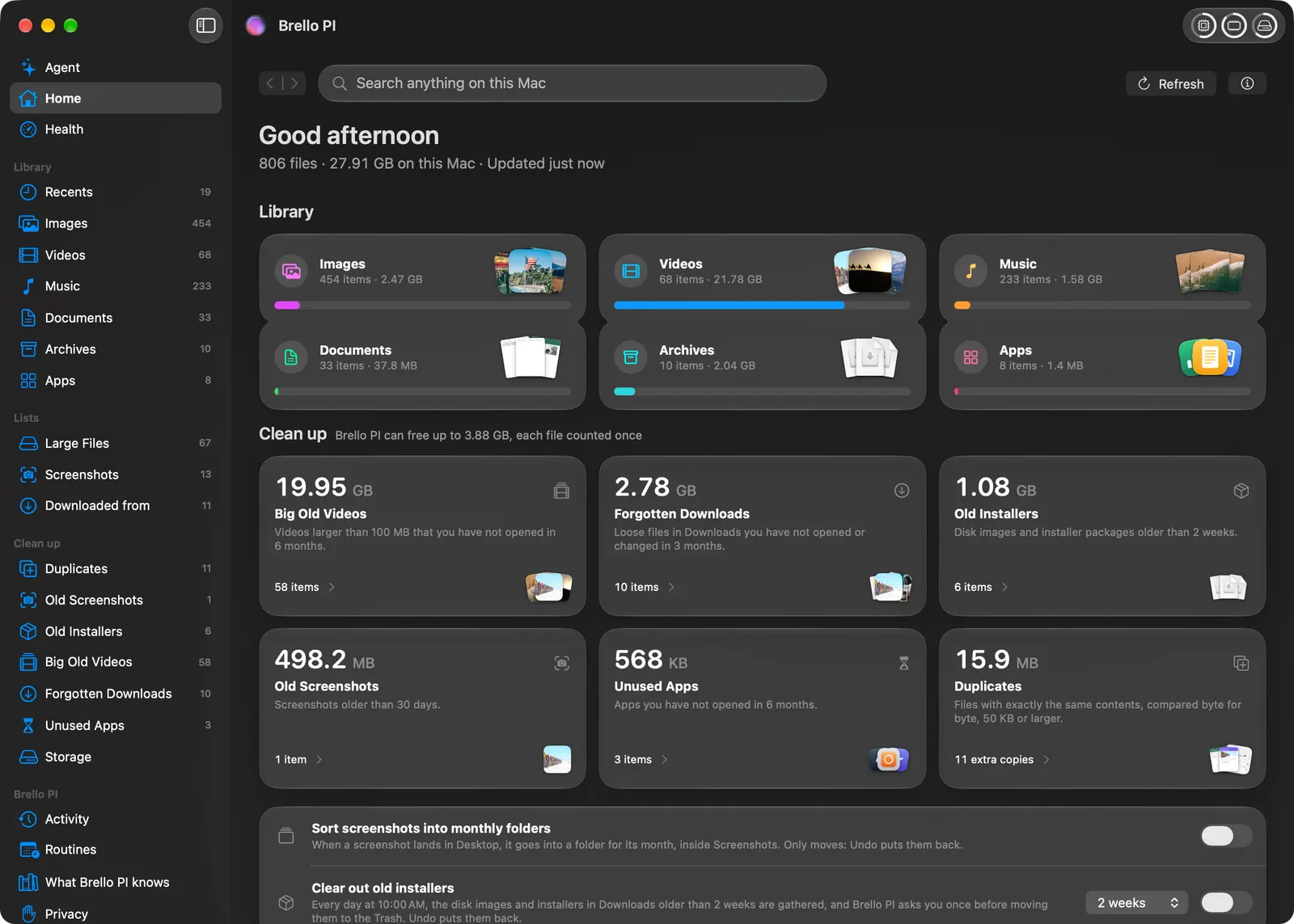
Home shows every kind of file on your Mac (images, videos, music, documents, archives and apps), each with its count and size. Storage measures every kind of file on your Mac and marks the caches apps make again as safe to go. Clean up lists old installers, forgotten downloads and big old videos by name and size. When you delete something, it goes to your Mac’s Trash, as Finder moves it there, and Undo puts it back.
It works on any Mac with macOS 14 or later.
Checked on macOS 27.0.1, November 2, 2026. Menu names can change with a macOS update.
Sources: Free up storage space on Mac (Apple); About Time Machine local snapshots (Apple).