Free up space, step by step
Start with what usually frees the most and costs nothing, and stop when you have enough room.
- See what’s using it. Open System Settings ▸ General ▸ Storage and wait for the bar to fill in. The biggest category tells you where to start. See how to check storage.
- Empty the Trash. Files in the Trash still take up space. Look first, then choose Finder ▸ Empty Trash. See how to empty the Trash.
- Clear out Downloads. Open Downloads (Option-Command-L), sort by Date Added, and delete what you’ve already used, oldest first. See how to delete downloads.
- Delete installers you’ve used. Disk images (
.dmg) and installer packages (.pkg) can go once the app is installed. So can an old Install macOS app in Applications, which takes over 10 GB. - Find large files. In Finder, press Command-F, choose This Mac, then Other… ▸ File Size, and search for greater than 500 MB. Videos are usually the biggest.
- Remove duplicate copies. Keep one copy of each file in the folder where you’d look for it, after checking the copies really match. See find duplicate files.
- Uninstall apps you don’t use. Drag them from Applications to the Trash. See uninstall apps.
- Turn on the Storage pane’s recommendations that suit you: Store in iCloud, Optimize Storage and Empty Trash Automatically.
Where the space usually hides
| Place | What to look for | How to clear it |
|---|---|---|
| Downloads | Installers, videos, archives you unpacked | Sort by size or date; delete what you’ve used |
| Movies and Desktop | Screen recordings and exported videos | Delete or move to an external drive |
| iPhone and iPad backups | Old backups of devices you no longer have | Storage ▸ iOS Files ▸ ⓘ, or Finder ▸ your device ▸ Manage Backups |
| Messages | Years of photos and videos in chats | Messages ▸ Settings ▸ Keep messages: 1 Year; or Storage ▸ Messages ▸ ⓘ to delete big attachments |
| Attachments in old mail | Delete old messages with large attachments in Mail | |
| Photos | A library kept in full on the Mac | Turn on Optimize Mac Storage in Photos’ iCloud settings |
| Developer tools | Xcode’s data, simulators, package caches | See clear the cache |
| Music and TV | Downloaded films, shows and music | Storage ▸ TV ▸ ⓘ or Music ▸ ⓘ; they can be downloaded again |
| System Data | Caches, snapshots, virtual machines | See what System Data is |
What the Storage recommendations do
- Store in iCloud keeps your Desktop and Documents, and your photos, in iCloud, and keeps only recent files and smaller versions of photos on the Mac when space is needed. It needs enough iCloud storage for all of them.
- Optimize Storage removes films and TV shows from the TV app once you’ve watched them; you can download them again.
- Empty Trash Automatically deletes items that have been in the Trash for 30 days.
None of them deletes files you can’t get back when you turn it on.
Move what you want to keep
Large photo libraries, video projects and old work can live on an external drive. Copy them there, open the copy to check it, then delete the original. Keep a backup of both until you’re sure. An external SSD is fast enough to work from directly; to move your Photos library, quit Photos, drag the library to the drive, then open it by holding Option as you open Photos.
What not to delete to free space
- System Data. macOS frees most of it by itself when space runs low.
- Your Photos or Music library’s insides. Delete in the app, never in Finder.
- Files kept only in iCloud. Deleting them on your Mac can delete them everywhere.
- Language files and parts of apps. Removing them saves little and can break an app’s signature, so it won’t open.
- Anything in your Library you can’t name. Apps keep their data there.
How much free space does a Mac need?
There’s no single number from Apple, but macOS and your apps need room to work: for updates, virtual memory and caches. A major macOS update needs tens of gigabytes free to install. If the Storage bar is nearly full, free up space before installing an update.
Why is my Mac storage full when I hardly have any files?
The space is usually in a place you don’t look: System Data (often a virtual machine, Docker, iPhone backups or Time Machine snapshots), Messages’ attachments, Mail, or a Photos library kept in full. The Storage pane’s categories point to which; the table above says how to clear each.
Do Mac cleaner apps free more space?
They find the same places listed here, faster. Most of what they clear first, caches and logs, comes back within days. Space from deleting your own large and duplicate files stays free. See is CleanMyMac safe?
Why didn’t the space come back?
Files you delete go to the Trash first; empty it. If Time Machine is on, local snapshots can hold deleted files’ space for up to a day; macOS frees it when it’s needed, and counts it as available meanwhile. The Storage bar can take a minute to measure again.
Does a Mac have a Disk Cleanup tool?
Not one called that. Storage settings is the Mac’s version: open System Settings ▸ General ▸ Storage for its recommendations (Store in iCloud, Optimize Storage, Empty Trash Automatically) and the list of what’s largest in each category, where you can delete straight from the list. macOS clears its own caches and temporary files when it needs the room.
How do I free up space without deleting anything?
Move it instead: turn on Store in iCloud in Storage settings to keep only recent files on the Mac, move big folders such as old video projects to an external drive, and set the Photos library to Optimize Mac Storage in Photos ▸ Settings ▸ iCloud, which keeps smaller versions on the Mac and the originals in iCloud. Turning Optimize off later downloads every original again, so it needs that space back.
Doing this with Brello
Brello is a Mac app we make, and its Clean up finds the usual places space goes and lists each file by name and size: big old videos, forgotten downloads, old installers, old screenshots, apps you haven’t opened in 6 months, and duplicate copies matched byte for byte. Its total counts each file once.
You see every file before anything is deleted. Say yes and the files go to your Mac’s Trash, as Finder moves them there, and Undo puts them back. Emptying the Trash is the one step Undo can’t reverse, so Brello asks first and says how many items and how much space. Clean up works on any Mac with macOS 14 or later.
Ask Brello PI to “free up space” or “clean my mac” and it also clears the caches apps make again, developer tools’ caches, and crash reports and app logs older than 30 days, after one question that lists each with its size. Those are deleted for good, since apps rebuild them; macOS’s own caches are left to macOS, and a cache an app is using is left alone.
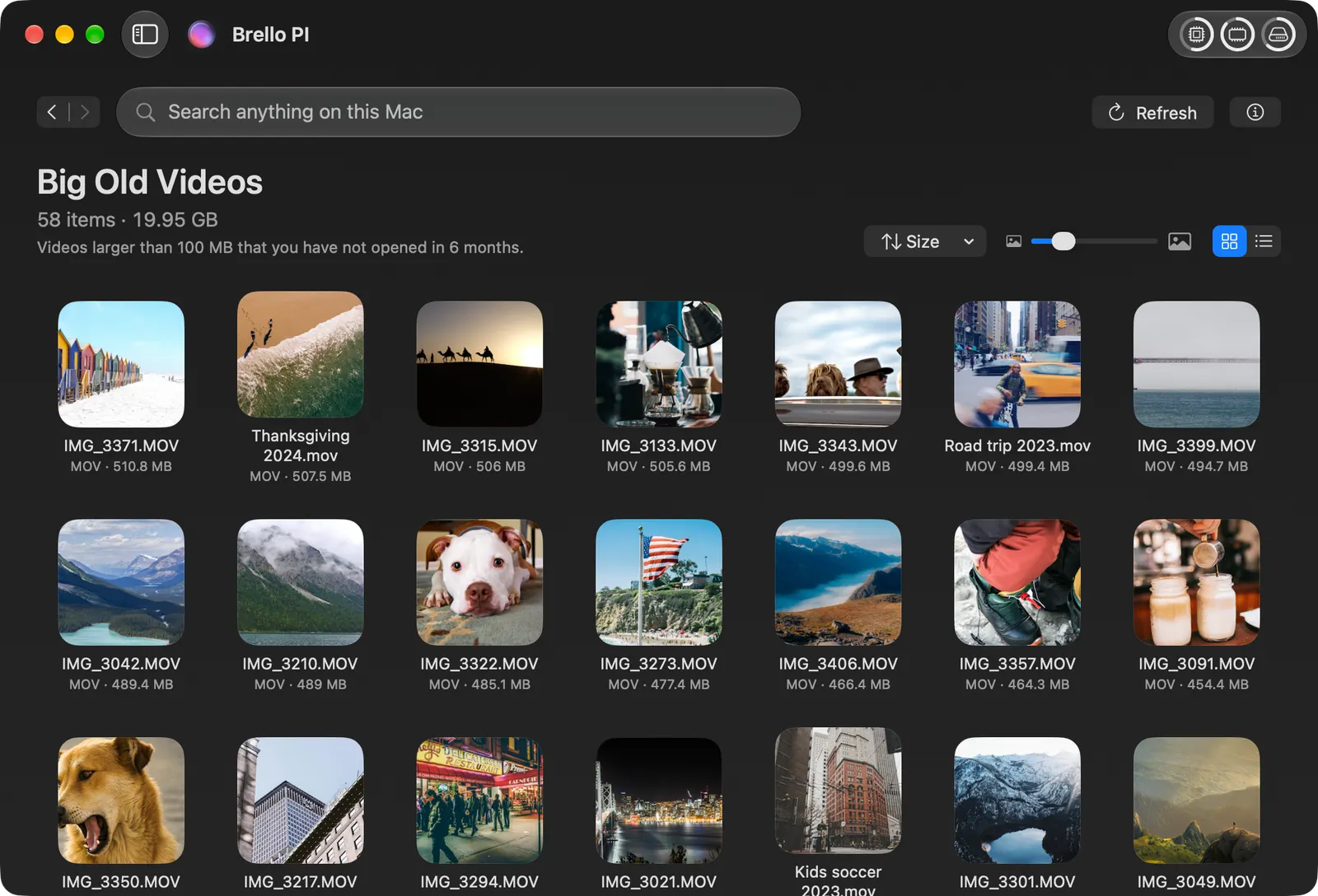
Checked on macOS 27.0.1, November 2, 2026. Menu names can change with a macOS update.
Sources: Free up storage space on Mac (Apple).
In Brello’s help: Clean up, and tidy rules, Delete files, and put them back.