Change it in System Settings
- Choose Apple menu ▸ System Settings.
- Click Wallpaper in the sidebar. You may need to scroll down.
- Pick a picture from a category. The options for it, such as how often to shuffle, appear next to its name at the top.
The categories on macOS 27:
| Category | What it is |
|---|---|
| Dynamic Wallpapers | Pictures that brighten and darken through the day for where you are; you can also choose a still light or dark version |
| Your Photos | Your own photos, image files, folders and albums |
| Landscape, Cityscape, Underwater and Earth aerials | Moving aerial views that animate as you lock or unlock the Mac; by default the same aerial is your screen saver |
| Shuffle Aerials | Still aerial images that change at an interval you choose |
| Mac | Gradient shapes that form the word “Mac” |
| Pictures | Still pictures |
| Colors | A solid color |
Aerials are downloaded the first time you choose one; Remove Download in their options gets the space back.
Use your own picture or photos
- In Wallpaper settings, scroll to Your Photos and click Add Photo….
- Choose Choose from Photos… for a photo in your library, Choose File… for an image file, or Choose Folder… for a folder of pictures. Under Photo Sets you can pick an album from Photos.
- Use the options at the top to choose how the picture fits the screen, such as filling it or fitting it whole, and a color for any space around it.
You can also drag an image from the Desktop or a folder onto the thumbnail at the top of Wallpaper settings. Pictures at your display’s own resolution look sharpest; a photo from a phone is usually large enough.
Set any picture from Finder
Control-click the image in Finder and choose Set Desktop Picture. It’s the quickest way when you already know the file. It works for JPEG, PNG, HEIC and the other picture formats macOS opens.
From Photos or Safari
- Photos: select a photo, click the Share button in the toolbar, then Set Wallpaper.
- Safari: Control-click an image on a web page and choose Use Image as Desktop Wallpaper.
Rotate through a folder or an album
Add a folder or an album as above, then choose it in Your Photos. Its options let you shuffle the pictures and choose how often: when you log in, when the Mac wakes, or every so many minutes, hours or days. Shuffle Aerials does the same with Apple’s aerials.
A different wallpaper on each display or Space
Each display has its own wallpaper. With more than one display, Wallpaper settings shows a menu at the top for each one; choose the display, then the picture. With several desktops in Mission Control, turn on Show on all Spaces for one wallpaper everywhere, or turn it off and set each Space while you’re on it.
Change the lock screen too
The lock screen uses your desktop wallpaper, so changing one changes both. With an aerial, the motion plays on the lock screen and as the screen saver. Lock Screen Settings… in Wallpaper settings opens the rest: the clock’s style and when the screen turns off.
On macOS 14 and earlier
macOS 13 and 14 have the same Wallpaper pane, with fewer categories; macOS 14 Sonoma added the moving aerials. On macOS 12 and earlier, choose Apple menu ▸ System Preferences ▸ Desktop & Screen Saver, click Desktop, and pick a picture or add a folder with +. Finder’s Set Desktop Picture works on all of them.
Ask for it
In Brello, type what you want:
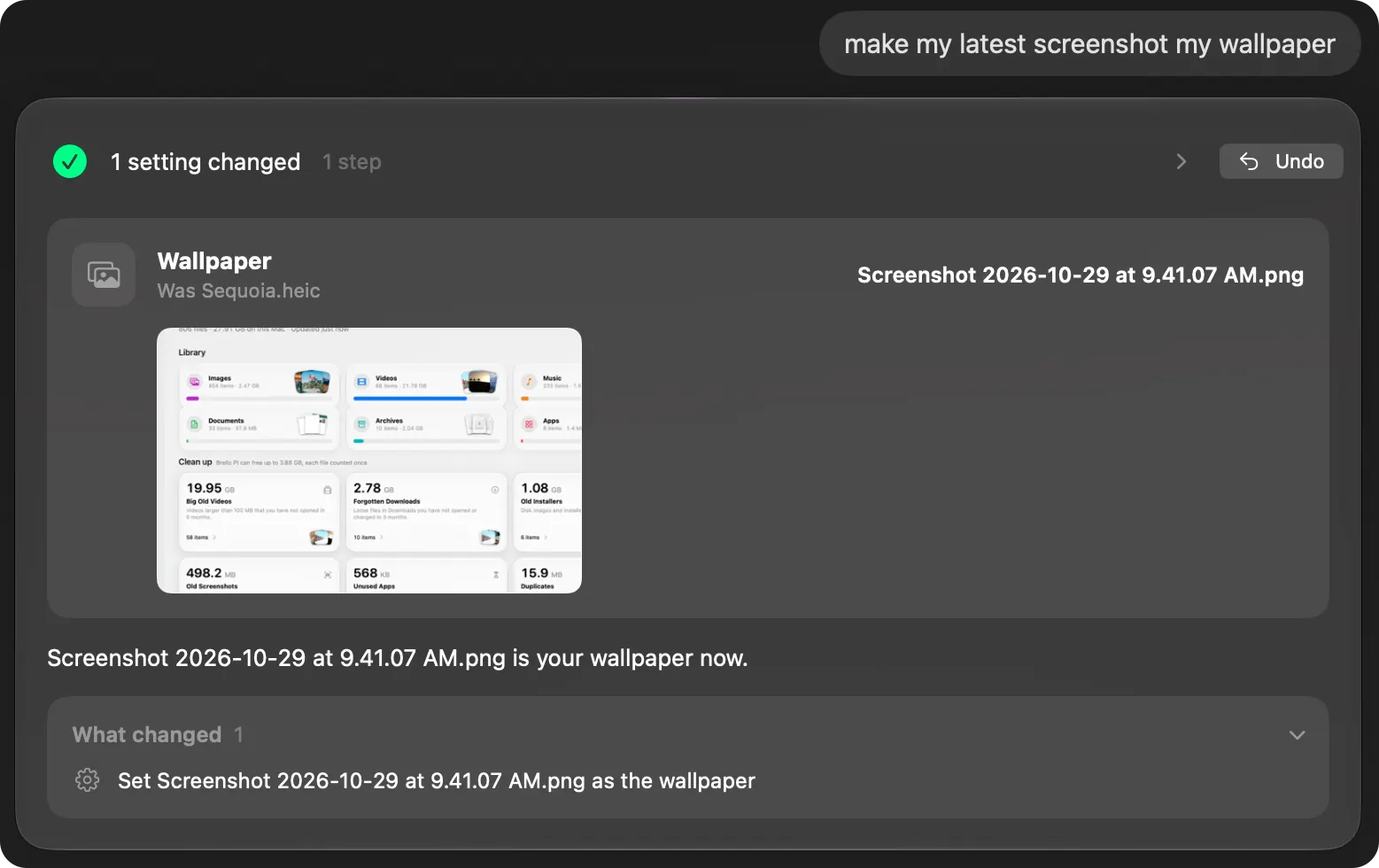
- “Make my latest screenshot my wallpaper.”
- Or name a picture: “make IMG_4127.png my wallpaper.”
Brello PI finds the picture, sets it as the wallpaper, then asks macOS what the wallpaper now is and says only what macOS reports. Its reply shows the picture and the wallpaper it replaced, and Undo puts the old one back. Settings by asking needs a Mac with Apple silicon, macOS 27 and Apple Intelligence.
Why didn’t my wallpaper change?
- Another display or Space. Each display, and each Space with Show on all Spaces off, has its own wallpaper. Check that you changed the one you’re looking at.
- The picture is in iCloud. A photo or file stored only in iCloud may need to download first; open it once, then try again.
- It changed back. A shuffle you set earlier, or a folder that rotates, picks a new picture on its own. Choose a single picture to stop it.
- A managed Mac. A work or school Mac may have its wallpaper set by your organization, and the settings are dimmed.
- The file moved. If you moved or deleted the picture you used, macOS may fall back to a default. Set it again from its new place.
Where are the Mac’s wallpapers stored?
The still pictures that come with macOS are in /System/Library/Desktop Pictures, which you can open in Finder with Go ▸ Go to Folder (Shift-Command-G). Copy one out to use it elsewhere. Aerials are downloaded when you choose them and live in a system folder you don’t need to open.
Can I use a video as my wallpaper?
Not your own video, without another app. macOS’s aerials are the moving wallpapers it offers; apps from other makers can play a video behind your windows, at a cost in battery.
Remove a picture you added
In Wallpaper settings, hold the pointer over the photo, folder or album under Your Photos, then click the ×. You can’t remove the one that’s your wallpaper now; choose another first.
Checked on macOS 27.0.1, November 2, 2026. Menu names can change with a macOS update.
Sources: Customize the wallpaper on your Mac (Apple Support); Wallpaper settings on Mac (Apple Support).
In Brello’s help: Change settings by asking.