None of what follows goes on a feature list. All of it decides whether an app feels like it belongs on a Mac. Each one was a real bug or a real choice in building Brello, and each is now held in place by a test.
Text upside down
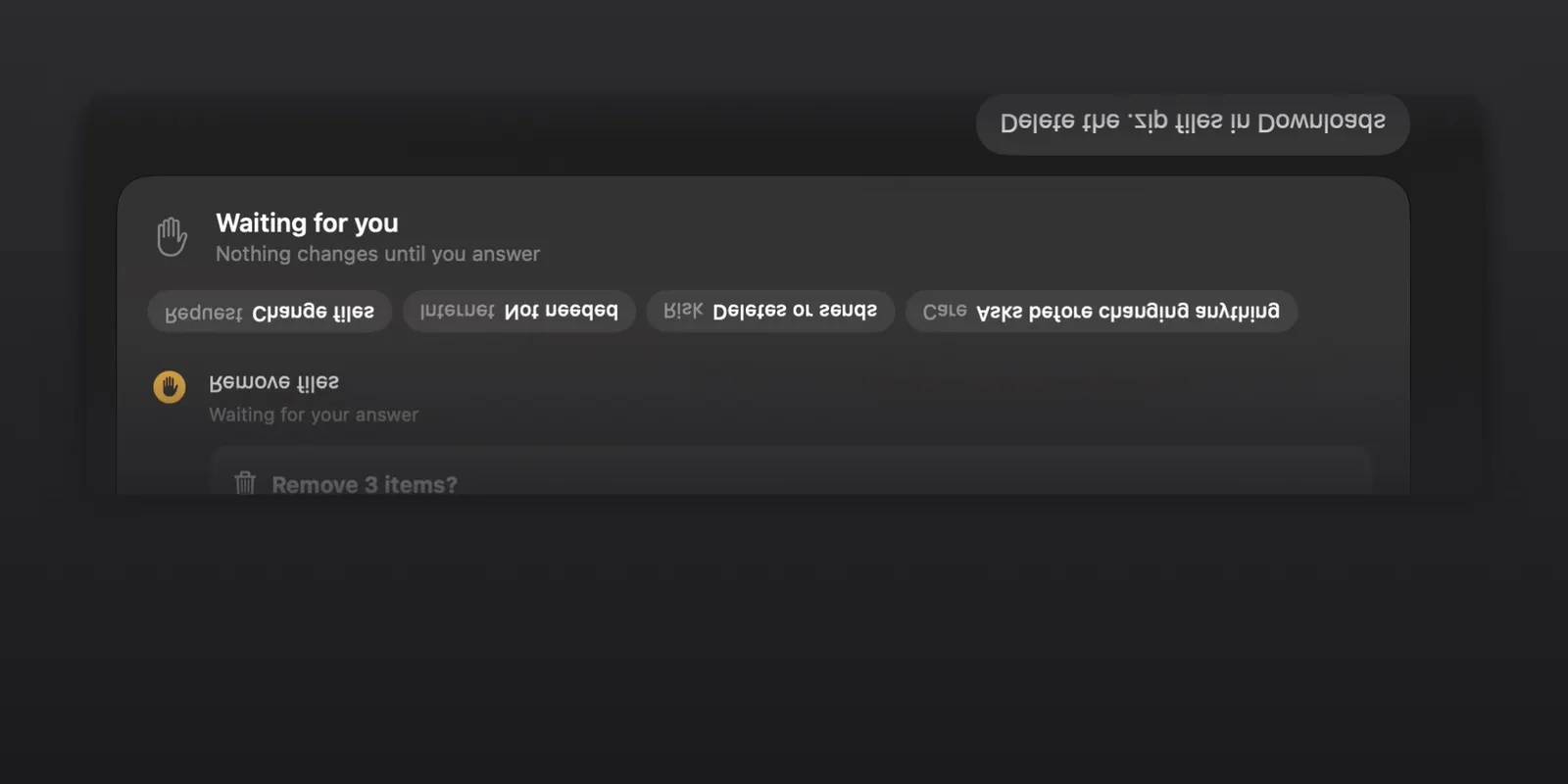
It happened at one moment: when the agent asked a question and its buttons arrived, some lines above them drew flipped, then righted themselves the next time they were drawn. SwiftUI draws each piece of text in a layer of its own, and when the first view backed by AppKit joins a container, a button with its focus ring or a progress bar, it builds every text layer in that container again under a new parent. At one question, 11 of the thread’s 31 text layers were new objects. A layer built that way can be drawn before its new parent is in the window, and then it shows upside down.
The fix is to build each container steady from its first frame, so nothing that arrives later can rebuild its text. Text in the thread is drawn by SwiftUI alone, never in a selectable text view; Copy is in the menu instead. A test plays a whole turn off screen and checks that the layers that drew your message are the same objects at the end, and a script reads captures of the running app, upright and mirrored. In 714 captures at the last check, none was flipped.
Delete means the Trash
Early on, Brello kept deleted files in a folder of its own. It worked, but it isn’t how a Mac works. Now deleted files go to the Mac’s own Trash, through the same call Finder uses, and Undo or ⌘Z brings them back. They also fall visibly into the Trash in the Dock, aimed within 1.5 points of its mouth, and Undo flies them back out.
A click is not a sentence
The popup can list your biggest files, with a Remove All button. At first, nothing moved for 1.8 to 3.5 seconds after the click: the click was written as a sentence and sent to the model to work out what it meant. A click already says what it means. Now code reads it, and the files start moving 14 to 28 milliseconds later. The safety check still runs; the click is its yes. The rule we took from it: never ask a model something the interface already knows.
The spinner that cost frames
While a step runs, Brello shows a small turning indicator. When we recorded the app, the window dropped frames whenever it was on screen. It wasn’t the layout: the main thread waited in Core Animation’s commit for the window server, because SwiftUI drew the indicator twice every frame. It now turns in an AppKit image view, and appears only after 0.45 seconds. In a wide recording, late frames while working went from 65 and 390 in two takes to none in either.
A yellow square
Brello PI’s menu bar icon is drawn into a still picture with SwiftUI’s ImageRenderer, which can’t draw a view that wraps AppKit, and draws a yellow placeholder in its place. The orb carried one, a small view that followed its window, so while the window or the popup was open, the menu bar showed a yellow square with a red ring. The fix draws the orb alone, and a test reads the icon’s corners in every state, dark and light, and fails if it finds yellow.
Nothing moves once placed
Once something is on screen, it stays where it is. A reply flows in below what’s already there, and the title and the orb above it don’t move. A number that changes does it in place, in tabular figures, without nudging the words beside it. Bars under a scroll view sit in a bottom bar with a plain fade, because the system’s scroll-edge effect drew a visible rectangle on Brello’s own backdrop.
The keys people know
Brello PI shows the same files as Finder, so it keeps Finder’s keys wherever Finder has one: Space for Quick Look, ⌘I for the Inspector, ⌃⌘T to pin a folder, ⌘Z for Undo, including files sent to the Trash. Where Finder has no key, we chose one that doesn’t collide: Show in Finder is ⇧⌘R. The full list is in the help center.