“Your disk is almost full” is one of the least helpful messages a computer can show. Full of what? Which of it is yours, which is macOS, and which would come back by itself if it went? Brello’s Storage page answers those three questions, and then gets out of the way.
It measures every kind of file on your Mac, counts free space the way Finder does, and marks the caches and build data that apps make again as safe to go. It doesn’t delete any of it. That last part is a choice, and this story explains why.
Measured, not estimated
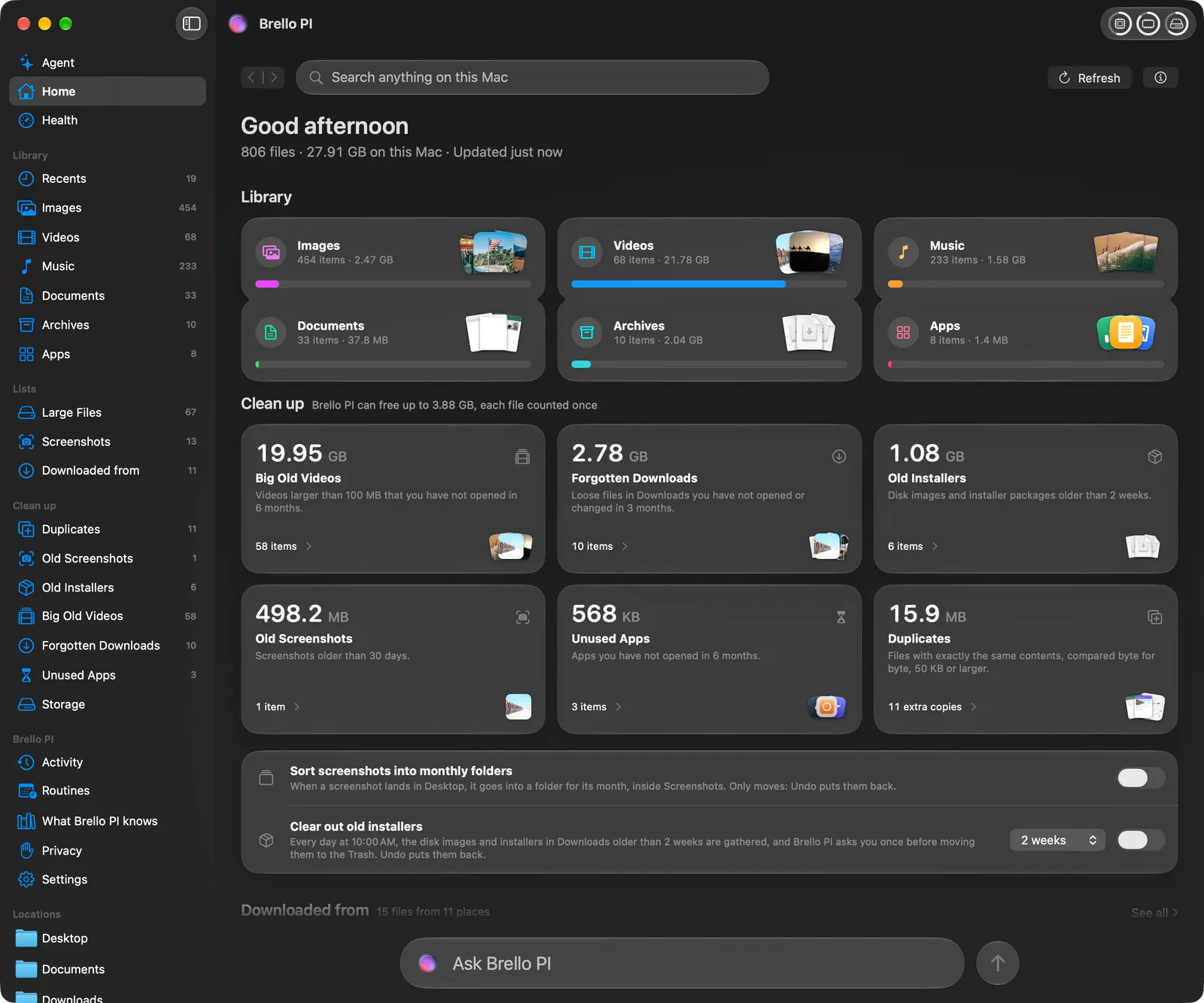
Open Storage from the sidebar, or press Command-3, and Brello measures what’s on your disk by kind: your photos, videos, music, documents, archives and apps, and alongside them the caches and build data that apps keep. Each row has its size, measured on your Mac.
Some of what fills a Mac is made to be thrown away. Developer tools keep caches of everything they’ve downloaded. Browsers keep copies of pages. Package managers keep every version they’ve ever fetched. Each of these is rebuilt the next time it’s needed. Storage marks those rows Safe to free, and says why each is safe, or which part of it is left alone.
Free space, the way Finder counts it
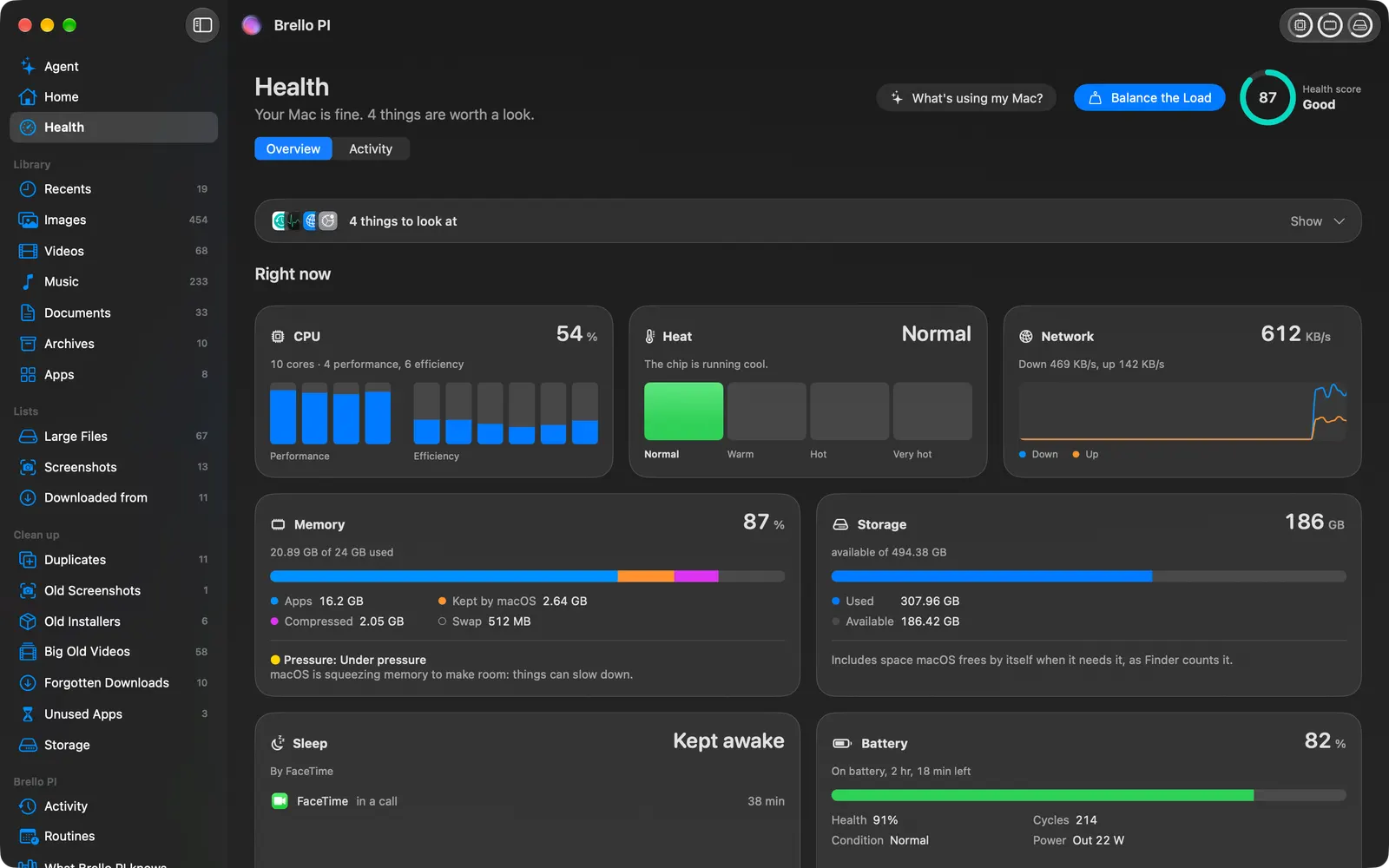
Your Mac has two honest answers to “how much space is free?” One counts only empty space. The other also counts space macOS can free by itself whenever it needs to. Finder gives the second answer, and so does Brello, so the numbers you see in Brello match the ones you see in Finder.
Health shows the same figure on its Storage card, with the line “Includes space macOS frees by itself when it needs it, as Finder counts it.” When free space drops under a fifth of the disk, Health’s score says so, and points you here.
Ask, in a sentence
With the agent, you can ask the question the way you’d ask a person: “What’s filling up my Mac, and what is safe to free?” Brello PI measures the disk and answers with a card and a sentence. On the sample Mac above: “393 GB of 994.66 GB is free. The most room goes to Gradle caches (327.2 MB), Dart and Flutter caches (155.2 MB) and npm cache (100.7 MB). 583 MB of caches and build data could be freed safely.”
Under the card, one quiet line says what was measured: “Measured what Brello can free or point at. The rest is macOS, apps and your own files.” Brello doesn’t pretend to know what your own files are worth to you.
Why Storage doesn’t delete
A cache is safe to delete in the sense that its app will make it again. It isn’t free to delete: the next build is slower, the next page load fetches again, and some apps behave oddly when their cache vanishes while they’re running. The app that made a cache knows best when to clear it, and most have a command for exactly that.
So Storage measures and marks, and leaves the clearing to you and the tool that made it. To free space with Brello PI, you delete files you’ve seen: from Clean up’s lists, from Duplicates, or by asking. Those go to the Trash, by name, after your yes.
Storage measures and marks. What goes is always something you’ve seen, by name, after your yes.
Where the space usually is
Often the space that can really come back isn’t in caches at all, but in a few large files nobody has opened in a long time. That’s what Clean up’s lists are for:
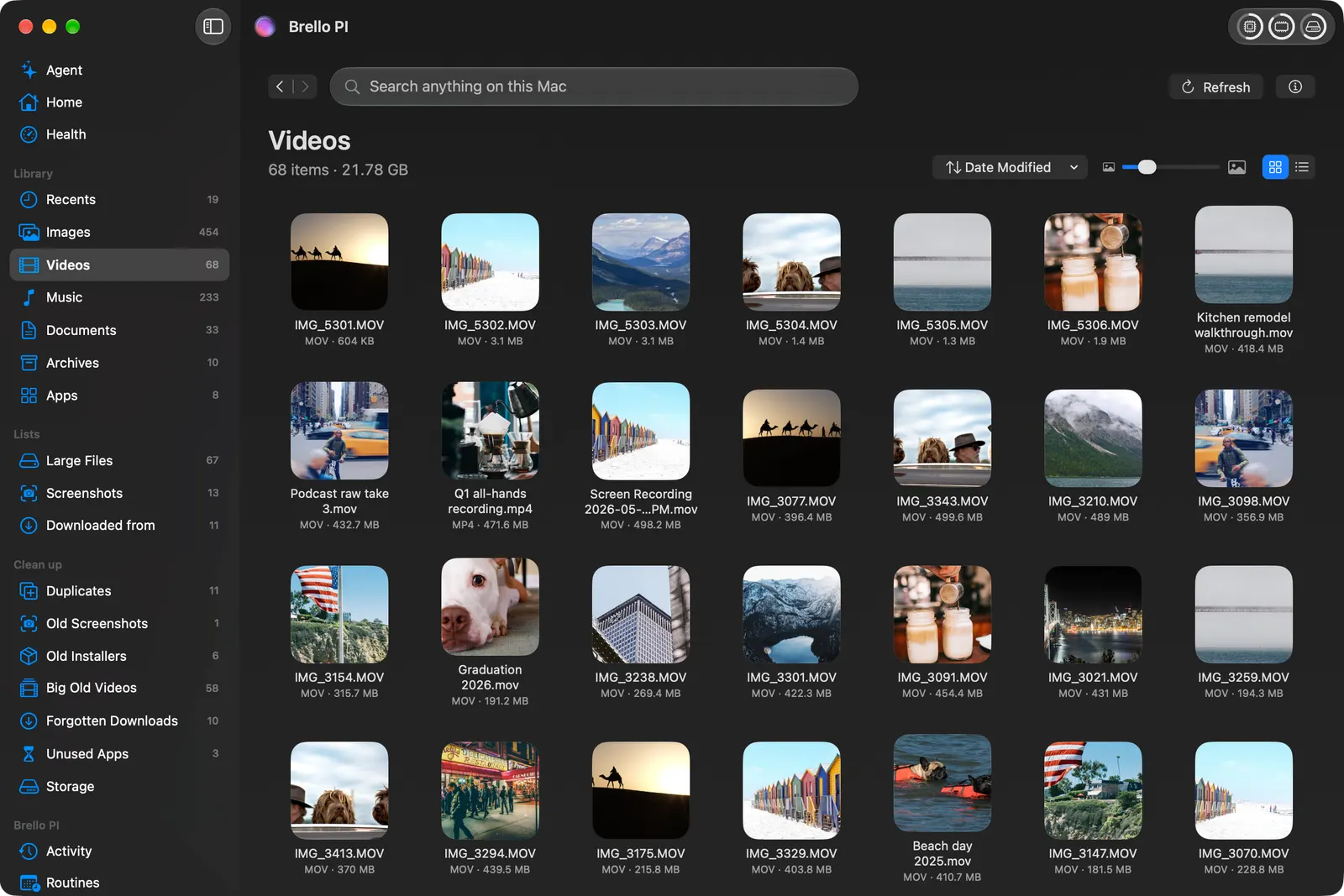
- Big Old Videos: videos over 100 MB you haven’t opened in six months, largest first, each with a frame from it so you know what it is.
- Forgotten Downloads: files in Downloads you haven’t opened or changed in three months.
- Old Installers: disk images and installer packages older than two weeks, which have usually done their job.
- Duplicates: exact copies, proven byte for byte.
Measure everything
macOS keeps some folders private unless you say otherwise: Mail, Messages and other apps’ data. To measure all of your Mac’s storage, including those, allow Full Disk Access for Brello. Open Brello’s Settings, find Full Disk Access under permissions, and its button opens the right pane of System Settings. Without it, Storage measures everything else.
Storage reads sizes on your Mac. Nothing it measures, and no file name, leaves your Mac. It works on any Mac with macOS 14 or later, on Apple silicon and Intel; asking in a sentence uses the agent.