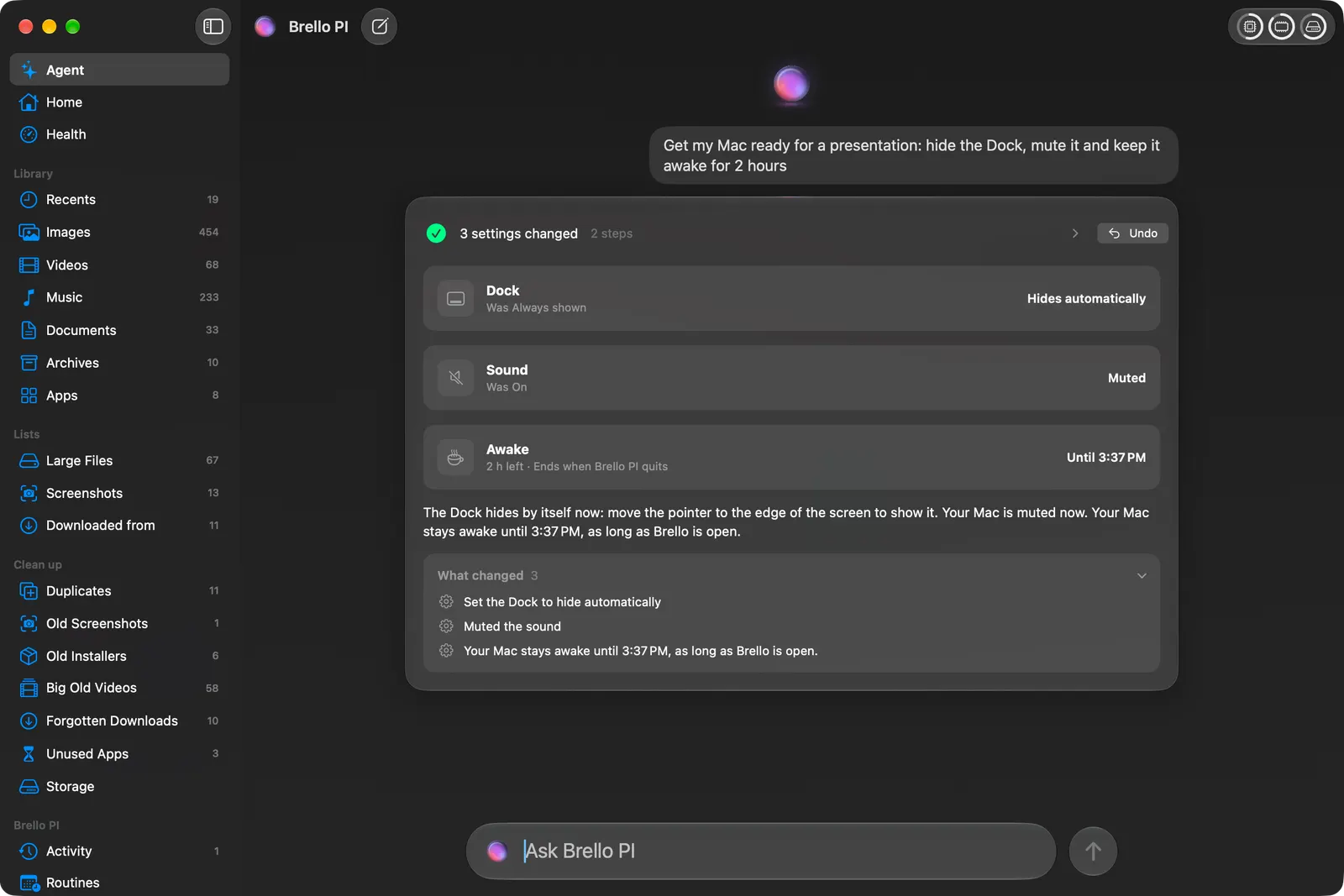
Before a talk, you hide the Dock, mute the sound so nothing pings mid-slide, and stop the Mac from sleeping halfway through. That’s three panes of System Settings, or a Terminal command, and you do it again every time.
In Brello PI it’s one sentence. “Get my Mac ready for a presentation: hide the Dock, mute it and keep it awake for 2 hours.” Brello PI makes all three changes itself, reads each one back from macOS to make sure it took, and says only what macOS now reports: the Dock hides by itself, the Mac is muted, and it stays awake until a time it names. One Undo puts all three back. Saying only what macOS reports is the difference between an agent that helps and one that just sounds helpful.
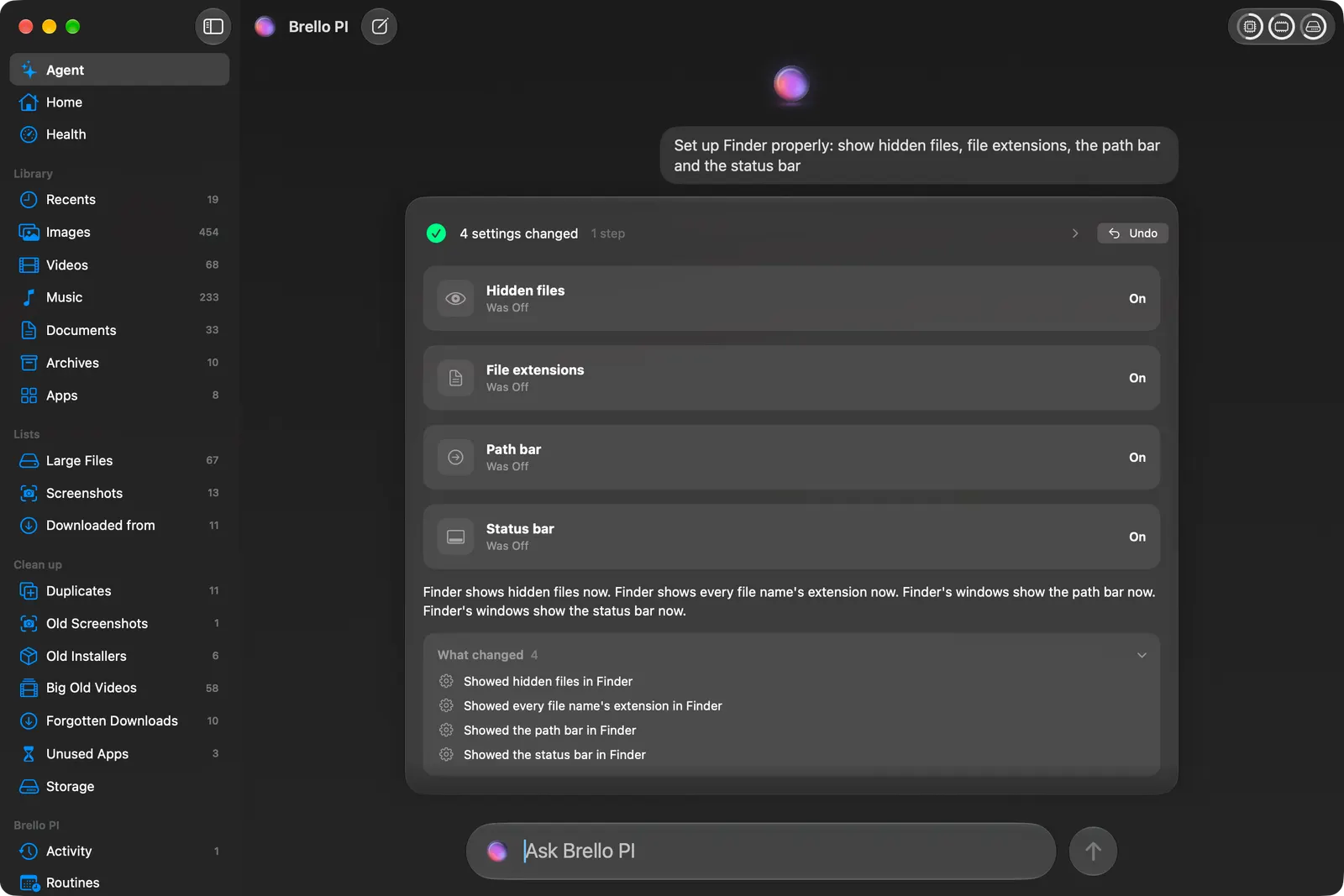
The same goes for any mix you like: Finder set up the way you work, screenshots saved as JPGs in a new folder on your Desktop, the Dock moved, made smaller and magnified, a movie night with Dark Mode, the volume at 70% and three hours awake. Each part is read with the rest of the sentence, so “mute it” means the sound and “for 2 hours” belongs to keeping it awake.
“If it can’t do that, it’s useless”
An early version of Brello PI answered “turn on dark mode” by opening the Appearance pane and saying it didn’t change settings itself. That was safe, and it wasn’t help. Our founder put it bluntly: if Brello PI can’t change a setting when you ask, the app is useless. So we went through every setting an app is allowed to change with mechanisms Apple publishes, and made Brello PI change each one.
Today that covers:
- Keeping your Mac awake, for a time, until a time, or until a download finishes.
- Dark and Light appearance.
- The volume, and mute.
- Wi-Fi, on and off.
- Your wallpaper, including “make the first one my wallpaper” after a photo search.
- The Dock: hiding it automatically, its size, magnification and position.
- Finder’s views, with Finder started again quietly in the background so they take.
- Screenshots: where they’re saved, and their format.
- The default browser, through macOS’s own question, which you answer.
- The screen: sleeping the displays, or locking it.
- Power and the Trash, which always ask first.
Keep your Mac awake
Keeping a Mac awake is the setting macOS hides best. The usual answers are a Terminal command (caffeinate) or a separate menu bar app. In Brello PI it’s part of a sentence: “for 2 hours”, “until 6 pm”, or “until this download finishes”.
Brello PI holds the same kind of power assertion macOS gives every app, through Apple’s public power interface, and the reply says when it ends and how long is left, counted down in place. A cup appears beside Brello PI’s icon in the menu bar with the time left, so you can see it’s on without opening anything. Undo, or “let my Mac sleep”, lets go.
“Until this download finishes” watches the newest partial download in your Downloads folder, from Safari, Chrome or Firefox. If there isn’t one, Brello PI says so and asks how long, rather than guessing. And since macOS ends an app’s power assertion when the app quits, the reply says that too.
Asking how, and asking whether
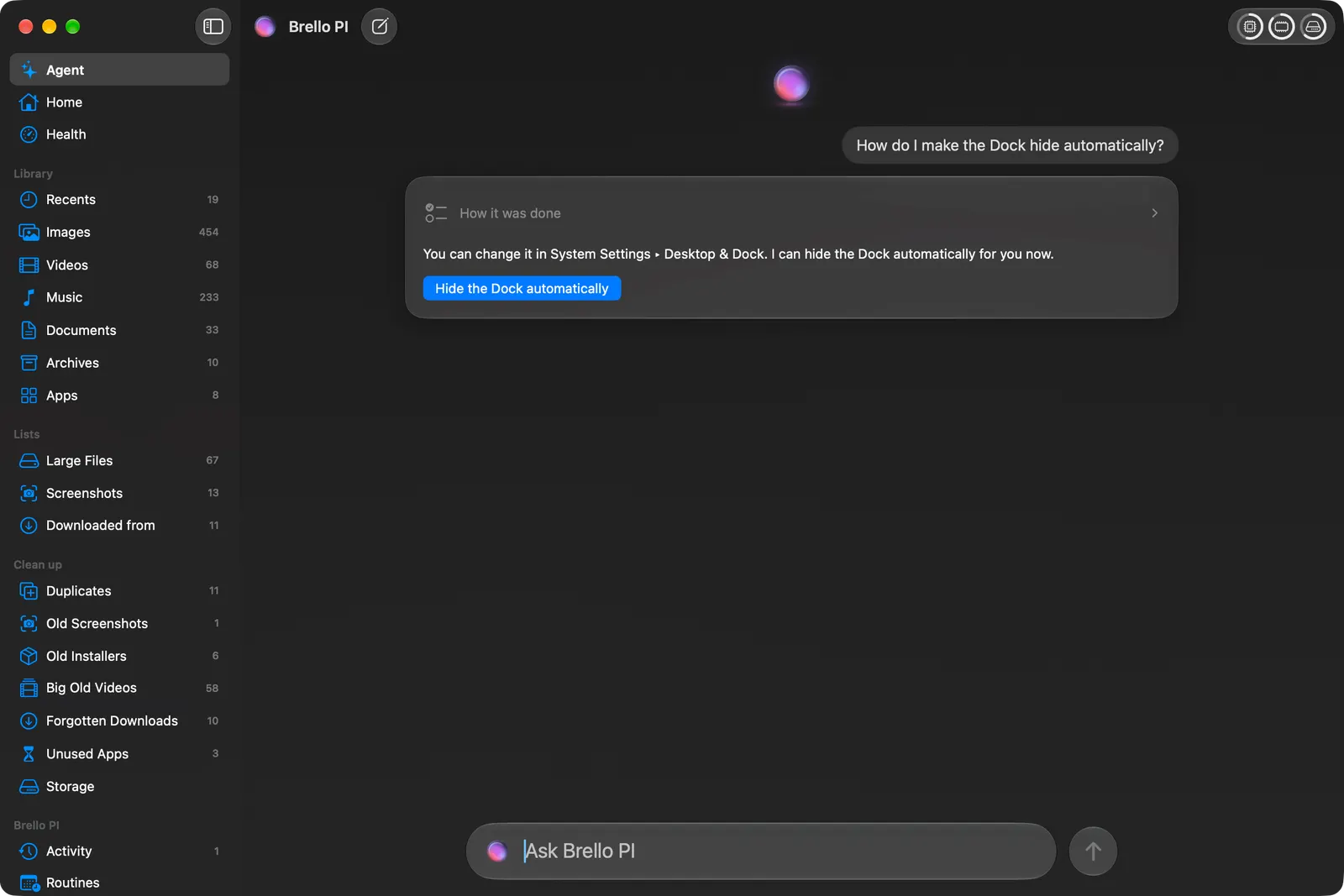
A question is answered, not acted on. “Is dark mode on?” reads your Mac and says. “How do I make the Dock hide automatically?” gets one line on where the setting lives, and a button that does it for you. Nothing changes until you press it, or say yes.
And what’s missing is asked. “Change the volume” asks to what level. “Keep my Mac awake until the meeting ends” asks for how long, because code can’t know when a meeting ends, and doesn’t guess.
Read back, every time
Every change is read back from the system after it’s made, waiting a moment where the system takes one, as the Dock and Finder do. The reply says what the system reports, not what Brello PI asked for.
If a change didn’t take, Brello PI says so plainly: it asked macOS to hide the Dock automatically, macOS still reports it always shown, so it didn’t take. Anything moved along the way is put back. If a setting is already the way you asked, Brello PI says that, and changes nothing.
The reply says what macOS reports, not what Brello PI asked for. That’s the whole difference.
Undo puts back the value Brello PI read before the change, and says what it put back: “Put the appearance back to Light.” Every change is also listed in Activity, with its own Undo.
What asks first
Settings you can flip back act at once, the way opening an app does. Things you can’t take back wait for your yes: sleep, restart, shut down, log out and emptying the Trash. The Trash’s question says how many items and how much space, so you know exactly what you’re agreeing to.
With nobody at the Mac, in a routine or a Shortcuts automation, those never run. They wait until you’re back.
What no app may change
macOS keeps some settings for itself: brightness, Bluetooth, Night Shift, a Focus, the accent color, automatic appearance, the firewall, FileVault, passwords, and which apps may use what. Brello PI doesn’t reach around those. It opens System Settings at the exact pane, with one sentence on what to do there, and never says it made the change.
Some of these an app could change with private calls, or by pressing keys in System Settings on your behalf. We chose not to. A public mechanism either works or says it failed. A private one can break with any macOS update and say nothing, and a setting that silently didn’t change is worse than one you changed yourself.
The first time
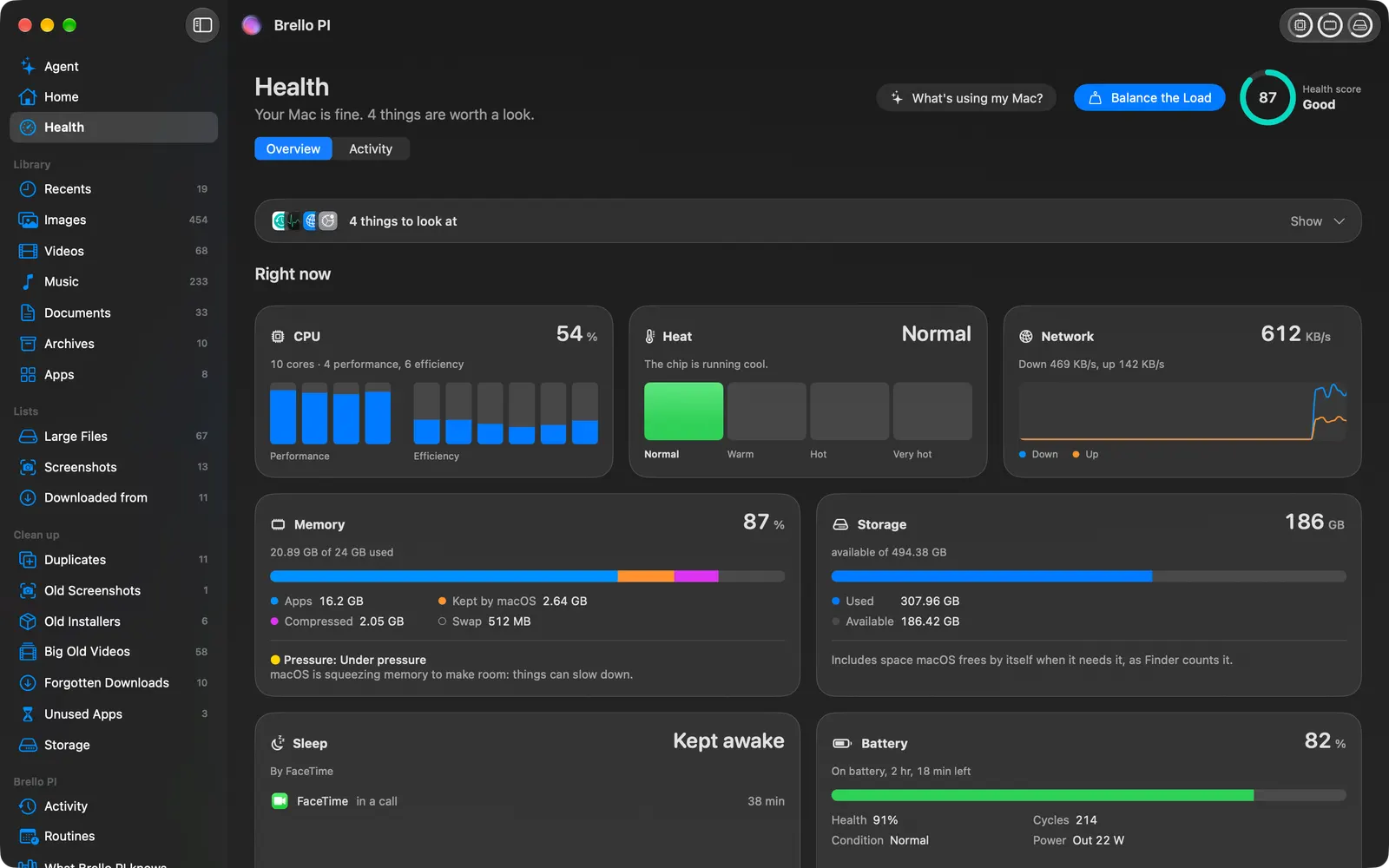
The first time Brello PI changes something through System Events or Finder, Apple’s own scripting, macOS asks you once to allow it. Locking the screen may ask for Accessibility, where the displays’ sleep doesn’t lock the Mac at once. These are macOS’s questions, asked once, and Settings shows each one’s state.
If you’d rather Brello PI never touch apps and settings, turn off its control of them in Settings. Then none of these abilities exists at all.
Where it works
Settings are changed by code, with no model in the way, but you ask for them in words, which needs the agent: a Mac with Apple silicon, macOS 27 and Apple Intelligence. There’s a deeper look at every mechanism, and how each change is proven, in our engineering post Settings by asking.