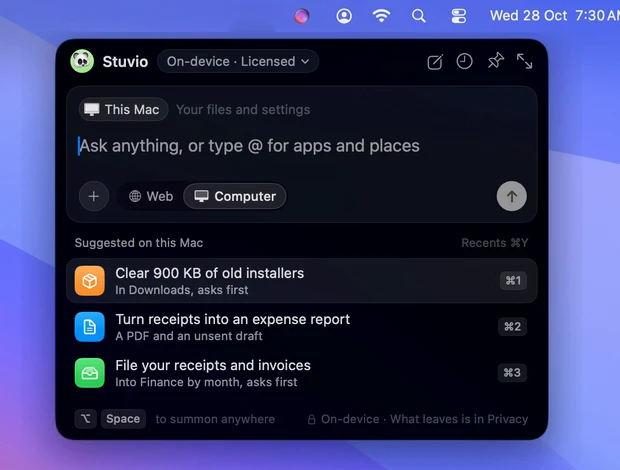
The fastest way to use Brello PI is not to open it. Press Option-Space in any app, or click Brello PI’s orb in the menu bar, and one panel drops from the menu bar: a field to type in, three suggestions for this Mac, and your files as you type. Press Esc, or click anywhere else, and it folds away.
We built the popup for the moments between other work: you’re writing an email and need last week’s PDF, you’re in a call and want the Mac to stop sleeping, your disk is full and you have two minutes. It should feel like part of macOS, so it looks like it. It’s one 460-point panel of dark smoke glass, like Spotlight, on Apple’s real Liquid Glass where your Mac has it.
Suggestions, before you type
Open the popup and, before you type anything, it suggests three things worth doing on this Mac right now, each read from your Mac: clear the old installers in Downloads, turn your receipts into an expense report, file your receipts and invoices. Command-1, Command-2 and Command-3 pick one. Each says what it will do, and the ones that change files say they’ll ask first.
Files as you type
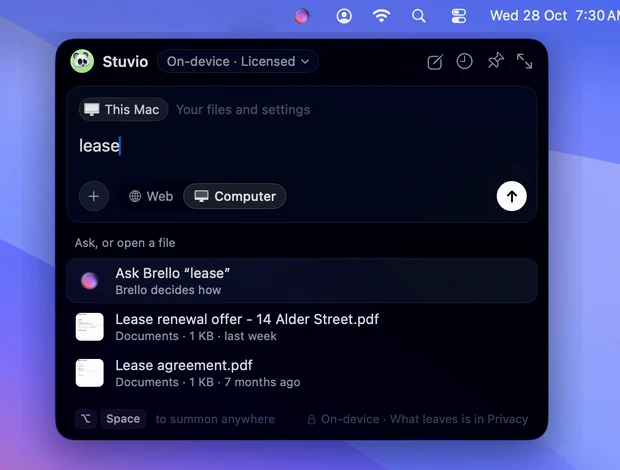
Start typing and Quick Search finds files by name as you go, with each file’s kind, folder and when it changed. Return opens the one you want. Command-Return shows it in Brello PI, in Home, with its Inspector. Option-Return shows it in Finder. The first row always offers to ask Brello PI in words instead, if a file isn’t what you’re after.
Your last ten downloads
Press Command-Y and the popup lists the last ten files to land in Downloads, newest first. Drag one straight into the app you’re working in: a reply, a form, a slide. The list follows Downloads only while it’s on screen, so it costs nothing when you’re not looking at it.
Requests, right there
Type a request instead of a name and the popup answers it in place. “Show me huge files that are more than 300MB” lists six files over 300 MB, 5.1 GB in all, found in a tenth of a second. Each row has its own trash button, and Remove All takes them all.
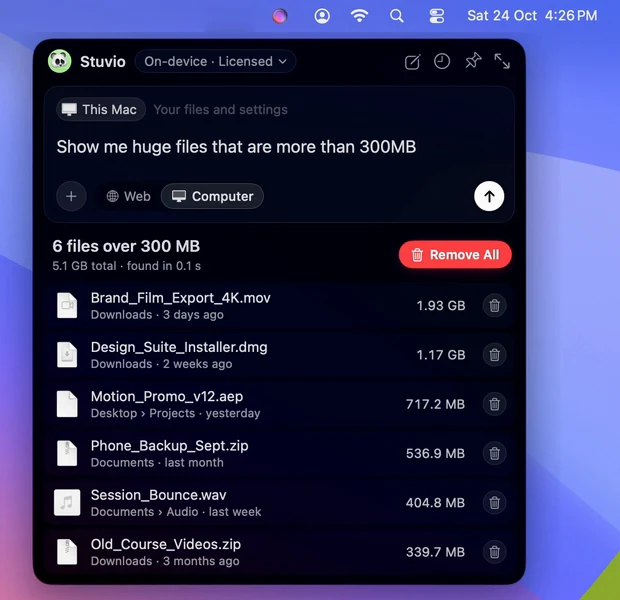
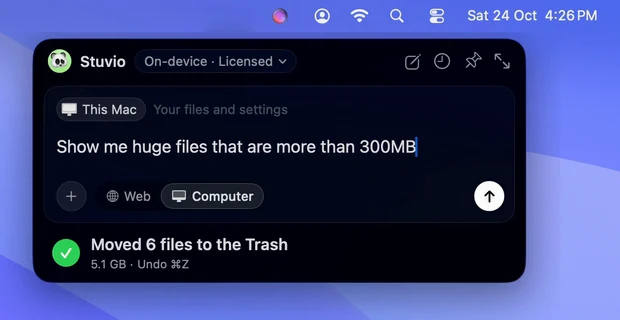
Remove All says yes to exactly the files listed, nothing more, and they fly into the Trash in your Dock, the way Finder moves them there. Then one line: “Moved 6 files to the Trash. 5.1 GB. Undo ⌘Z.” Press Command-Z and they fly back out.
A click already says what it means. The files start moving within thirty milliseconds.
That speed came from a lesson. In an early version, nothing moved for 1.8 to 3.5 seconds after Remove All, because the click was being turned into a sentence and sent to the model to work out what it meant. A click already says what it means. Now code reads it, and the files start moving 14 to 28 milliseconds later. The safety question is still asked; your click is its yes.
Narrow it, or widen it
The field takes more than words:
- @ names an open app or a folder, so a request stays there.
- + attaches files, so you can ask about exactly those.
- Web or Computer keeps a request to that reach: your Mac only, or the web only.
- Text you select in another app arrives through Brello PI’s Services item, and its × drops it.
Every kind of reply shows right in the popup. When one needs more room, a document, a long list, a card with pictures, the popup offers Open in Brello PI, which carries the whole conversation into the window.
Its header, and your shortcut
Along the top: New Chat, History, Pin, and Open in Brello PI. Pin keeps the popup open while you click elsewhere, for when you’re working back and forth. The account menu opens Settings, the Privacy Report and your license.
Option-Space is the default. If another app already uses it, choose your own shortcut in Settings, and the popup answers to that instead.
Where it works
On any Mac with macOS 14 or later, Apple silicon or Intel, the popup finds files as you type and lists your recent downloads. Requests in words, like “show me files over 300 MB”, use the agent, which needs a Mac with Apple silicon, macOS 27 and Apple Intelligence. The popup’s footer says it plainly: on-device, and what leaves is in Privacy.