Everyone has a photo they can describe perfectly and can’t find. The yellow boat on that beach. The dog in the snow. The receipt you photographed on a trip. Photos’ own search is good at many things, but you still end up scrolling, because what you remember is a place, a time and a thing, all at once.
So type it that way. “Photos from Goa with a yellow boat.” Brello PI reads the place, the time and the things in your sentence, looks through your library on your Mac, and narrows the grid to the ones you mean. Then you can open them in Photos, make an album, copy them to a folder, or AirDrop them.
Your sentence, read whole
Brello PI doesn’t hand your words to a model and hope. Code reads the request whole into its parts: the place (Goa), the time (“last December”, “on my trip to Lisbon”), the things in the photo (a boat, a dog, snow), the colors (yellow) and the kind (screenshots, videos). What it read is what it searches for, so a search that comes back empty tells you why.
The place is the one part that needs the outside world. To know where Goa is, Brello PI asks Apple Maps for the area those words name, sending only the place’s words as you typed them. It then holds each photo’s location against that area here, on your Mac. No photo, date or position is ever sent anywhere.
Looking at what’s in the photos
To know which photos have a yellow boat in them, Brello PI has to look. It asks you first, once, in plain words:
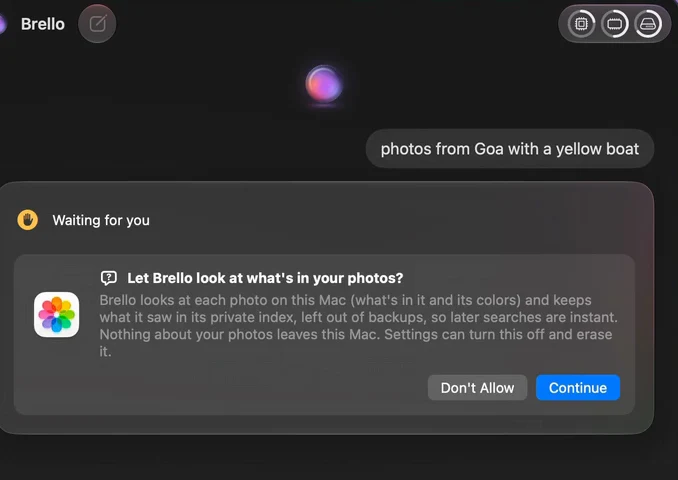
On a yes, Brello PI uses Apple’s Vision on your Mac to label what’s in each photo, and reads the colors from the pixels themselves. What it saw is kept in Brello PI’s private index, in its own folder, left out of backups, so the next search is instant. Settings turns it off and erases it.
Before any of that, Brello PI has to be connected to your Photos library. That happens only when you click Connect Photos, and then macOS asks its own question, for the library alone. Nothing is asked at launch.
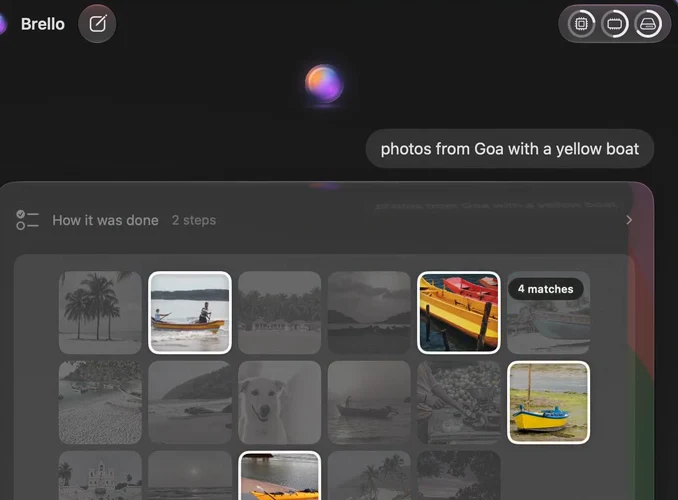
Then do something with them
The reply shows the photos it found as a grid, with the place and the dates it read: “Found 4 photos from Goa with a yellow boat. Goa, 14–16 December 2025, 4 of 39.” Under them, the things you’d want to do next:
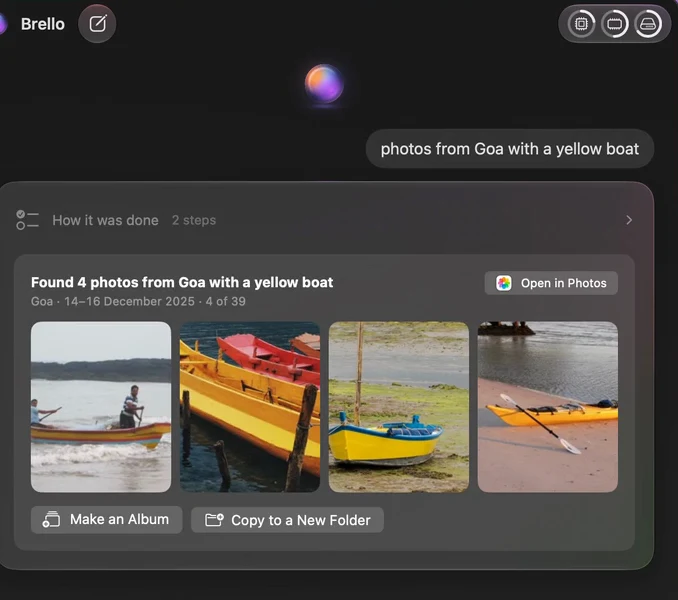
- Open in Photos shows them in Apple’s Photos app.
- Make an Album makes a Photos album of exactly these, read back from Photos, with Undo.
- Copy to a New Folder copies the originals into a new folder, with Undo.
- AirDrop and Share open macOS’s own sheets, and nothing goes until you choose where.
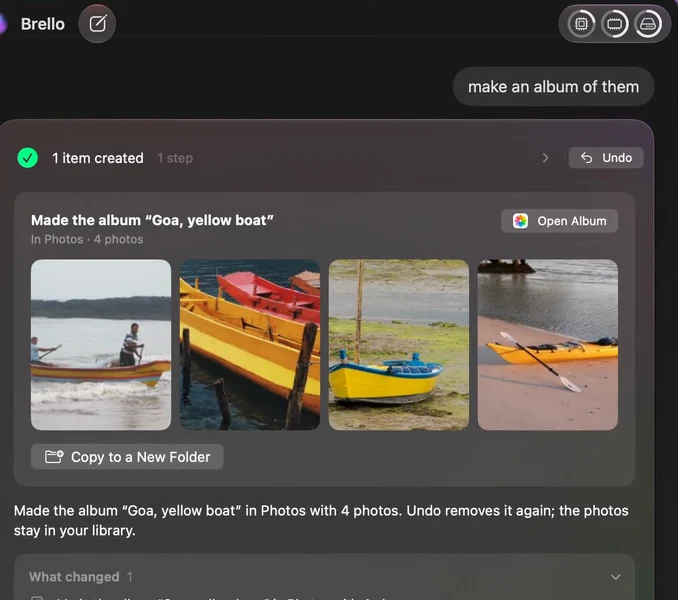
Or just keep talking. “Make an album of them” works as a follow-up, because Brello PI knows what “them” is: the four photos the last turn found.
No face is ever recognized or compared. “Photos of me” gets an honest answer, not a guess.
What it never does
Some lines are firm, and they’re in the code, not just the policy:
- No face recognition. Brello PI never recognizes or compares a face. Ask for “photos of me” and Brello PI says plainly that it doesn’t recognize faces.
- Nothing from iCloud. Every request Brello PI makes to your library says it may not download anything, so photos kept only in iCloud aren’t fetched to be looked at.
- Only the place’s words leave. The one thing a photo search sends anywhere is the place’s name, as you typed it, to Apple Maps. Your Privacy page lists that request, like every other.
- Nothing changed without Undo. Albums and copies can be undone. Your photos themselves are never edited, moved or deleted by a search.
Where it works
Photos search is part of the agent, so it needs a Mac with Apple silicon, macOS 27 and Apple Intelligence turned on. Your library stays in Photos, where it was; Brello PI only reads it, on your Mac, after you’ve said it may. There’s more on what leaves your Mac and how it’s written down in Every request that leaves your Mac.