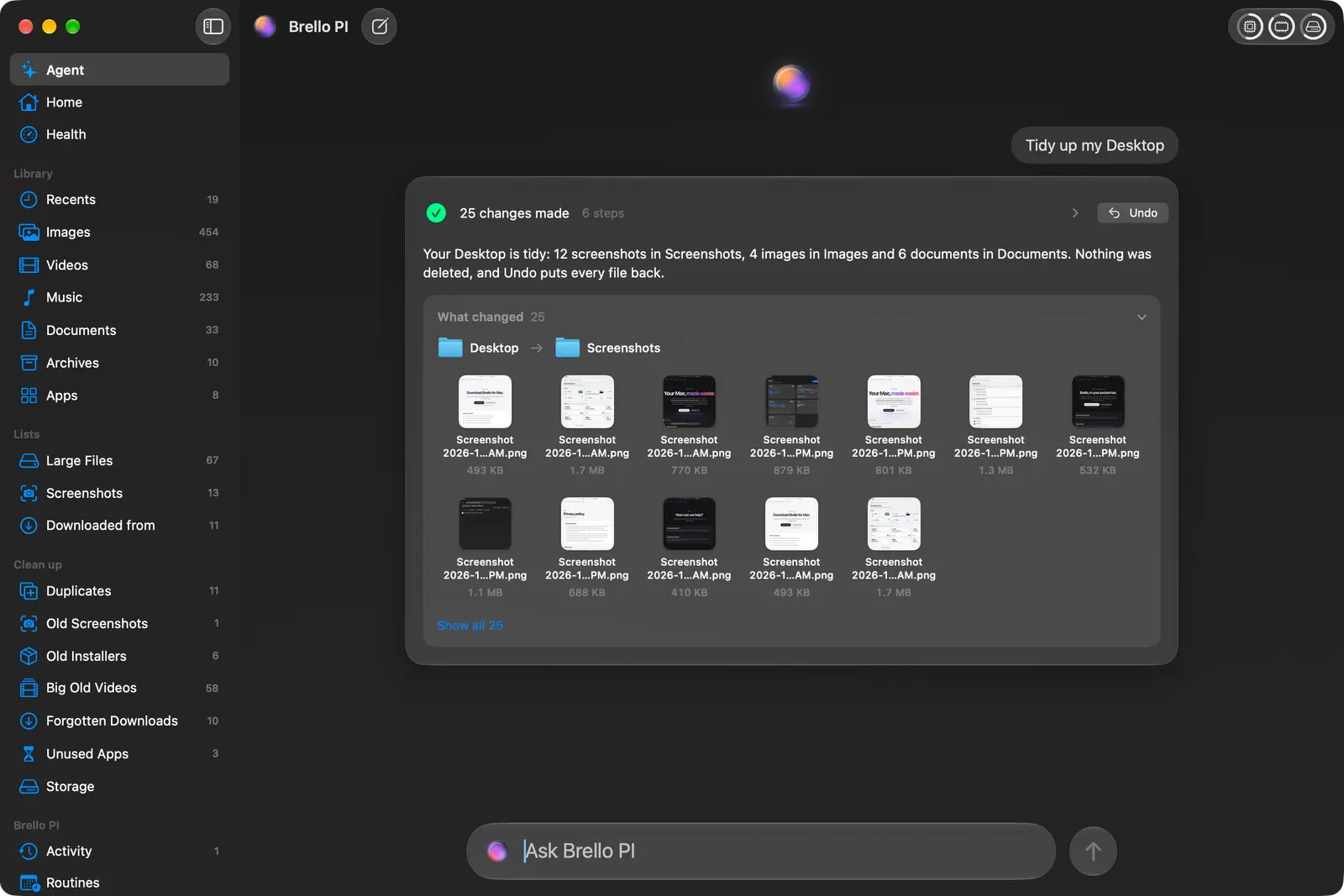
Ask a chatbot to tidy your Desktop and you get a list of steps. Then you do them. Brello PI’s agent does the opposite: you type what you want, your Mac does it, and then Brello PI shows you exactly what changed.
That’s the whole idea, and it’s harder than it sounds. A reply that sounds right is easy. Work that is right, on real files, in the folders you actually have, is the part that takes care. Here is what the agent does, and how it’s built so you can hand it real work.
Your Desktop, into folders
Type “Tidy up my Desktop.” Brello PI looks at what’s there, makes a folder for each kind of file, and moves each file into its place. On the sample Mac above that was 25 changes in 6 steps: 12 screenshots into Screenshots, 4 images into Images and 6 documents into Documents.
Every file’s new place is shown with its thumbnail, so you can see the result without opening Finder. Nothing was deleted, and one Undo puts every file back where it was.
Exactly what you said, and nothing else
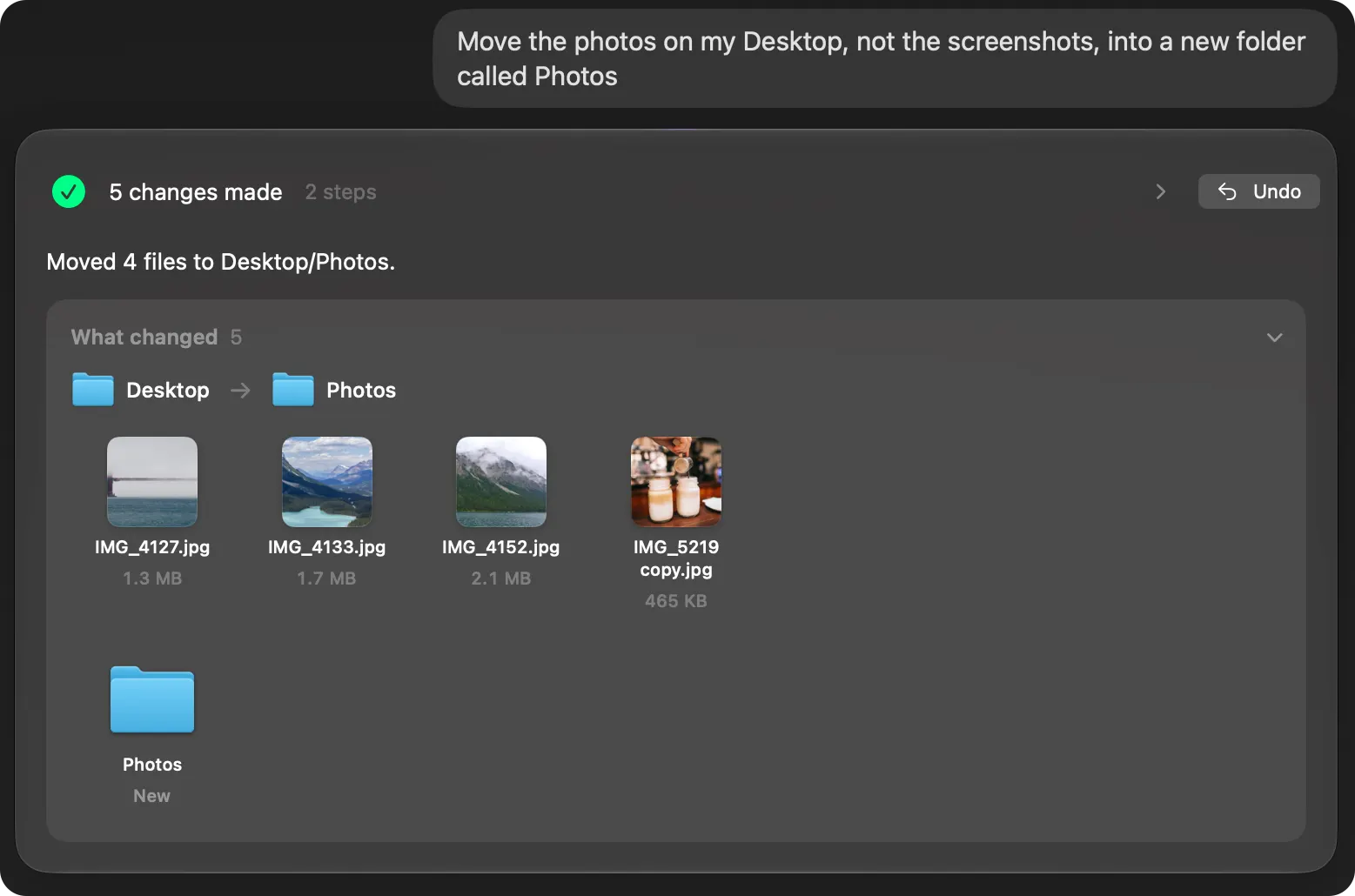
The harder test is a request with a “not” in it. “Move the photos on my Desktop, not the screenshots, into a new folder called Photos.”
Four photos moved into a new Photos folder, and every screenshot stayed where it was. That difference, between a reply that sounds right and work that is right, is what most of the agent’s design is for. Code reads which files the words name, and the model is never trusted to decide on its own which files to touch.
Receipts into an expense report
Ask: “Make an expense report from my September receipts and email it to Accounts.” Brello PI finds the receipts dated September, leaves October’s alone, reads each one on your Mac, totals the money in code instead of trusting a model with arithmetic, and writes a PDF. Before it keeps the document, a second reader reads it back to check it.
On the sample Mac, Brello PI found 3 September receipts, $161.15 in all, and left an October one out. It wrote the report to Documents, read it back, and drafted the email to Accounts with the report attached.
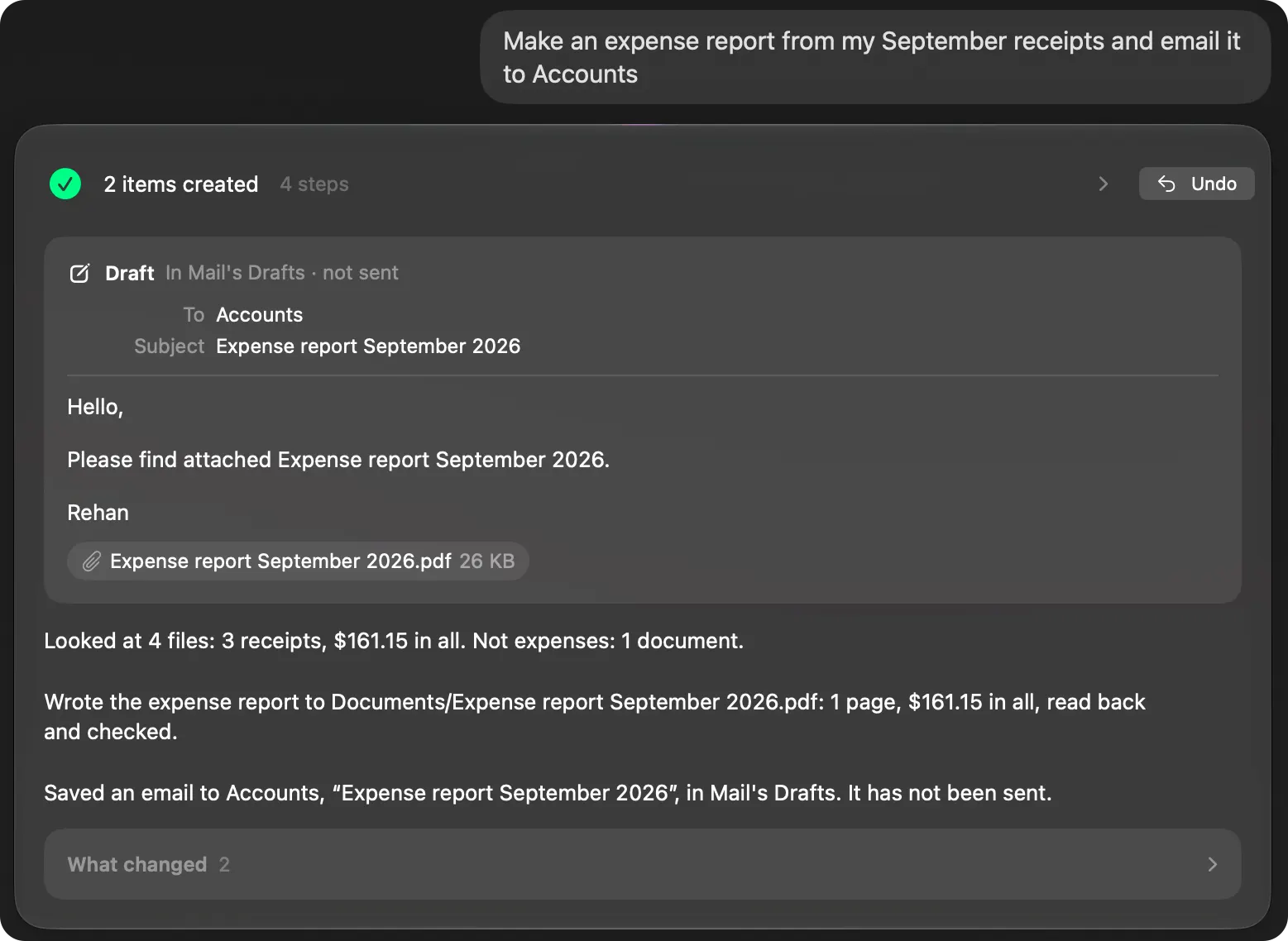
Nothing was sent. The draft opens in Mail as a new message, ready for you to read and send yourself. And if something only you can say is missing, like who the email is to, Brello PI asks one short question and changes nothing until you answer. Your next message carries on with the same request.
Several jobs, one sentence
Most real work is a chain: find these, put them together, send them on. Brello PI reads the whole sentence as steps, and each step works on what the one before it made.
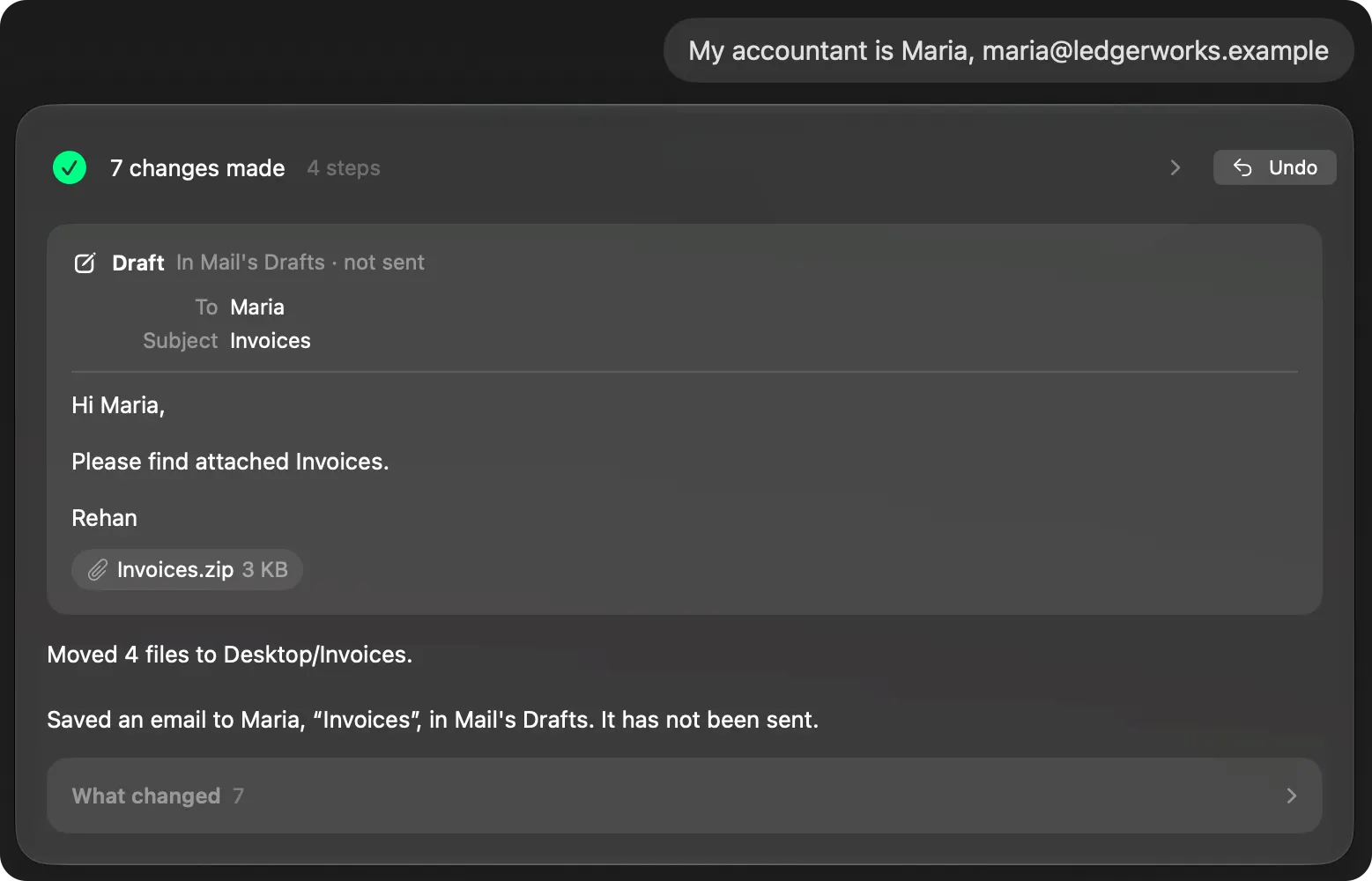
“Put all my 2025 invoices in one folder, zip it and draft an email to my accountant with it attached.” Brello PI finds the four invoices dated 2025, wherever they are, and leaves the 2026 invoice and a 2025 quote alone. It doesn’t know who your accountant is, so it asks, once. Answer “Maria, maria@ledgerworks.example”, and it shows the whole plan in one question: the Invoices folder, then Invoices.zip, then the email in Mail’s Drafts. On your yes it does it all.
Your Mac, set up in one sentence
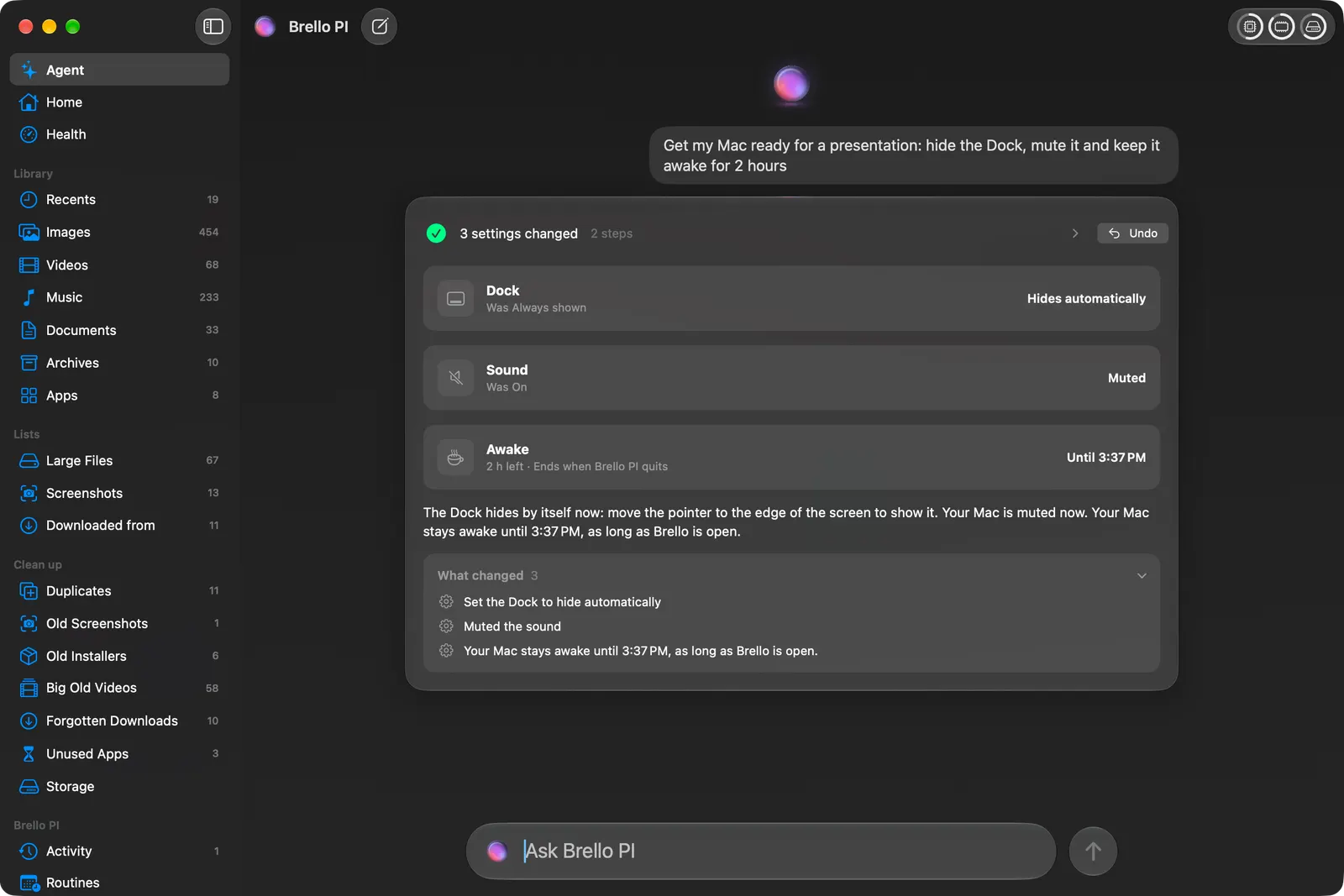
Settings work the same way. “Get my Mac ready for a presentation: hide the Dock, mute it and keep it awake for 2 hours.” Brello PI makes all three changes, reads each one back from macOS, and says only what macOS now reports. A cup and the time left appear beside Brello PI’s icon in the menu bar, and one Undo puts all three back. There’s a whole story on settings.
Work on a schedule, or when a file lands
Anything you’d ask once, you can ask for every week. “Every Friday at 5, put this week’s receipts into an expense report and draft the email to accounting.” Or: “When a PDF lands in Downloads, file it into Finance by month.” Brello PI reads the time or the trigger from your sentence and says it back before saving. When nobody is at the Mac, a routine asks nothing and never deletes, sends or goes online. More in Routines.
From anywhere on your Mac
You don’t have to open the window. Press Option-Space in any app and Brello PI’s popup drops from the menu bar. Type “show me files over 300 MB”, choose Remove All, and the files fly into the Trash in your Dock. Command-Z brings them back.
How it’s built
The agent thinks with Apple’s on-device model, the one built into macOS. Your files aren’t sent to a cloud AI, and Brello PI never uses Apple’s cloud model or any other company’s.
A small on-device model is good at narrow, typed choices and poor at free-form plans that move real files. So Brello PI puts code in front of it. Code reads everything it can read whole: apps by name, settings by name, dates, money, which files a sentence names. The model answers the rest as a choice from a short, typed list. Then code checks each step, rather than trusting the model’s own account of what it did.
The model’s account of what it did is never trusted. Code checks each step.
Before anything risky, Brello PI shows exactly what will change and waits for your yes. Every change it makes is listed in Activity, with Undo.
We tested it the way people actually use it. Before launch we played 310 first requests, written the way new people type them, through both the command line and the app’s own window, each checked by code against what it changed. It handled all 310. On 65 file tasks, nothing was removed or made that wasn’t asked for, and all 138 undos put things back as they were.
It isn’t perfect. An answer can still be wrong, which is why Brello PI shows what it changed and what it read, every time, and why Undo is never more than a click away.
Where it runs
The agent needs a Mac with Apple silicon, macOS 27 and Apple Intelligence turned on, and it turns itself on once Apple Intelligence is ready. On any other Mac, Brello PI says exactly what that Mac needs, and Home, Mac Health, Clean up and Quick Search still work, on macOS 14 or later, on Apple silicon and Intel.