Your Mac already knows a lot about itself. Activity Monitor lists every process. System Settings knows your disk. The battery menu knows your charge. What none of them do is tell you, at a glance, how your Mac is doing right now, and what would help.
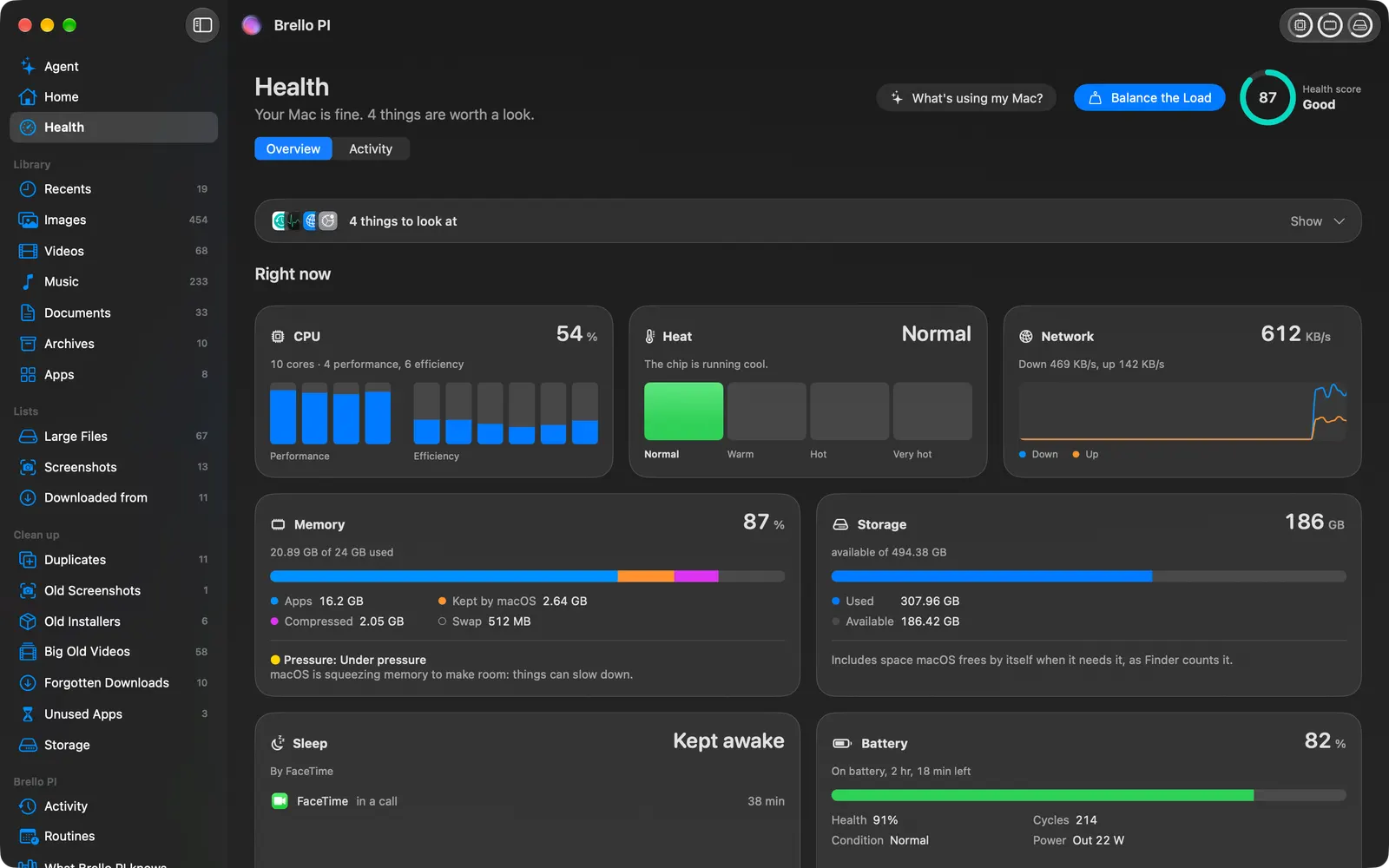
That’s the page we built. Health in Brello PI reads your Mac every second and says what it sees in plain words: the processor, heat, network, memory, storage, what keeps it awake and, on a MacBook, the battery. At the top sits one number.
This story is about Brello PI’s Health. Brello, our app without the agent, has a deeper Health with a checkup of its own, and its score is worked out from eight areas, each with its share; Mac Health sets them out.
One number, worked out in the open
The health score is a ring from 0 to 100 with a word beside it: Excellent from 90, Good from 75, Fair from 50, and Poor below that. On the sample MacBook above it reads 87, Good.
We didn’t want a mystery number, so here is exactly how it’s worked out. It starts at 100, and code takes points away for six things:
- Memory pressure, as macOS reports it, averaged over the last half minute 0, 15 or 30
- Swap, in proportion to its size, the full amount once it reaches a quarter of your Mac’s memory up to 10
- The processor, averaged over the last minute: the performance cores from 60% busy, or every core together from 50%, whichever takes more, rising evenly to 100% up to 20
- Heat, the thermal state macOS publishes: normal, warm, hot or very hot 0, 5, 15 or 30
- Free disk space, as Finder counts it: under 20%, under 10%, under 5% 5, 15 or 25
- A MacBook’s battery holding under 80% of what it held new 5
That’s all. No model guesses it, and nothing is weighted in secret. Click “Health score” under the ring and Brello PI shows what each part reads right now, including the parts taking nothing: “Nothing is swapped to the disk”, “This Mac has no battery”. A score you can’t check is just decoration.
Two details took the longest to get right. The averaging means one spike, a Spotlight burst or an app launching, doesn’t swing the number. And the score on screen moves only once the real value is clearly past the halfway mark between two whole numbers, so a Mac sitting on the line between 72 and 73 doesn’t flicker back and forth.
A score you can’t check is just decoration. So every point it takes away is named.
Why memory “used” is the wrong number
Open Activity Monitor and memory nearly always looks full. That’s by design: macOS keeps recent files in memory and compresses what apps aren’t using, because empty memory does nothing for you.
So Brello PI splits memory into Apps, Kept by macOS, Compressed and Swap, and leads with pressure, in a sentence. On a healthy Mac: “Apps have the memory they need.” On the sample MacBook, at 20.87 GB of 24 GB: “macOS is squeezing memory to make room: things can slow down.” That pressure is what the score counts, not the raw total.
Heat works the same way. macOS doesn’t give apps temperatures in degrees through its public interfaces, but it does publish its thermal state, which is the signal that matters: from “serious” up, macOS slows the chip to cool it. Brello PI shows it as Normal, Warm, Hot or Very hot, with a line like “The chip is running cool.”
Balance the load
When the score drops, there’s a button beside it: Balance the load on this Mac. It does two things.
First, it moves your own heavy background work, an export, a build, a browser’s busy helpers, onto the efficiency cores, so the performance cores stay free for the app you’re using. The work keeps running, just in the background. It never touches macOS’s own processes, leaves the app in front alone, and changes no setting.
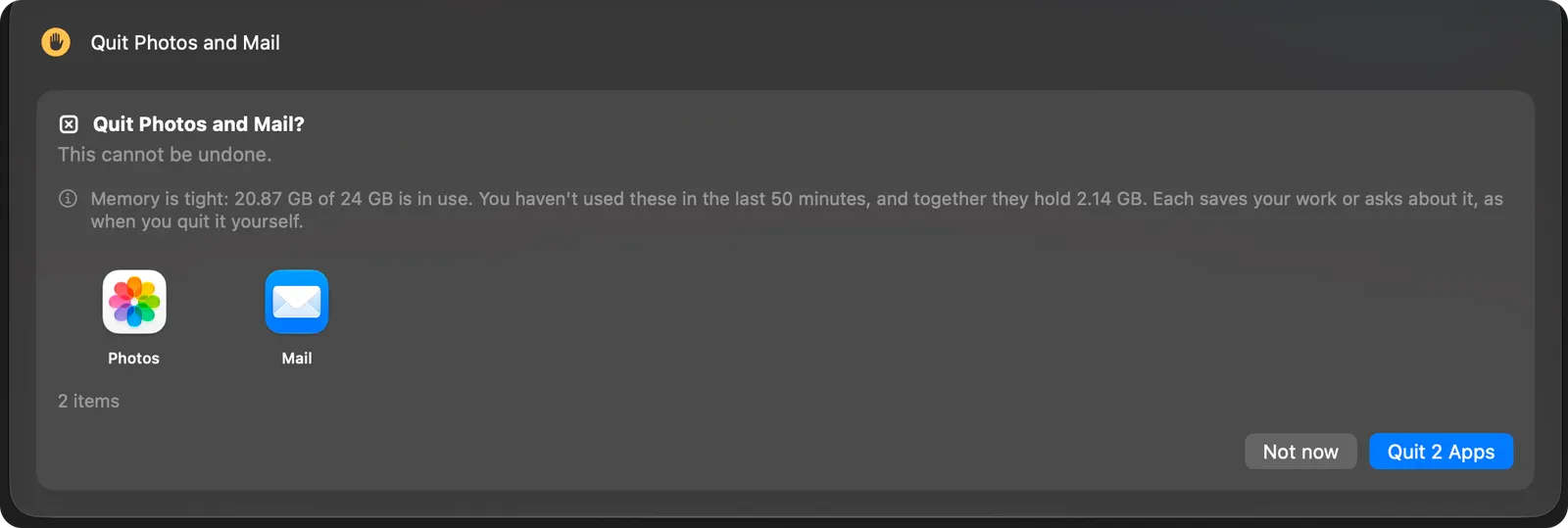
Second, when memory is tight, it asks before quitting apps you haven’t used for a while, and names them with the memory they hold.
Then one card shows before and after. On the sample MacBook: 5 background tasks moved and 2 apps quit, the performance cores from 83% to 26% busy, memory pressure from tight to normal, and the health score from 72 to 100.
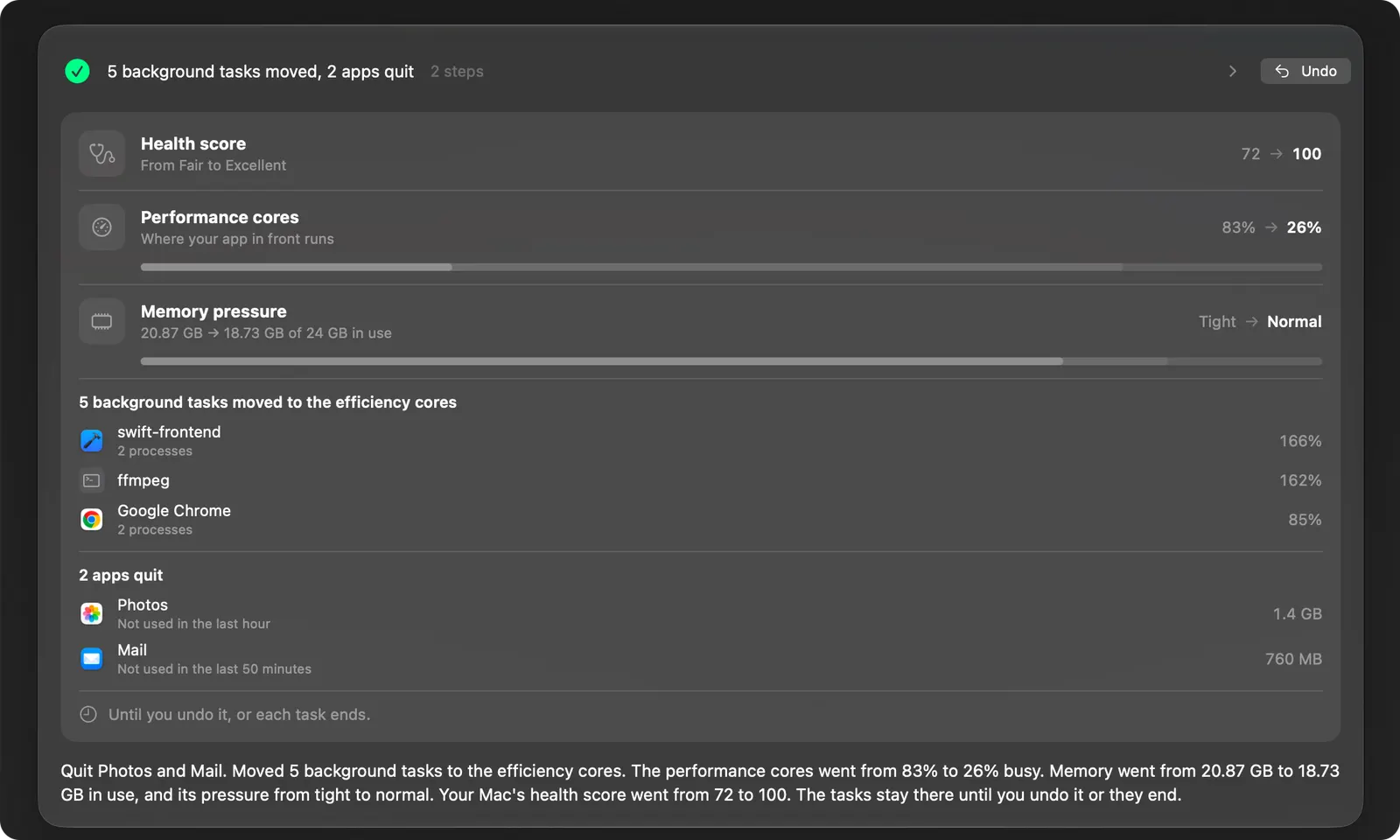
Undo puts every task back at its usual priority and offers to reopen what was quit. There’s more on how it chooses, and the public call that does it, in Balancing the load on a Mac.
What’s using your Mac
Under the cards, Using the most ranks apps by processor, memory, energy or disk, live, each with its own icon. An app’s helper processes count with the app, so Chrome shows up as Chrome, not as a dozen rows that each look small. That’s the number you need when you’re deciding what to quit.
With the agent, you can also just ask about it in your own words. On the sample MacBook, memory is running short: 20.91 GB of 24 GB is in use and macOS is squeezing apps to fit, so the answer names Google Chrome, which uses 2.77 GB, and offers to balance the load.
Sleep, and what keeps your Mac awake
A Mac stays awake because an app asked it to: a call, a download, a backup. You can list those in Terminal with pmset -g assertions, if you know to look. Brello PI’s Sleep card lists them by app, in each app’s own words, with how long each has held on. On the sample MacBook: FaceTime, “in a call”, for 38 minutes. “Then it sleeps after 10 minutes without use. The display turns off after 5 minutes.”
It works the other way too. With the agent, “get my Mac ready for a presentation: hide the Dock, mute it and keep it awake for 2 hours” does all three, and puts a cup and the time left beside Brello PI’s icon in the menu bar.
Storage, as Finder counts it
The Storage card shows what’s available the way Finder counts it, including the space macOS frees by itself when it needs it. When that number gets low, the score says so, and Clean up has the lists that help: old installers, forgotten downloads, big old videos, old screenshots, unused apps and duplicates. Nothing goes until you’ve seen each file and said yes. What’s really filling your Mac goes deeper.
A history, and readings in the menu bar
Most busy moments are over by the time you go looking. So Health keeps its own record on your Mac: a reading every minute for a day, every quarter hour for a month, every hour for a year, with the busiest apps at each point. It lives in Brello PI’s own folder, left out of Time Machine backups, and Erase in Settings deletes it.
If you want the numbers without opening a window, turn on readings in the menu bar: the processor, memory and network beside Brello PI’s icon, as values, graphs or both.

Every sentence, written by code
Every sentence on the Health page, and in Brello PI’s answers about your Mac, is written by code from the readings, never by a language model. Numbers about your Mac shouldn’t be paraphrased. Nothing on this page leaves your Mac.
Health’s live readings, the score, Sleep and the history work on any Mac with macOS 14 or later, on Apple silicon and Intel. Asking about them in your own words uses the agent, which needs a Mac with Apple silicon, macOS 27 and Apple Intelligence.