Finder is great at one question: what’s in this folder? It’s much worse at the questions people actually ask. What do I have on this Mac? Where’s that contract from March? Which of these downloads can go?
So the first page we built for Brello was Home. It opens on your whole Mac, sorted, with the answer to each of those questions one click away. It reads your files on your Mac, and your files and their names never leave it.
Your whole Mac, by kind
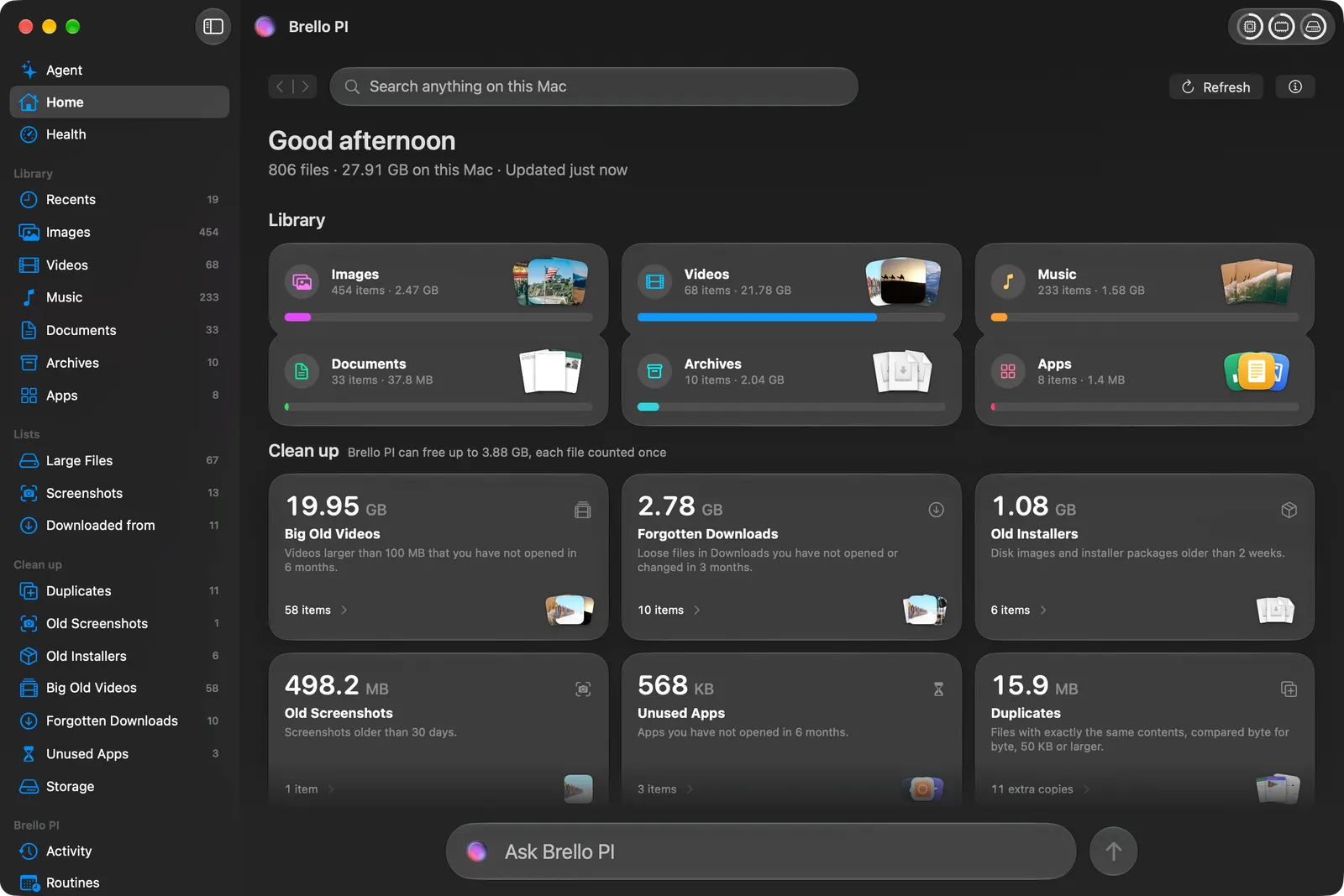
Home reads your files and sorts them by kind: Images, Videos, Music, Documents, Archives and Apps, each with how many there are and how much space they take. The numbers are measured on your Mac when Home opens, and Refresh measures again.
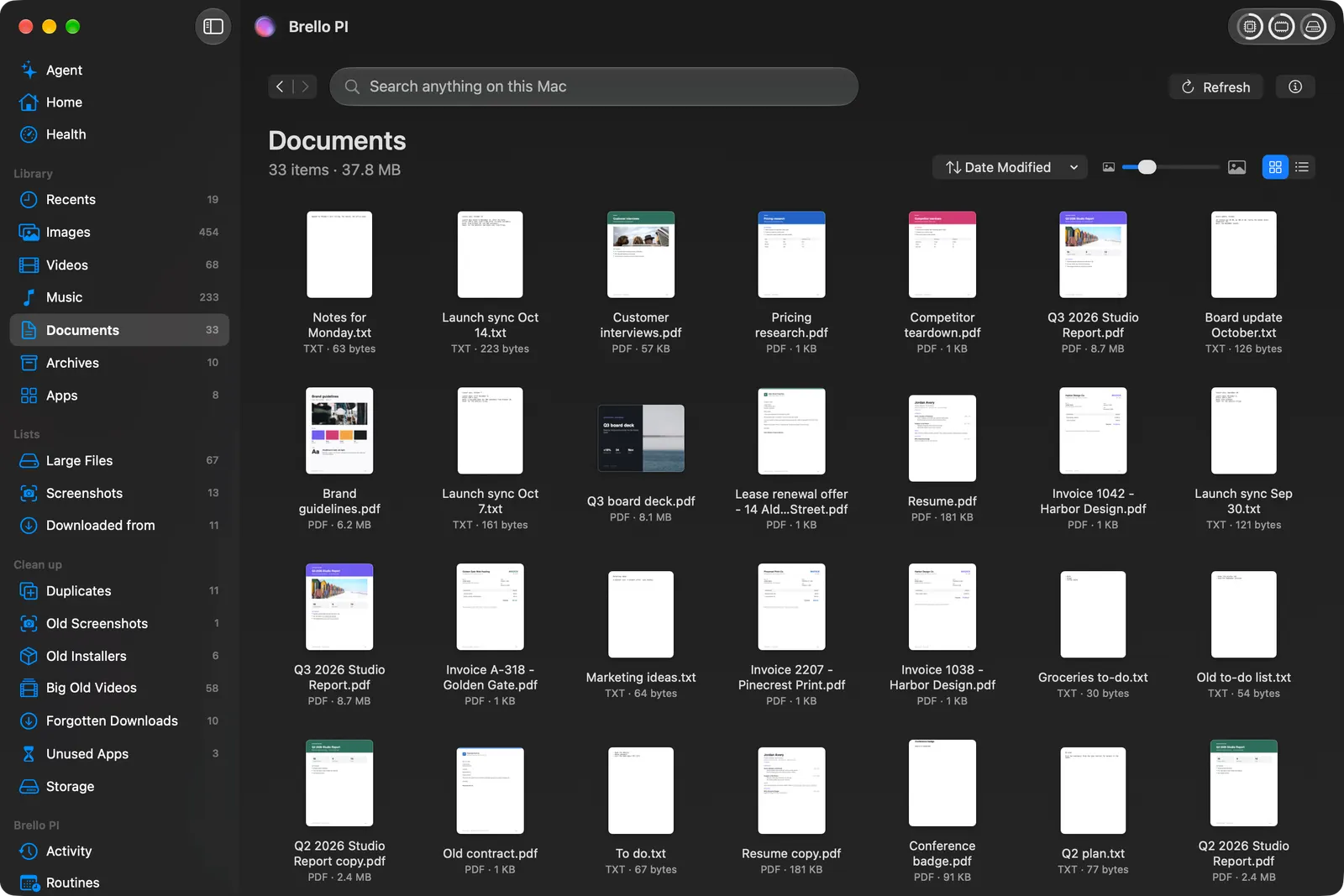
Each kind opens to a page you can browse the way you’d want to. Documents show their first pages. Videos show a frame from each. Double-click a song and it plays in the toolbar, with your keyboard’s media keys.
Search the way you remember
Nobody remembers a file name. You remember roughly what it was and roughly when. So type that: “the contract I signed in March.”
Home reads it as a kind (Documents), a date (March) and a word (contract), shows you how it read each part, then finds the file. “PDFs from last week over 5 MB” works the same way. It searches names, Finder tags and the words inside documents.
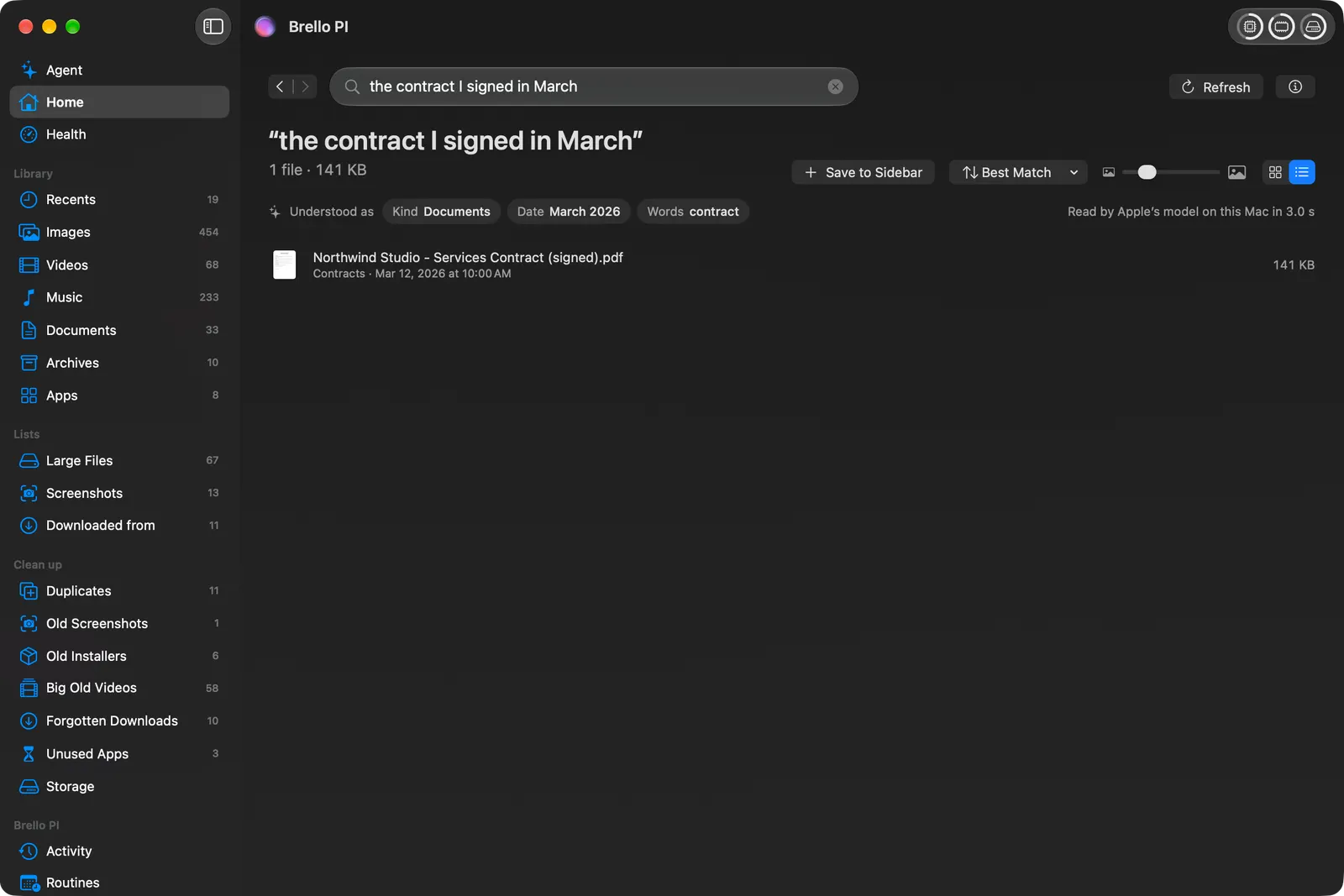
Showing how it read your words matters more than it looks. When a search finds nothing, you can see why at once: the date was read as a different March, or the kind was too narrow. You fix the words, not your guess about what the search engine wanted.
If it’s a search you’ll want again, press Command-S to keep it in the sidebar. It searches again each time you open it, so “PDFs from last week” is always last week.
From any app, as you type
You don’t need the window open to find something. Press Option-Space in any app and Brello PI’s popup drops from the menu bar. Type part of a name and files appear as you type. Return opens one, Command-Return shows it in Brello PI, and Option-Return shows it in Finder. Command-Y lists the last ten files to land in Downloads, ready to drag into whatever you’re working on.
Where every download came from
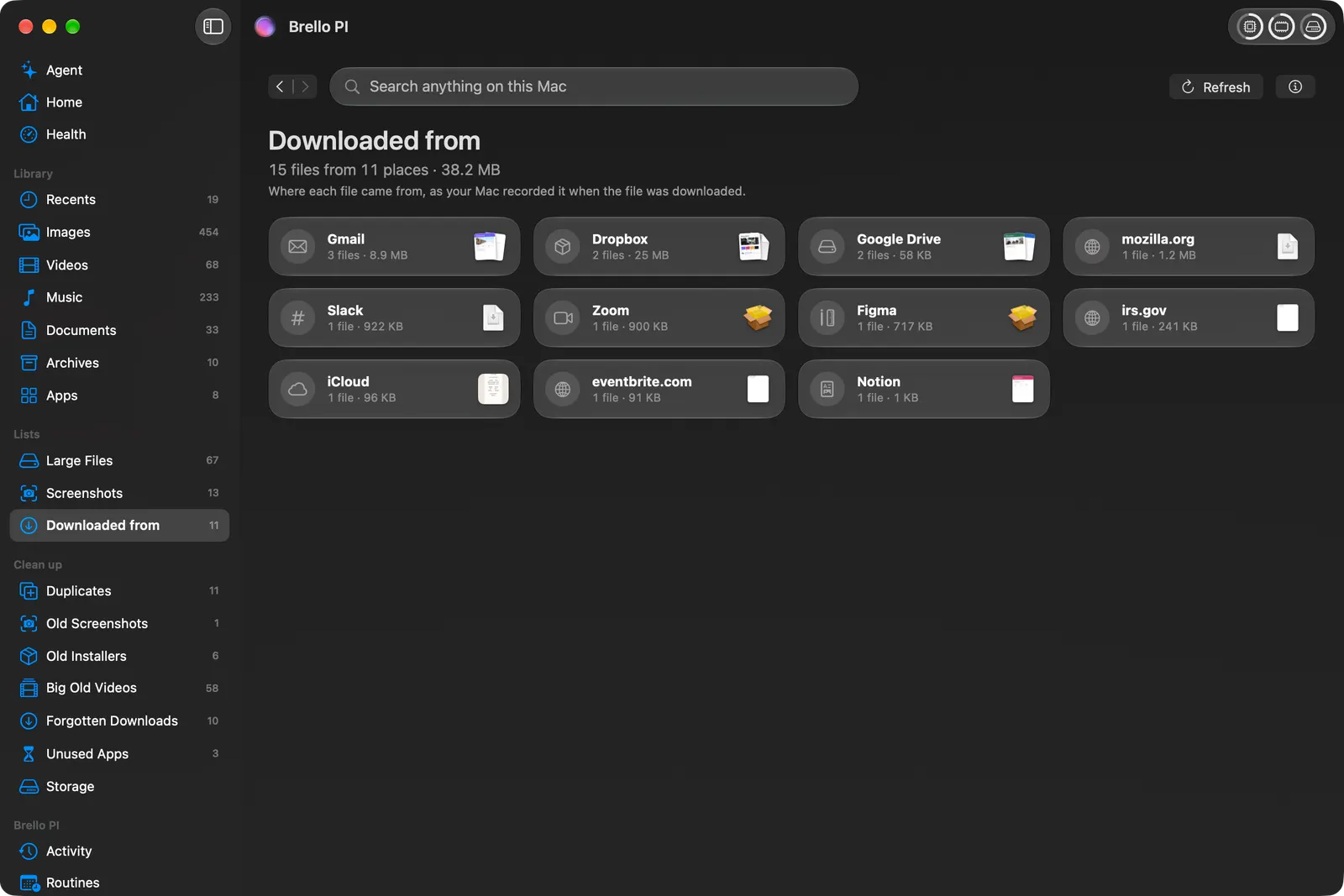
Your Mac remembers which site each download came from. Finder keeps that buried in Get Info. Home’s Downloaded From puts it up front, grouping every download by the site you got it from, so you can find a file by where it came from (Shift-Command-J).
Duplicates, proven byte for byte
Same name doesn’t mean same file, and different names can hide identical ones. Home compares contents byte for byte and shows only copies that are exactly the same, 50 KB or larger, side by side, with the copy to keep marked. Brello lists every copy and asks before deleting any. There’s more in Clean up and Duplicates.
Clear out what you don’t need
Under the Library, Home has Clean up: a set of lists, each with one plain rule, each measured on your Mac. Big old videos you haven’t opened in six months. Downloads you haven’t touched in three. Installers older than two weeks. Screenshots older than thirty days. Apps you haven’t opened in six months. And the exact copies above.
Nothing is deleted until you’ve seen it. Brello names each file and its size and waits for your yes. Then the files fly into the Trash in your Dock, exactly as Finder moves them there, and Undo or Command-Z brings them back.
Finder’s keys, and a few more
Home works beside Finder, not instead of it, so it keeps Finder’s keys wherever Finder has one:
- Space for Quick Look.
- Command-I for the Inspector, with a live preview, Live Text, the camera and dimensions for a photo, and where a download came from.
- Shift-Command-C copies the text out of an image or a PDF, read on your Mac.
- Control-Command-T pins a folder to the sidebar.
- Shift-Command-R shows any file in Finder.
Where Finder has no key, we picked one that doesn’t collide with anything Finder or macOS already uses.
Fast on a lived-in Mac
A Mac with tens of thousands of files is normal, and Home is built for it. We measure it on made-up homes of 40,826 and 81,652 files, opened cold, every page toured, and we hold its first open to about a tenth of a second on the main thread. Pages behind the one in front do no work at all. How Brello stays smooth has the numbers.
And when you want it done for you
Home shows and finds. When you want files moved, Brello PI’s agent does that from a sentence. “Tidy up my Desktop” puts screenshots, images and documents each into a folder of their own, with every file’s new place shown and Undo for all of it. That’s in One sentence, finished work.