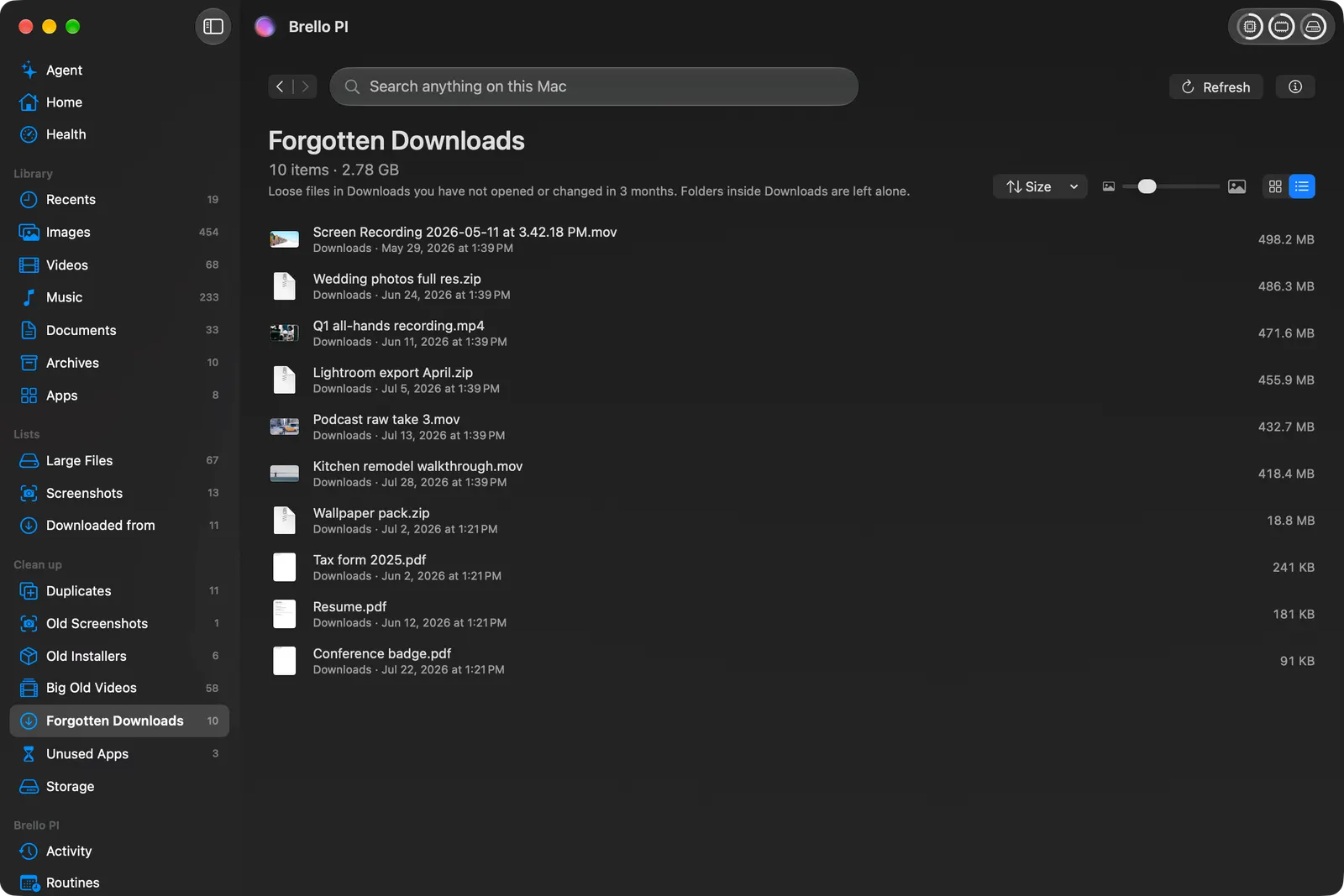
Most “cleaner” apps ask you to trust a number: press a button, get 12 GB back, and don’t ask what went. Brello’s Clean up works the other way around. It shows you each file by name, says why it’s on the list, and waits for your yes. What goes, goes to your Mac’s own Trash, and Undo can bring it back.
That’s slower than a magic button, by a few seconds. It’s also the only way we’d want our own Macs cleaned.
Six lists, each with one plain rule
Clean up lives in Home, under the Library, as a row of cards. Each card is a list, each list follows one rule you can read in a sentence, and each is measured on your Mac:
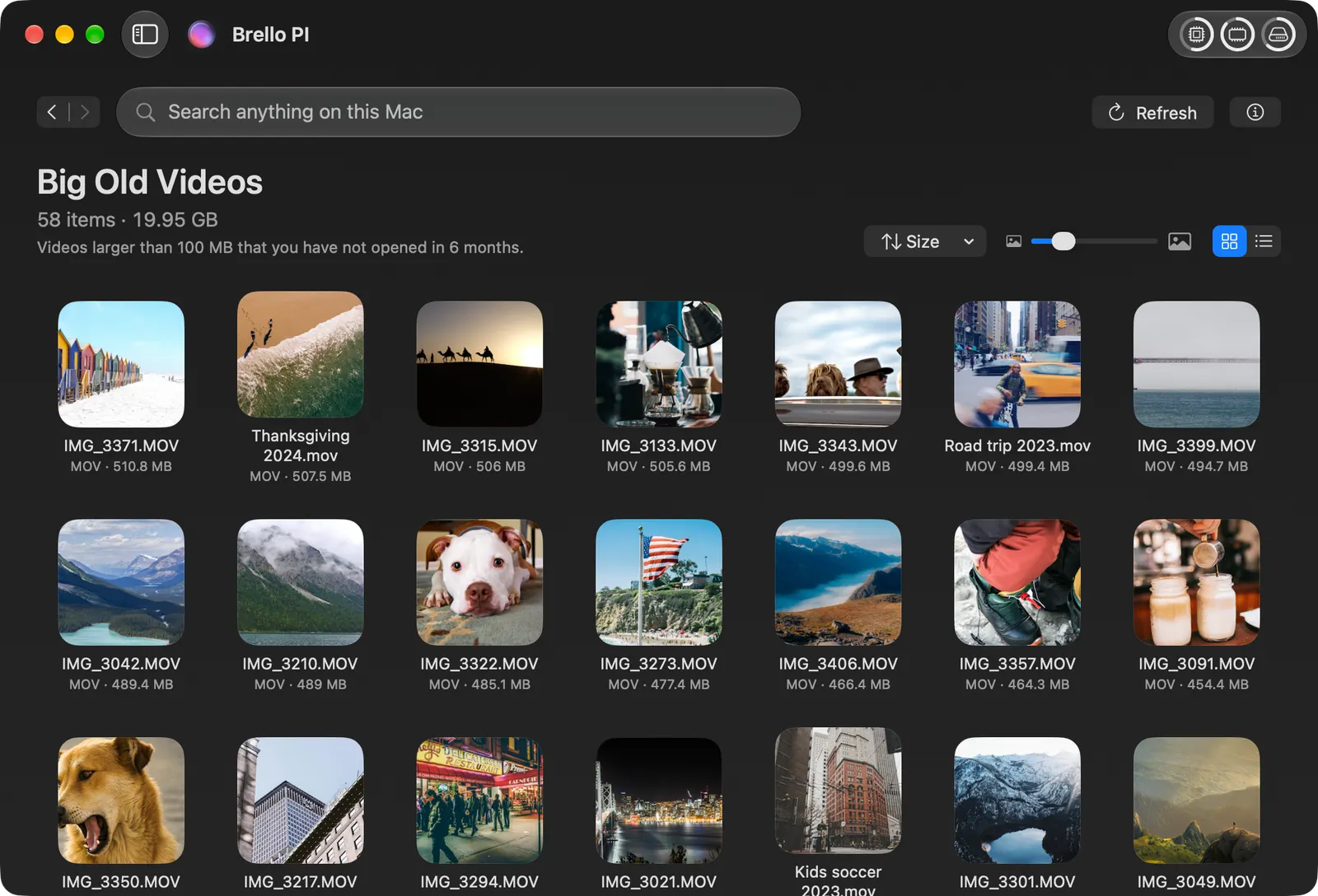
- Big Old Videos: videos you haven’t opened in 6 months over 100 MB
- Forgotten Downloads: files in Downloads you haven’t opened or changed 3 months
- Old Installers: disk images and installer packages older than 2 weeks
- Old Screenshots: screenshots older than 30 days
- Unused Apps: apps you haven’t opened 6 months
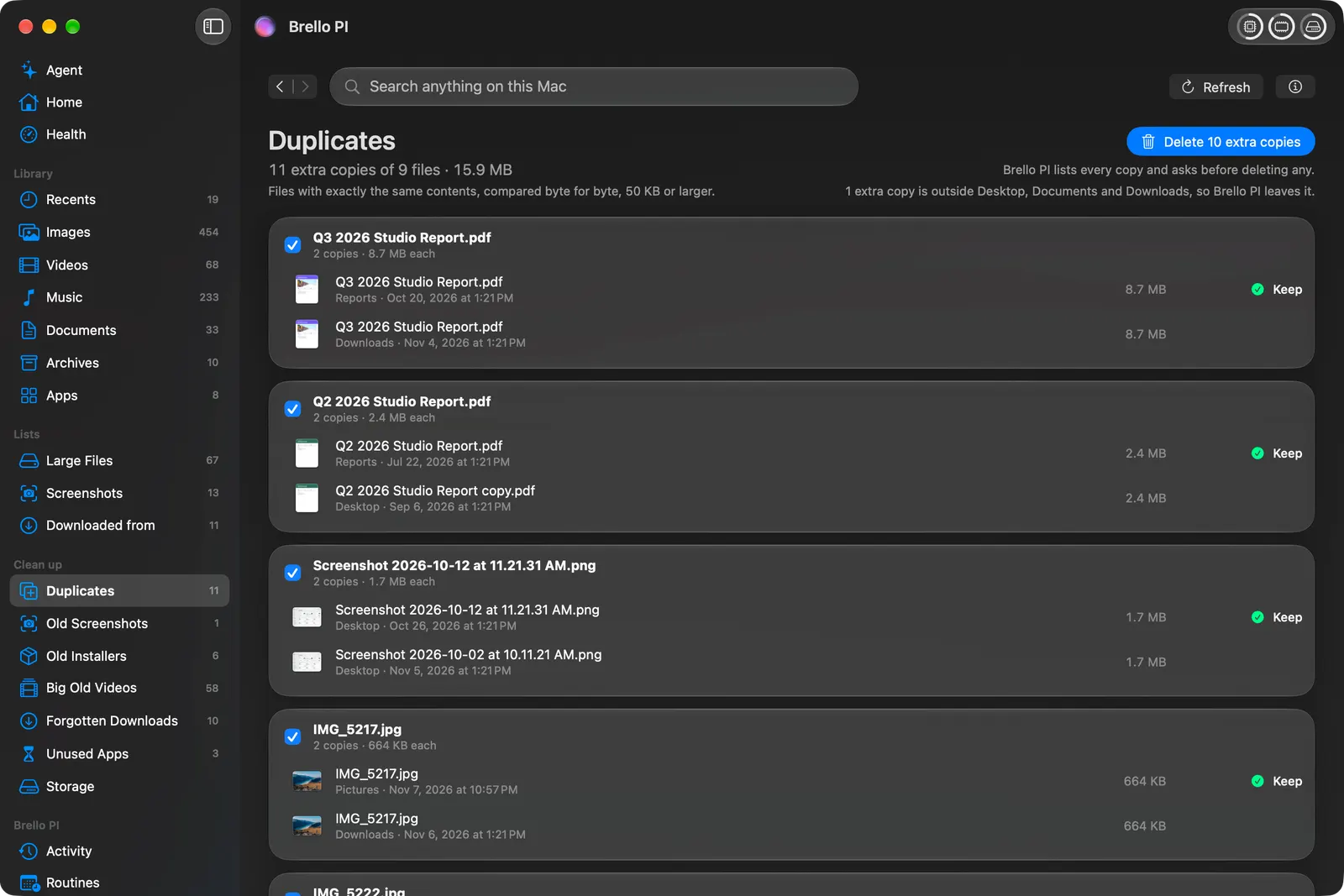
- Duplicates: exact copies, compared byte for byte 50 KB or larger
The rules are deliberately plain. You can check any of them against your own memory: yes, that video is from two summers ago; no, I still need that installer. A list you can’t reason about is a list you can’t trust.
Duplicates, proven byte for byte
Same name doesn’t mean same file, and different names can hide identical ones. “Brand guidelines.pdf” and “Brand guidelines (1).pdf” might be one file downloaded twice, or two drafts a week apart. Brello PI doesn’t guess from names or sizes. It compares the contents, byte for byte, and lists only copies that are exactly the same.
Each set shows side by side, with where each copy lives and when it arrived, and one copy marked to keep. Delete the extra copies and Brello lists every one of them, with its size, before anything moves.
Nothing goes until you’ve seen it
When you choose Delete, Brello asks one question, with every file in it. The question says how many items, how much space in all, and that they go to the Trash, where you can undo it. Not now changes nothing.
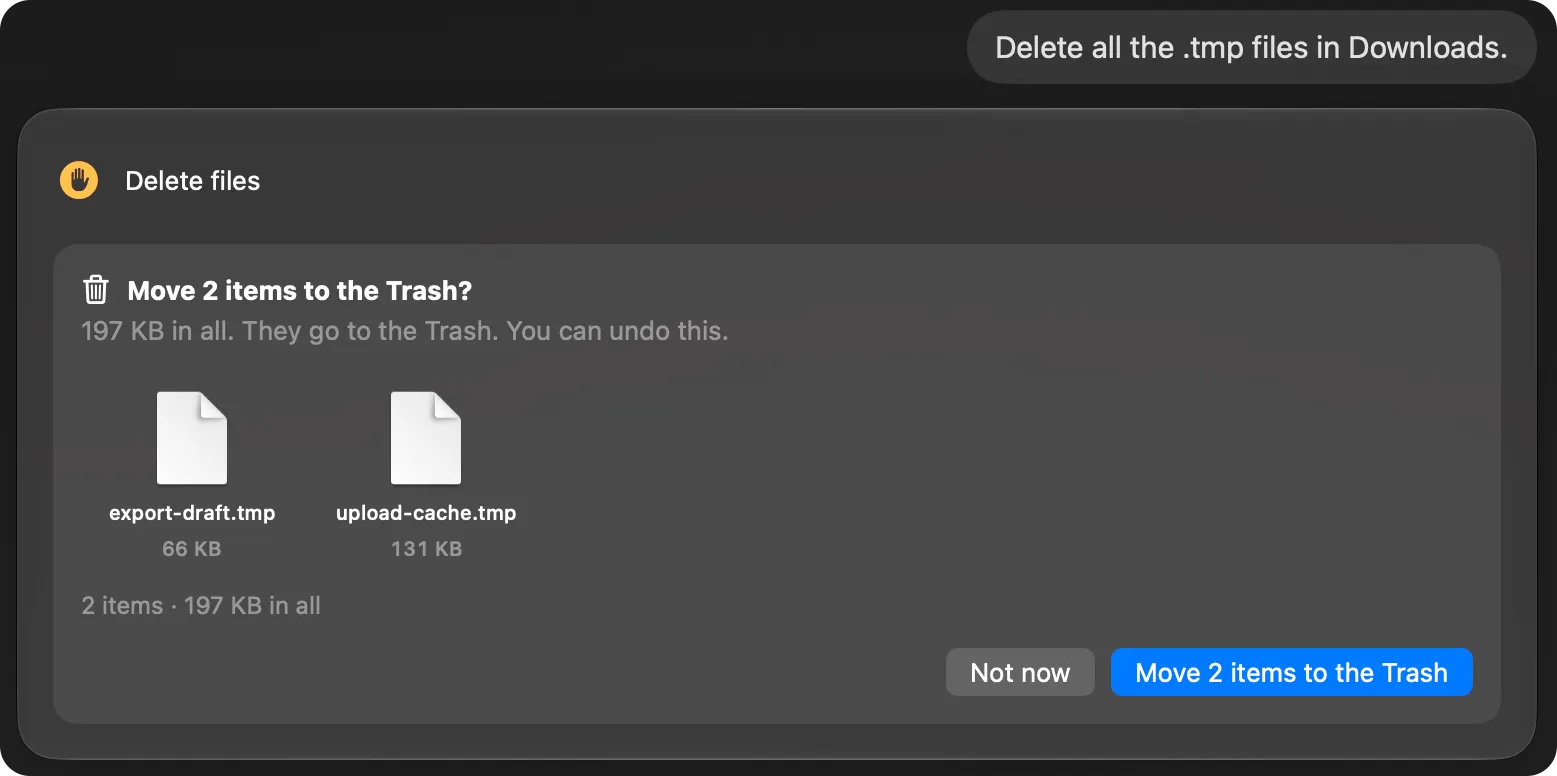
Say yes and the files fly into the Trash in your Dock, exactly as Finder moves them there, with FileManager.trashItem, the same call Finder makes. Undo, or Command-Z, flies them back out to where they were.
Delete means the Trash, as it always has on a Mac. Command-Z means bring it back.
Why the Trash, and not a folder of our own
An early version of Brello kept deleted files in a folder of its own for a while. It worked, but it isn’t how a Mac works. People already know where deleted things go and how to get them back, and a second place to look is one more thing to remember. So Brello uses the Mac’s Trash, and nothing else.
The one thing to know: once you empty the Trash, Undo can’t bring those files back. That’s true of Finder too. If you ask Brello PI to empty the Trash, it asks first, and the question says how many items and how much space.
Two rules that keep it tidy
If you’d rather not think about it at all, turn on the two tidy rules, under Home’s Clean up or in Settings. Both are off until you turn them on.
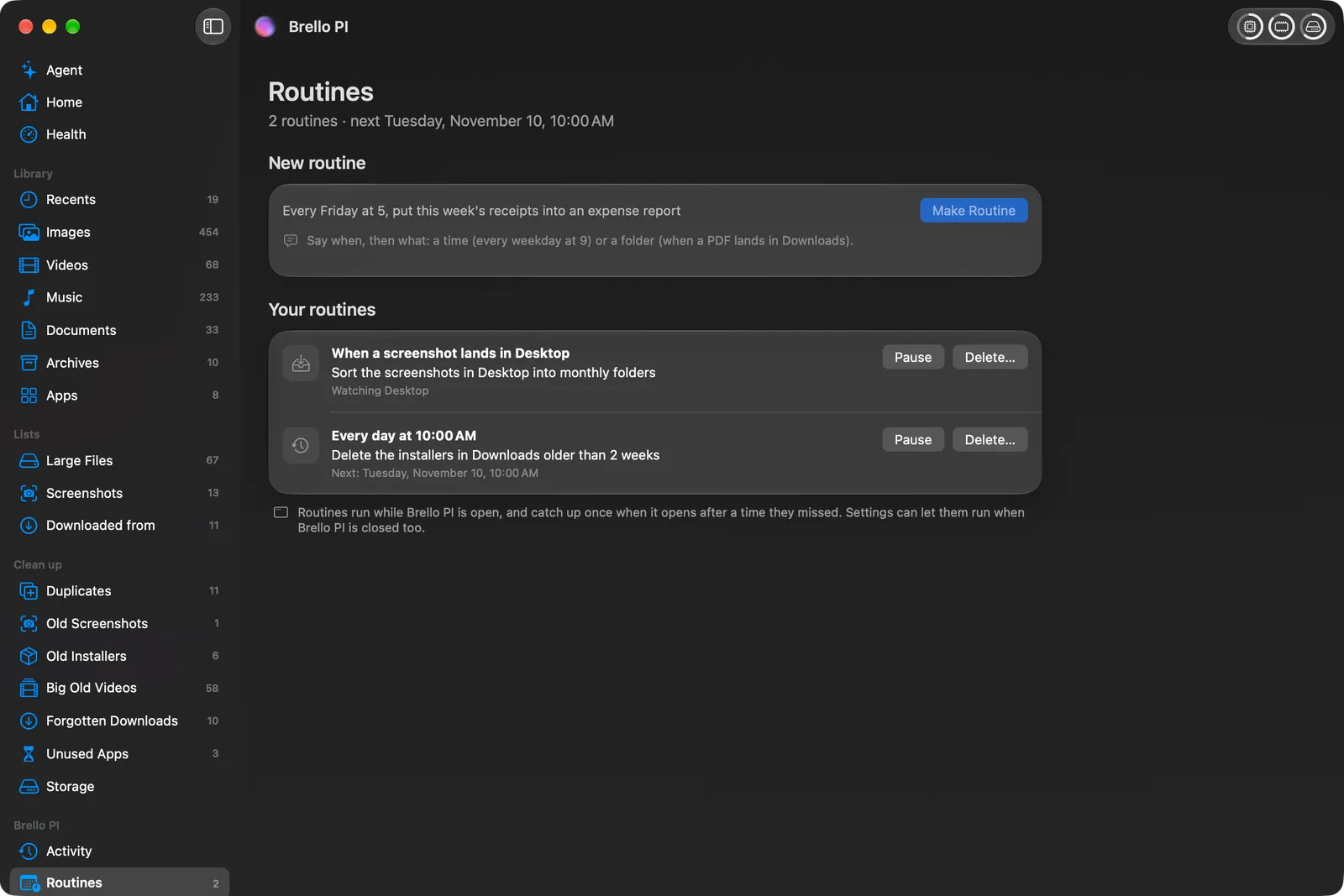
- Sort screenshots into monthly folders. When a screenshot lands on your Desktop, it moves into a folder for its month, inside Screenshots. Only moves, and Undo puts them back.
- Clear out old installers. Each morning at 10:00, Brello asks about disk images and installers in Downloads that are older than two weeks, and deletes them only on your yes.
What Clean up doesn’t do
Clean up never empties caches behind your back, and never deletes anything with nobody at the Mac. Storage, its neighbor in the sidebar, measures caches and build data and marks what apps make again as safe to go, but Brello leaves clearing them to the app or tool that made them. What’s really filling your Mac explains why.
Clean up, its lists and Duplicates work on any Mac with macOS 14 or later, on Apple silicon and Intel. With the agent, you can also ask in a sentence: “show me files over 300 MB” in the popup, then Remove All.