Uninstall an app
- Quit the app. If it won’t quit, press Option-Command-Escape, select it and click Force Quit.
- In Finder, open Applications: click it in the sidebar, or press Shift-Command-A.
- If the app is in a folder of its own, open the folder and look for Uninstall [App] or [App] Uninstaller. If there is one, double-click it, follow its steps, and stop here.
- Otherwise drag the app to the Trash in the Dock, or select it and press Command-Delete.
- Enter your Mac’s administrator name and password if Finder asks.
- Choose Finder ▸ Empty Trash when you’re sure. Until then, File ▸ Put Back in the Trash brings the app back.
To find an app that isn’t in Applications, search for it with Spotlight (Command-Space) and hold Command while you double-click the result: Finder opens its folder. Some apps install into the Applications folder inside your home folder instead.
Why an uninstaller is better when there is one
An app that’s one file, as most Mac apps are, goes completely when you drag it to the Trash. Some apps install more: background helpers, login items, network or audio drivers, printer software, browser extensions or a system extension. Their uninstaller removes all of it. Apple calls an included uninstaller the best way to delete an app and anything it stored in other places.
Look for one in the app’s folder, on the disk image you installed it from, in the app’s own menu (some have Uninstall or Reset there), or on its maker’s support site. Security apps, VPNs, virtual machine apps, drivers, Adobe’s apps and some Microsoft and Google tools usually work this way.
Uninstall from Storage settings
- Open System Settings ▸ General ▸ Storage.
- Click ⓘ next to Applications.
- Sort the list by size, select the apps you don’t use, and click Delete.
This is the quickest way to see which apps are big and which you haven’t opened in months. It deletes the apps themselves, not their settings.
Uninstall an App Store app
Apps from the App Store uninstall the same way, by dragging them to the Trash. On macOS 15 and earlier you can also open Launchpad, hold an app’s icon until it jiggles, and click the ×. Either way, you can download it again for free from the App Store: open your account page in the App Store and find it under your purchases.
Deleting an App Store app doesn’t cancel a subscription you bought in it. Manage subscriptions in the App Store: click your name, then Account Settings ▸ Subscriptions ▸ Manage.
Remove what an app leaves behind
Dragging an app to the Trash leaves its settings and data, so it opens just as it was if you install it again. To remove them too, press Shift-Command-G in Finder (Go ▸ Go to Folder), paste a folder below, and look for a file or folder named after the app, its maker, or its identifier, such as com.maker.appname.
| Folder | What apps keep there |
|---|---|
~/Library/Application Support |
The app’s data: libraries, databases, downloaded content. Often the biggest |
~/Library/Containers and ~/Library/Group Containers |
Everything a sandboxed app, including any App Store app, keeps |
~/Library/Caches |
Files the app can make again |
~/Library/Preferences |
Its settings, in a file ending .plist |
~/Library/Logs |
Its logs |
~/Library/Saved Application State |
Which windows were open |
~/Library/LaunchAgents |
Helpers that start when you log in |
/Library/Application Support, /Library/LaunchAgents, /Library/LaunchDaemons, /Library/PrivilegedHelperTools |
Parts installed for every user, often by apps that asked for your password |
The ~ means your home folder. Delete only what clearly belongs to the app you removed, then empty the Trash. If in doubt, leave it: most of these files are small, and deleting the wrong one can break another app.
Tip: in Finder, press Command-F, choose This Mac, add System files are included from Other…, and search for the app’s name to find files in every one of these folders at once.
Stop what keeps running after you delete it
An app’s helper can outlive the app. Open System Settings ▸ General ▸ Login Items & Extensions (on macOS 13 and 14 it’s Login Items):
- Under Open at Login, select anything left from the app and click –.
- Under Allow in the Background, turn off its items.
- Under Extensions, check the categories for anything the app added, such as a Finder or Share extension.
If a helper keeps running, restart your Mac. A background item whose app is gone usually stops at the next login.
An app won’t move to the Trash
- “The item can’t be moved to the Trash because it’s open”: quit it, or force quit it with Option-Command-Escape. If it has a menu bar icon, quit from there too. If it still says it’s open, restart and try again before opening anything.
- “Can’t be modified or deleted because it’s required by macOS”: apps that come with the Mac, such as Safari, Mail, Music, Books, Notes, Maps, News and Stocks, can’t be deleted. They live on the sealed system volume and take no space you could get back.
- A background helper is still running: turn its items off in Login Items & Extensions, then try again.
- It needs an administrator’s password: apps installed for every user ask for one.
- It still won’t go: restart in safe mode and delete it there. Apple suggests this for an app that says it’s in use.
Apps installed with Homebrew
If you installed an app with Homebrew, remove it the same way: run brew uninstall --cask followed by the app’s name in Terminal. Add --zap to remove the settings and data Homebrew knows about too.
Does deleting an app delete my files?
No. Documents you made with the app stay where you saved them; Apple says so, and it’s true for every app. You may need the app, or another that reads the same kind of file, to open them again.
Do I need an uninstaller app?
Usually not. Most apps uninstall completely by dragging them to the Trash, and the folders above cover what’s left. Uninstaller apps save you looking through those folders, and they’re worth it if you remove many apps; check what any app like that asks for before you trust it with your files. See is CleanMyMac safe.
Will uninstalling an app free much space?
The app itself, often a few hundred megabytes and sometimes many gigabytes for creative suites, games and developer tools. Its data in Application Support or Containers can be larger than the app: a video app’s cache or a game’s downloaded content. Check both before you decide.
Doing this with Brello
Brello is a Mac app we make. Its Home counts every app on your Mac with its size, and Clean up lists Unused Apps: apps you haven’t opened in 6 months, so you can see which ones are worth removing. Brello leaves the removing to you: apps are outside the folders it changes, so you delete them in Finder as above. It works on any Mac with macOS 14 or later.
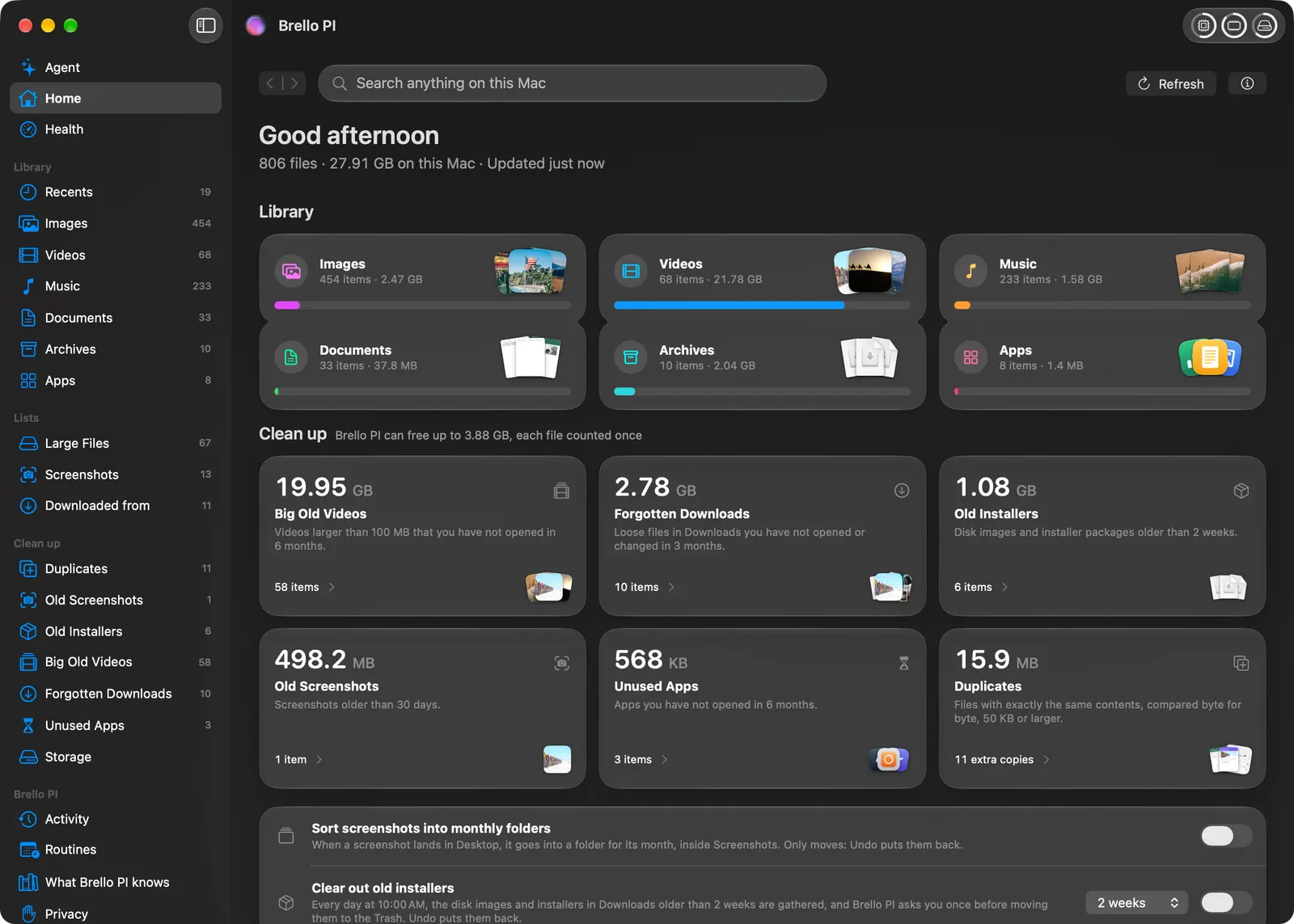
Checked on macOS 27.0.1, November 2, 2026. Menu names can change with a macOS update.
Sources: Delete or uninstall apps on Mac (Apple Support); Install and uninstall other apps on Mac (Apple Support).
In Brello’s help: Clean up, and tidy rules.