Keep it awake with caffeinate
caffeinate is a command built into every Mac. It holds the Mac awake for as long as it runs, then lets go, and it changes none of your settings.
- Open Terminal: press Command-Space, type Terminal and press Return.
- Type
caffeinate -d -t 7200and press Return. The Mac and its display now stay awake for 7,200 seconds, two hours. - To stop early, click the Terminal window and press Control-C.
Terminal shows nothing while it works: the command simply hasn’t finished. Leave the window open; closing it ends caffeinate and the Mac can sleep again.
Every caffeinate option, with examples
With no options, caffeinate stops idle sleep until you press Control-C. The options say what to hold awake and for how long:
| Option | What it holds | Example |
|---|---|---|
-i |
The Mac, against idle sleep (the default) | caffeinate -i |
-d |
The display, so the screen stays on | caffeinate -d for a presentation |
-m |
The disk, against idle sleep | caffeinate -m for an external drive |
-s |
The whole Mac, only while it’s on power | caffeinate -s for an overnight job on a plugged-in Mac |
-u |
Says the user is active, which turns the display on; 5 seconds unless you give a time | caffeinate -u -t 600 |
-t seconds |
Lets go after that many seconds | caffeinate -t 3600 for an hour |
-w PID |
Lets go when that process ends | caffeinate -w 4512 |
| a command | Holds the Mac awake while the command runs | caffeinate -i ./backup.sh |
Options combine: caffeinate -dims -t 10800 keeps the display, the Mac and the disk awake for three hours, on power.
Common jobs:
- A long download in an app. Find the app’s process ID in Activity Monitor (the PID column), then run
caffeinate -i -wand that number. The Mac stays awake until the app quits. - A script or a copy in Terminal. Put
caffeinate -iin front of the command, such ascaffeinate -i rsync -a ~/Photos /Volumes/Backup/. When the copy finishes, the Mac is free to sleep. - A talk or a video.
caffeinate -d -t 5400keeps the screen on for 90 minutes and then lets it sleep normally.
Hours to seconds: one hour is 3,600, two hours 7,200, four hours 14,400, eight hours 28,800.
Keep it awake with System Settings
Use this when you want the Mac to stay awake every day, not once.
- Open System Settings ▸ Lock Screen and set Turn display off when inactive to a longer time, or Never. A laptop has two: one on battery and one on the power adapter.
- On a desktop Mac, open System Settings ▸ Energy and turn on Prevent automatic sleeping when the display is off.
- On a laptop, open System Settings ▸ Battery ▸ Options and turn on Prevent automatic sleeping on power adapter when the display is off.
These stay until you change them back, and they use more power. On some earlier versions the desktop pane is called Energy Saver, and before macOS 13 these settings were in System Preferences.
Keep it awake with an app
Menu bar apps such as Amphetamine do what caffeinate does with a click, and some keep the Mac awake while a chosen app runs, a file downloads or an external display is connected. We compared it in Brello vs Amphetamine. They all ask macOS the same way caffeinate does, so the same limits apply.
Keep it awake with the lid closed
A MacBook sleeps when you close the lid, whatever caffeinate or an app holds, unless it’s in closed-display mode: connected to power, connected to an external display, and with an external keyboard and a mouse or trackpad. To keep a download going on a MacBook alone, leave the lid open and turn the brightness down.
Check that it’s working
In Terminal, run pmset -g assertions. If caffeinate holds the Mac, the summary shows PreventUserIdleSystemSleep 1 (and PreventUserIdleDisplaySleep 1 with -d), and the list below names caffeinate with how long it has held on. The same command shows any app that’s keeping your Mac awake that you didn’t know about; see why a Mac won’t sleep.
In Activity Monitor’s Energy tab, the Preventing Sleep column says Yes beside any process holding the Mac awake.
Does caffeinate need admin rights?
No. Any user can run it, without sudo, and it asks for no password. It changes no settings, so there is nothing to put back afterwards.
Does caffeinate keep working if I close Terminal?
No. Closing the window or quitting Terminal ends the command, and the Mac can sleep again. To run it with no window, use caffeinate -t 7200 & and leave Terminal open in the background, or use an app.
Does caffeinate work on battery?
Yes, -i, -d and -m work on battery. Only -s needs power: it’s ignored while the Mac runs on its battery. Holding a laptop awake on battery drains it faster, especially with the display on.
Does keeping a Mac awake stop it locking?
Not by itself. caffeinate -d keeps the display on, so the screen doesn’t lock from inactivity while it runs. Without -d the display can still turn off and lock, while the Mac keeps working behind it. You can always lock it yourself with Control-Command-Q.
Will my Mac sleep again by itself?
With -t, yes, when the time runs out. With -w or a command, when that process ends. With nothing, only when you press Control-C or close Terminal. Changes in System Settings stay until you change them back.
Doing this with Brello
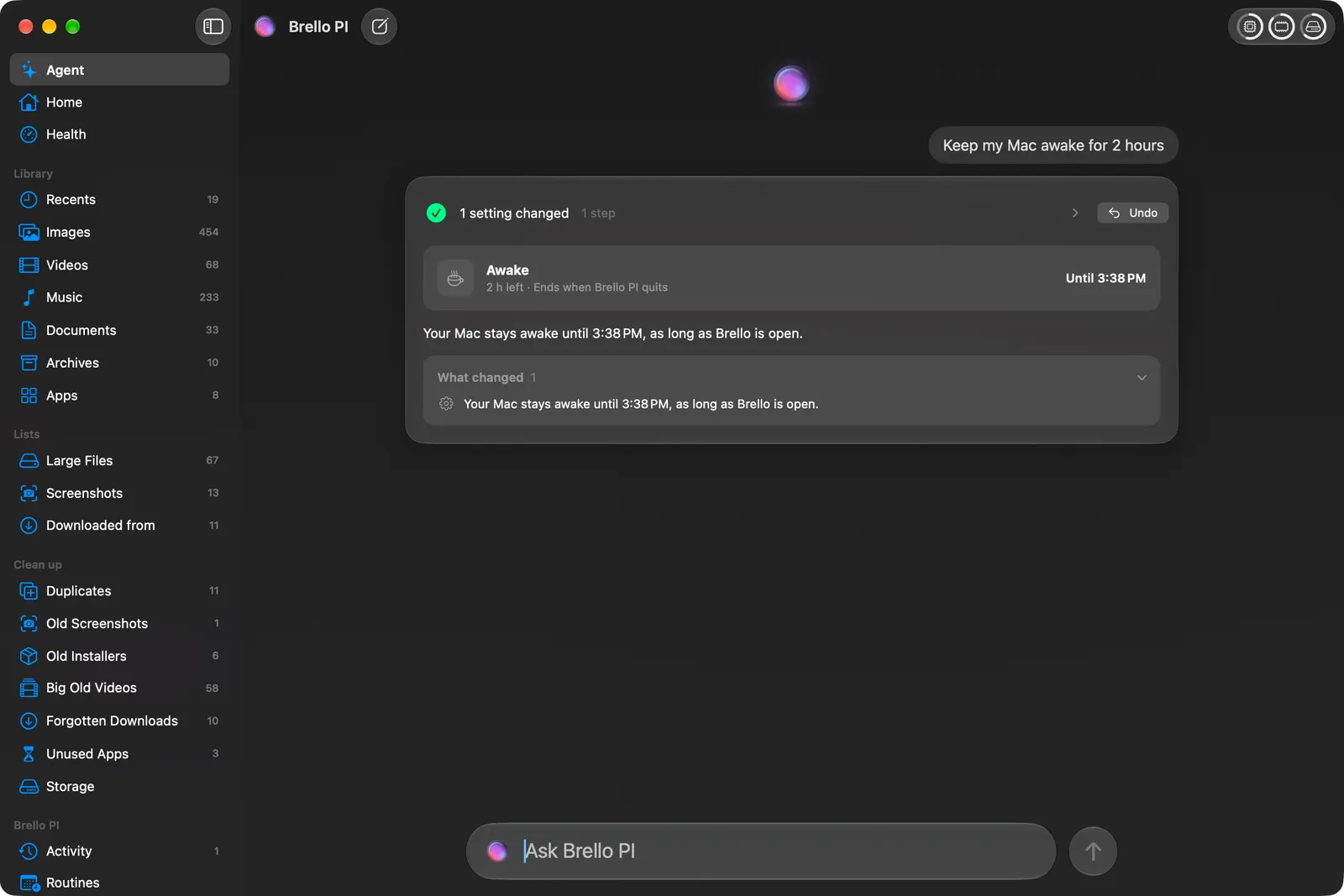
Brello PI is a Mac app we make. With its agent, say “keep my Mac awake for 2 hours”. Brello PI keeps it awake, reads the change back from macOS, and shows a cup and the time left beside its icon in the menu bar. Let It Sleep ends it early. Undo ends it too, and it always ends when Brello PI quits. Brello PI holds a power assertion, the same mechanism caffeinate uses, so nothing in your settings changes. Its Health page also shows what else is keeping your Mac awake, and for how long.
Asking needs a Mac with Apple silicon, macOS 27 and Apple Intelligence.
Checked on macOS 27.0.1, November 2, 2026. Menu names can change with a macOS update.
Sources: caffeinate(8), the manual page on macOS 27.0.1; Set sleep and wake settings for your Mac (Apple Support).
In Brello’s help: Change settings by asking.