Hide the Dock
- The shortcut: press ⌥⌘D. Press it again to turn hiding off.
- In System Settings: choose Apple menu ▸ System Settings ▸ Desktop & Dock, and turn on Automatically hide and show the Dock.
With it on, the Dock slides in when you move the pointer to the edge of the screen where it lives.
Make the Dock smaller, or move it
In Desktop & Dock, drag the Size slider, and choose where it sits under Position on Screen: Left, Bottom or Right. A Dock on the left or right takes width instead of height, which suits a wide display and leaves more of a laptop’s screen for documents.
Control-click the line between apps and documents in the Dock to do the same without opening Settings: Turn Hiding On, Turn Magnification On, Position on Screen and Dock Settings… are all there.
Every Dock setting, and what it does
| Setting in Desktop & Dock | What it does |
|---|---|
| Size | How big the Dock and its icons are |
| Magnification | Icons grow as the pointer passes over them |
| Position on Screen | Left, Bottom or Right |
| Minimize windows using | The Genie or Scale effect for minimizing |
| Double-click a window’s title bar to | Zoom, Fill or Minimize, or do nothing |
| Minimize windows into application icon | Minimized windows go into their app’s icon, not beside the Trash |
| Automatically hide and show the Dock | The Dock slides away until you point at its edge |
| Animate opening applications | Icons bounce while an app opens |
| Show indicators for open applications | A dot under each open app |
| Show suggested and recent apps in Dock | Recently used apps that aren’t kept in the Dock appear in a section of their own |
Hide the menu bar too
For the most room, hide the menu bar as well: in System Settings ▸ Menu Bar (on macOS 15 and earlier, Control Center), set Automatically hide and show the menu bar to Always. It slides down when you move the pointer to the top. With both hidden, the screen is all document, as in full-screen mode, without leaving your desktop.
The Dock keeps popping up
When the Dock is hidden, it appears whenever the pointer touches the edge of the screen it lives on. If it pops up by accident:
- Move it to the left or right edge, where you reach less often, in System Settings ▸ Desktop & Dock ▸ Position on screen.
- Make it smaller, so it covers less when it does appear.
- In full screen, the Dock stays out of the way until you push the pointer to the edge.
The Dock won’t hide
- Automatically hide and show the Dock is off: turn it on in System Settings ▸ Desktop & Dock, or press ⌥⌘D.
- A management profile can lock the Dock’s settings on a work or school Mac.
- The Dock seems stuck: it’s run by macOS and restarts on its own if it stops responding. Logging out and back in also restarts it.
Show only open apps
To keep the Dock short, turn off Show suggested and recent apps in Dock in System Settings ▸ Desktop & Dock. Apps you’ve kept in the Dock stay; others show only while they’re open. To remove an app you’ve kept, drag it out of the Dock until Remove appears, then let go. The app itself stays installed.
Make the Dock appear faster
When the Dock is hidden, macOS waits a moment before showing it and animates it in. Some people shorten that wait with a Terminal command, defaults write com.apple.dock autohide-delay -float 0, then killall Dock. To go back to the usual delay, run defaults delete com.apple.dock autohide-delay and killall Dock. Terminal commands like these aren’t settings Apple lists, so a future macOS may ignore them.
Doing this with Brello
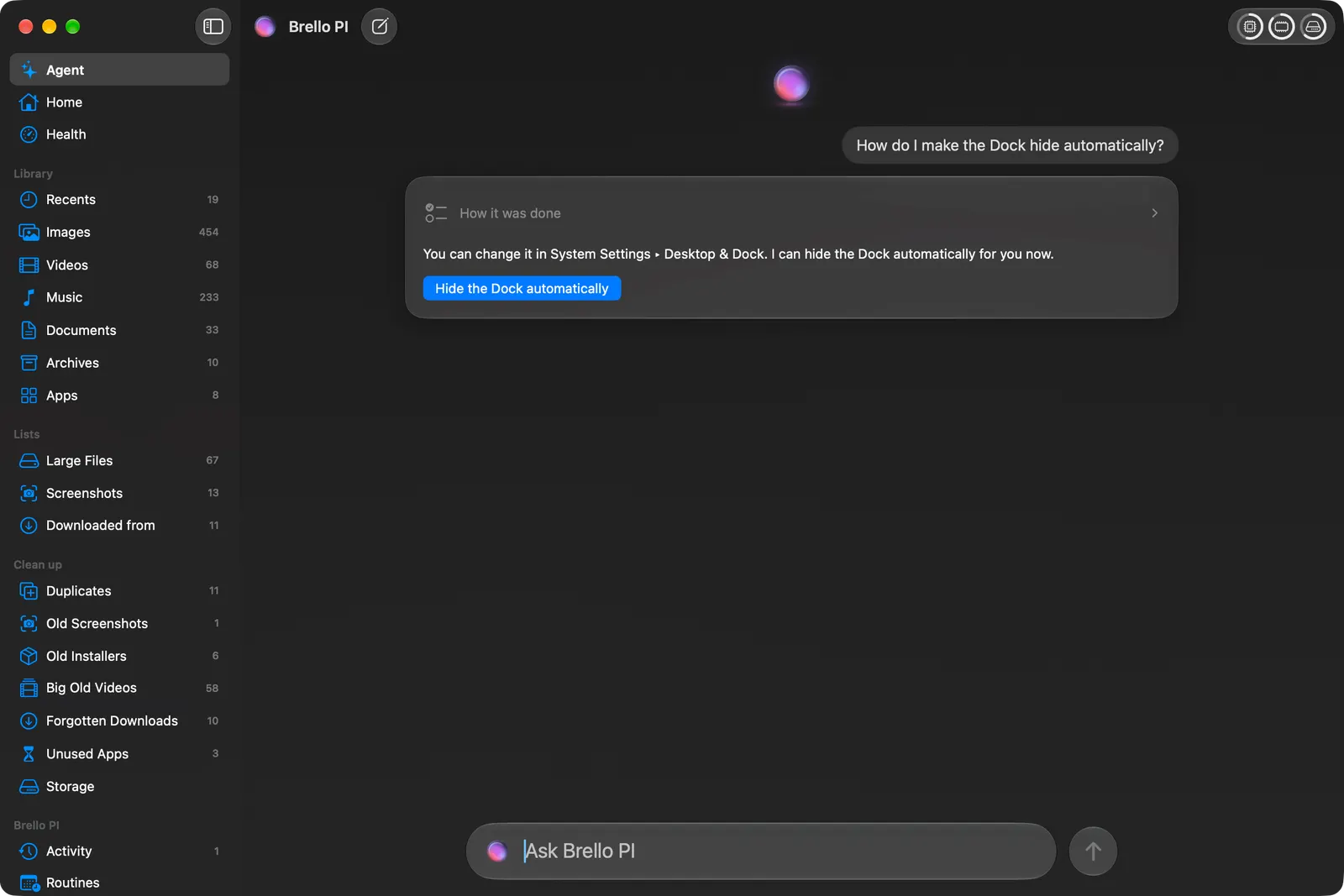
Brello PI is a Mac app we make. With its agent, ask “how do I make the Dock hide automatically?” and Brello PI answers in one line and offers to do it, with a button. Say “hide the Dock” and it changes the setting, reads it back from macOS and offers Undo.
Asking needs a Mac with Apple silicon, macOS 27 and Apple Intelligence.
Checked on macOS 27.0.1, November 2, 2026. Menu names can change with a macOS update.
In Brello’s help: Change settings by asking.