What counts as a duplicate
Two files are duplicates when every byte is the same. “Report (1).pdf” may not be a copy of “Report.pdf”: it can be a later version with one line changed. A file’s name and size are clues, not proof.
Does a Mac have a duplicate file finder?
Not for files in general. macOS has no built-in tool that finds duplicate documents, downloads or videos across your folders. Photos finds duplicate photos in its own library, and Music can list duplicate songs; for everything else, use Finder and Terminal as below, or an app.
Copies that free no space: APFS clones
On a Mac’s APFS disk, when you duplicate a file in Finder (File ▸ Duplicate, Command-D) or copy it within the same disk, macOS often makes a clone: a second file that shares the same storage until one of them changes. Both show their full size in Finder, but together they take the room of one. Deleting a clone frees almost nothing.
That’s why “I deleted 20 GB of duplicates and got nothing back” happens. A good duplicate finder tells clones apart from real copies; Finder can’t show you which is which. Copies that came from different places, such as a download saved twice or a file copied from a USB drive, are real copies and do free space.
Find likely copies with Finder
- Open the folder you want to check, and choose View ▸ as List.
- Click the Size column to sort by size. Copies sit next to each other with the same size.
- Look for names ending in “copy” or a number in brackets.
- Open both files, or select one and press Space to see it in Quick Look, before you delete either.
This shows candidates, not proof. Two different files can have the same size.
To look across the whole Mac at once, make a search: press Command-F, choose This Mac, add File Size (from Other…) is greater than 100 MB, and sort the results by size. Big files with identical sizes side by side are the copies worth checking first. Common places: Downloads, where a file saved twice becomes Report (1).pdf; the Desktop; and iCloud Drive, where a sync conflict leaves Report 2.pdf.
Prove which files match, with Terminal
This command looks through your Documents folder, compares every file of 50 KB or more by its SHA-256 checksum, and lists only the files that match another one, grouped together. It lists files and deletes nothing.
find ~/Documents -type f -size +50k -exec shasum -a 256 {} + | sort | awk '{ if ($1 == last) { if (!shown) print prev; print; shown = 1 } else shown = 0; last = $1; prev = $0 }'Each line starts with the checksum, so files with the same first 64 characters are the same, byte for byte. Change ~/Documents to check another folder. On a large folder it takes a while, because every file is read.
Find duplicate photos
Photos finds duplicate photos and videos in your library by itself, on macOS 13 and later.
- Open Photos.
- In the sidebar, under Utilities, click Duplicates. It appears only when Photos has found some, which can take a while after you import.
- Check each set, then click Merge for one set, or select several and merge them all.
Merging keeps the best-quality version and combines the details of the others, such as captions, keywords and albums, then moves the rest to Recently Deleted, where they stay for 30 days. Never delete photos from inside the Photos library in Finder: it can damage the library.
Photos looks only inside its own library. Copies of the same pictures in a folder in Finder or Downloads are found as files, with the steps above.
Find duplicate songs
In Music, choose File ▸ Library ▸ Show Duplicate Items. Hold Option while you open the menu to choose Show Exact Duplicate Items, which matches name, artist and album. Delete the extras in Music, and choose to move the files to the Trash when it asks.
Which copy to keep
- Keep the one in the folder where you’d look for it, usually in Documents or a project folder, not in Downloads.
- If the dates differ, keep the one you last edited.
- Leave copies inside an app’s library (Photos, Music) to that app.
Delete to the Trash, not with rm
Move copies to the Trash, so you can put one back with Put Back if you chose wrong. Terminal’s rm deletes for good, with no Trash and no undo. Empty the Trash only once you’ve checked that the copies you kept open.
Duplicate finder apps
Apps such as MacPaw’s Gemini and the free, open-source dupeGuru scan whole folders and show matches side by side. Before you trust one with your files, check three things: that it compares contents, not just names and sizes; that it tells clones and hard links apart from real copies, so the space it promises is real; and that it deletes to the Trash, so a wrong choice can be undone.
Is it safe to delete duplicate files?
Yes, once you’ve proven the files match byte for byte and you keep one copy where you’d look for it. Don’t delete copies inside an app’s folder or library, such as Photos, Music or an app in your Library: the app may need its copy where it is.
Why does my duplicate finder show files that aren’t the same?
Some finders match by name or size alone, which catches different versions of a document with the same name, or different files that happen to have the same size. Only a match of every byte, such as the checksum in the Terminal command above, proves two files are copies.
Doing this with Brello
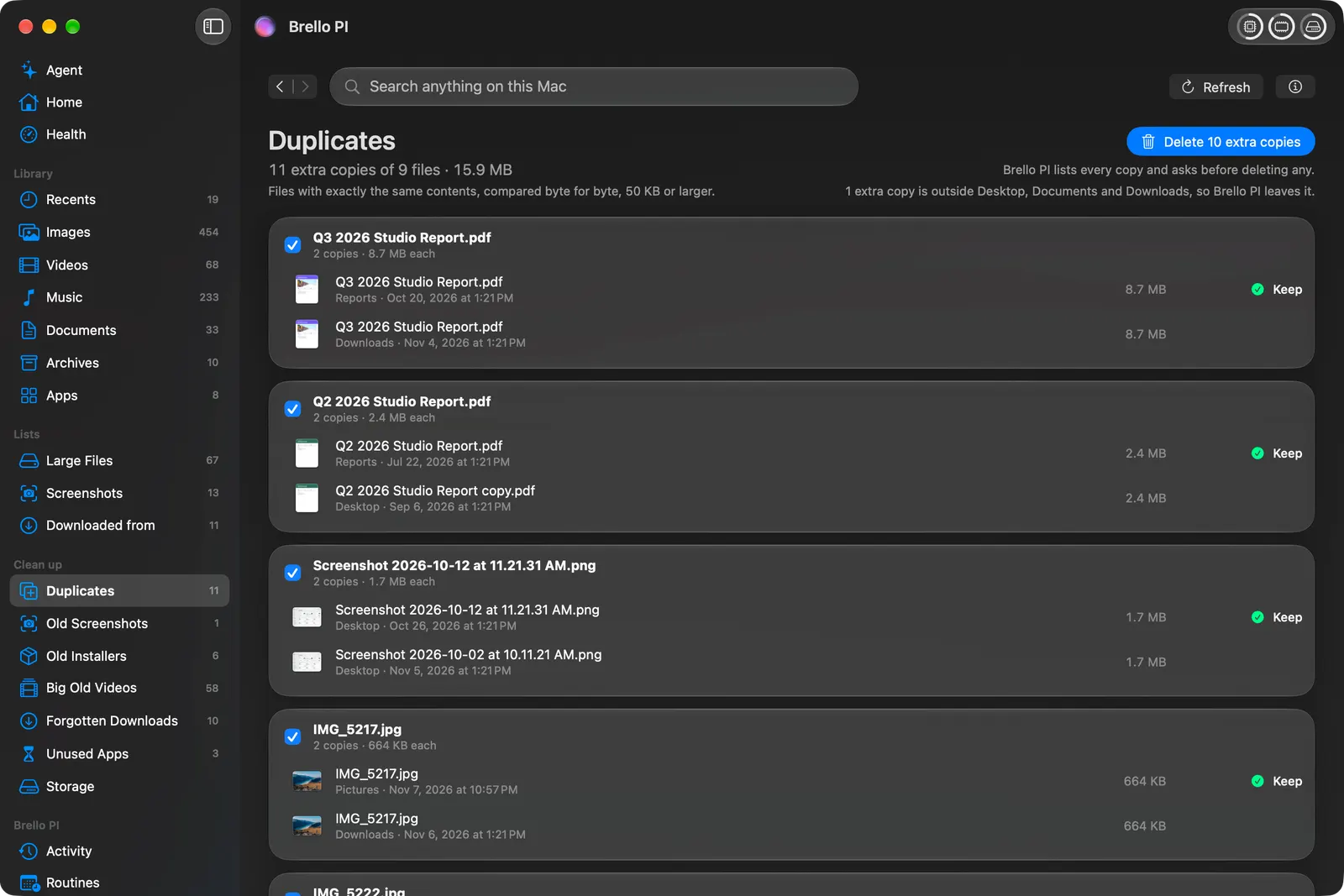
Brello is a Mac app we make. Its Duplicates page compares files byte for byte (50 KB or larger), shows each set side by side and marks one copy of each to keep. When you choose Delete, a question names every extra copy and its size. Say yes and they fly into the Trash in your Dock, and Undo puts them back. It works on any Mac with macOS 14 or later.
Checked on macOS 27.0.1, November 2, 2026. Menu names can change with a macOS update.
In Brello’s help: Duplicates, Delete files, and put them back.