At a glance
| Storage settings | Brello | |
|---|---|---|
| How it shows your disk | Categories: Applications, Documents, Photos, System Data and more | Every kind of file, with counts and sizes, in Home |
| What’s safe to delete | You judge each file | Lists by rule: big old videos, forgotten downloads, old installers, old screenshots, unused apps |
| Duplicates | Not listed | Matched byte for byte, the copy to keep marked |
| Caches | Inside System Data | Measured, each marked when apps make it again |
| Saving space over time | Store in iCloud, Optimize Storage, Empty Trash Automatically | Tidy rules for screenshots and old installers, off until you turn them on |
| Deleting | Deletes what you choose | Into the Trash, with Undo |
| Cost | Built in | $30 at launch, then $50, one time |
What each one shows
System Settings ▸ General ▸ Storage is built into every Mac. Its bar splits the disk into Apple’s categories, Applications, Documents, Photos, Messages, iOS Files, System Data and more, and the ⓘ beside a category lists some of its files, largest first, to delete. At the top, three recommendations, Store in iCloud, Optimize Storage and Empty Trash Automatically, save space over time. It can’t open System Data, and it doesn’t find duplicates.
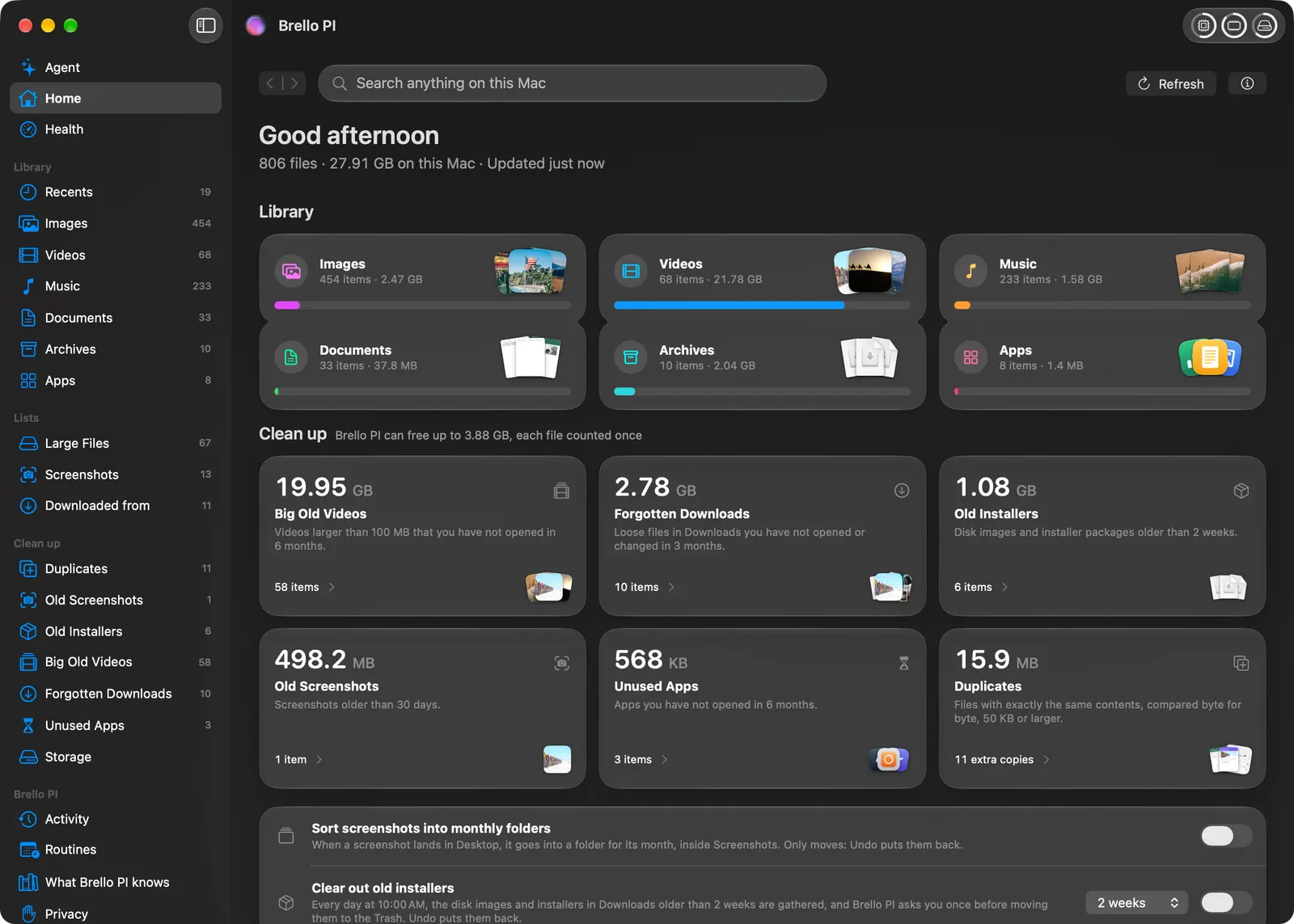
Brello’s Home and Storage count the same disk by the kinds of file you know, and Clean up lists what to clear by a rule you can read: big old videos, forgotten downloads, old installers, old screenshots, unused apps and duplicates. Each file is named before anything goes, and what goes lands in the Trash, with Undo.
| You want to | Storage settings | Brello |
|---|---|---|
| See the disk at a glance | The bar, by Apple’s categories | Home, by kind of file |
| Delete large files | Documents ▸ ⓘ, deleted at once | Clean up’s lists, to the Trash, with Undo |
| Delete old iPhone backups | iOS Files ▸ ⓘ | Not in Brello |
| Turn on iCloud storage and optimizing | Its recommendations | Not in Brello |
| Find duplicate copies | No | Duplicates, byte for byte |
| Know what System Data is | No breakdown | Storage marks caches apps make again |
Where Storage settings is the better choice
- The system’s own numbers. It knows how macOS counts System Data, snapshots and purgeable space.
- Its recommendations. Storing files in iCloud and removing watched TV shows are settings only macOS has.
- Messages, Podcasts and TV. Its lists for those apps’ attachments and downloads.
Where Brello helps
- Files, not categories. Home counts every image, video, song, document, archive and app, and Clean up says which files you can usually let go and why.
- Duplicates proven byte for byte.
- A second chance. Deleted files go to the Trash, as Finder moves them there, and Undo puts them back.
- Your Mac’s health beside its storage, in Health.
Which to use when
| You want to | Use |
|---|---|
| Turn on Optimize Storage, Store in iCloud or Empty Trash Automatically | Storage settings: these are macOS’s own switches |
| Delete old iPhone and iPad backups | Storage settings, under iOS Files |
| See your own files by kind, and search them in plain English | Brello’s Home |
| Find duplicates compared byte for byte | Brello’s Duplicates |
| See old installers, big old videos and forgotten downloads by name, and delete them with Undo | Brello’s Clean up |
| See which caches apps make again, and why each is safe | Brello’s Storage |
Using them together
They don’t conflict. Turn on the recommendations in Storage settings that suit you, then use Brello to see and clear what those switches don’t cover, file by file. Both count available space the same way, including space macOS frees by itself, so their totals agree. Brello’s deletions go to the Trash, so empty it, by hand or with Empty Trash Automatically, when you’re sure.
Questions about Storage settings
Where are Storage settings on a Mac? Apple menu ▸ System Settings ▸ General ▸ Storage. On macOS 12 and earlier, Apple menu ▸ About This Mac ▸ Storage ▸ Manage.
Why does Storage say “Calculating…” for so long? It measures every category, which can take minutes on a full disk or right after an update. Leave the window open; if it never finishes, restart the Mac and open it again.
Why is System Data so large? It holds caches, logs, Time Machine’s local snapshots, iPhone backups and other apps’ data that has no category of its own. What System Data is, and how to shrink it.
Do Storage settings delete anything by themselves? Only what you turn on: Optimize Storage removes watched films and TV shows from the TV app, and Empty Trash Automatically deletes items in the Trash after 30 days. Store in iCloud keeps recent files on the Mac and the rest in iCloud.
What can I safely delete from my Mac? Your own old downloads, installers you’ve used, videos you don’t need, duplicates, and the Trash. Leave System and Library folders to macOS. How to free up space.
A disk analyzer, if you want a picture
Storage settings shows categories, not folders. To see which folders are large, Brello’s Home and Storage show every kind of file with sizes and what’s safe to go; DaisyDisk ($9.99) and GrandPerspective (free) draw your disk as a map. DaisyDisk and its free alternatives.
What you need for Brello
Home, Clean up, Storage and Health work on any Mac with macOS 14 or later.
We make Brello. What Storage settings does was read on November 2, 2026, on macOS 27, and from Apple’s own pages: